Review a note
The review loop is the heart of the plugin: summon your editors, read what they found, judge each finding, move on. It is meant to feel like resolving merge conflicts, not like chatting.
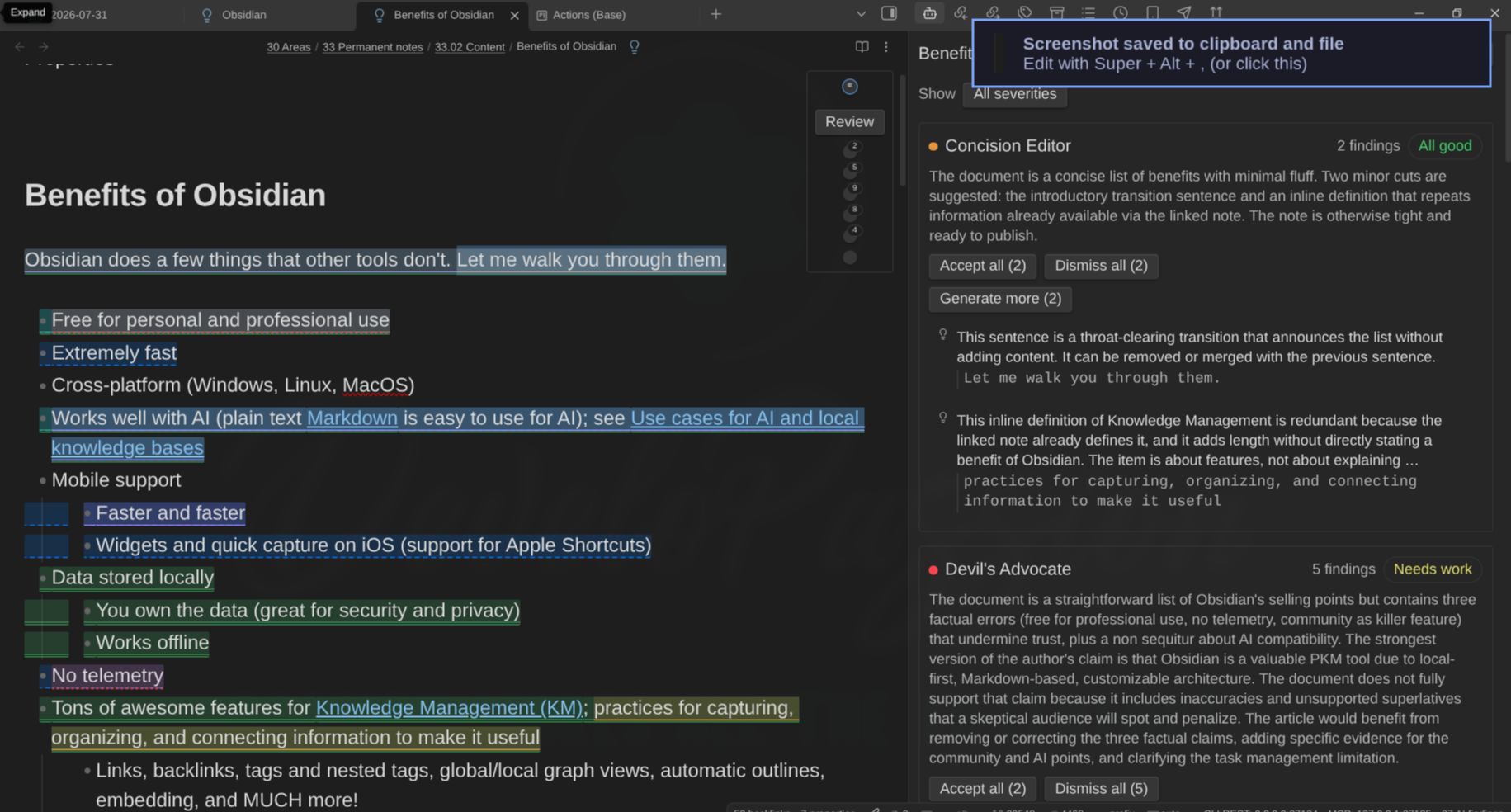
Start a review
| How | What it does |
|---|---|
| Review on the rail | Reviews the whole active note |
| Review current note | Same thing, from the command palette |
| Review selection | Reviews only the selected text |
| Right-click a selection | Review selection in the context menu |
| Selection on the rail | Appears attached to Review while text is selected — same scoped review |
| Right-click a note | Review note in the file explorer’s context menu |
| Review in the panel | Reviews the note the panel is bound to, without going back to the editor |
editor-ai-daemons:review | From the terminal — see The command line |
None of the commands ships a default hotkey. Assign your own in Settings → Hotkeys.
Who takes part: every enabled editor, unless a binding rule assigns a specific editor or panel to that note. Editors that cannot run — no backend, disabled backend, no model, review capability off — are reported, never silently skipped.
Notes above your Size warning threshold (default 8000 words) ask for confirmation before anything is sent. The guard prices what will actually be reviewed: a selection review counts the selection’s words, not the note’s, so reviewing a short passage of a long note never warns. Confirming never loses your captured selection — it rides through the dialog.
Reviewing again does not throw your work away. Starting a new review of a note that already has findings keeps them on screen — dimmed — while the new round runs, and everything you decided carries over: a finding the editor raises again keeps its identity and your verdict (a dismissed objection stays dismissed, even reworded), a finding the editor no longer raises disappears when that editor finishes, and if the new round fails or you cancel it, the previous findings simply return to normal. Reviewing a selection only ever replaces findings inside that selection.
The persona rail
Every markdown editor gets a small card in its top-right corner: the daemon toggle, a Review / Cancel button, and one named row per enabled editor.
- Every editor is named on its row. Nothing about the rail needs a hover to tell you who is who.
- Each row draws a ring around a dot in the editor’s colour, and the ring says what that editor is doing: dashed while it waits its turn, a sweeping arc while it works, a solid ring when it lands, the error colour when it fails, a muted one when it is cancelled.
- A live finding count sits at the end of the row and ticks up while findings stream in.
- Hover a row for the full name and the exact status — “Concision Editor — 3 findings”, “Devil’s Advocate — waiting”, “Fact Checker — failed (timeout)”.
- Click a row to cycle through that editor’s findings; its highlights flash briefly so you can see where they are.
- An editor that failed gets a Retry affordance right there.
- A panel is one row with a hollow centre where an editor’s is filled, its name carries “(panel)”, and its members are bracketed beneath it.
- The daemon toggle shows and flips daemon mode for this note (each note starts with it off), and pulses while a refresh is armed.
The rail floats over the note, so when you are not using it, it fades to a low opacity and the text underneath stays readable. Hovering it, tabbing into it, a running review, or an armed daemon refresh bring it back to full strength.
You can also collapse it with the chevron in its head: only the daemon toggle, a total finding count and the chevron remain — and Cancel stays visible while a review runs, so a collapsed rail never hides the way out. The state is global and remembered across notes and restarts; the chevron brings everything back.
While you have text selected (and no run is in flight), the Review button grows a small attached Selection segment — click it to review only the selected text, exactly like the context menu’s Review selection. It appears once the selection holds still for a moment, disappears the instant the selection collapses, and never shows on a collapsed rail. Clicking it does not steal focus or clear your selection.
Next to Review sits the findings visibility toggle (filled = shown, hollow = hidden; also the command Show/hide findings in the note): it clears every highlight, ring and card from the text without dismissing anything — the findings stay in the review panel and come back untouched. While hidden, the daemon is paused for that note (refreshing what you asked not to see is pure cost); showing them again resumes it, and a refresh arms if the text changed meanwhile. Per note, never remembered across restarts — a note always opens with findings shown. Summoning a review, or jumping to a finding from the panel, shows them again automatically.
In a narrow pane the rail gets denser — smaller type, tighter rows, long names shortened with an ellipsis — but the names never disappear. It stays a launcher there: the AI Editor Review panel is the full-size surface for reading findings, and the Review tooltip says so.
If your operating system is set to reduce motion, nothing on the rail animates and every state is still told apart by shape: dashed, arc, solid, error, muted.
Findings in the text
A finding highlights the exact span it quotes, tinted with its editor’s colour and carrying a per-editor edge style, so two editors are never distinguished by colour alone. Hovering one names the editor, its panel if it has one, the severity, and whether it is stale.
When a highlight covers a link, a plain click opens the finding’s card — the highlight is why you clicked — and Ctrl/Cmd+click follows the link as usual.
Keep typing — highlights follow your edits. Edit inside a highlighted span and the finding goes stale: dashed and dimmed, because its proposal was computed against text that no longer exists. A stale finding can still be dismissed; it cannot be accepted until the editor looks again — the card offers Regenerate for exactly that.
Severities are warning, suggestion and info. In the AI Editor Review panel each carries a shaped glyph, not just a colour.
On a note with an extreme number of findings, only the first 2000 in document order are highlighted in the text (plus whatever you are currently on). Every finding stays in the list and stays actionable; the panel says how many are listed but not highlighted.
The review card
Click a highlight to open a floating card:
- the editor’s critique and the quoted text;
- an old/new preview with Accept and Dismiss when the editor proposed a replacement;
- a reply box for pushing back.
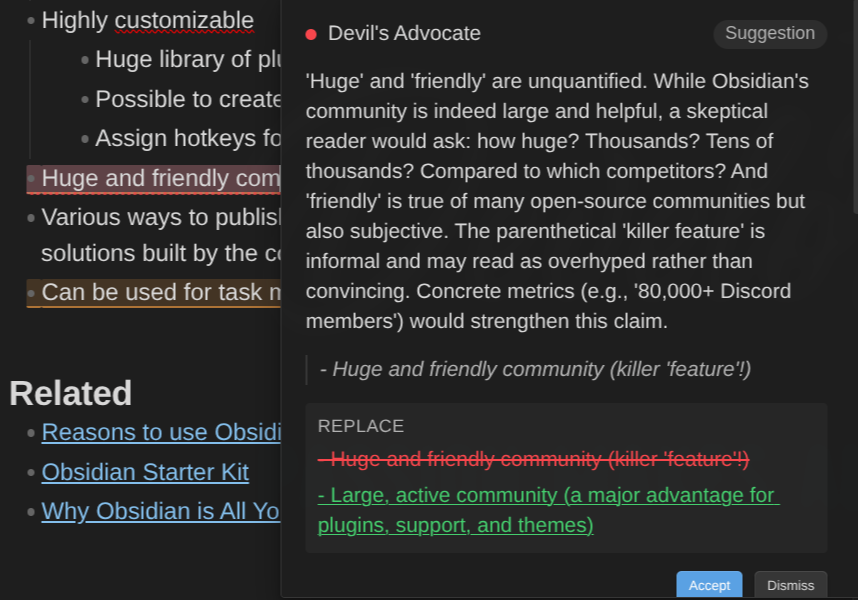
Overlapping findings stack in one card, innermost first. A proposal is one or more labelled edits — Replace, Insert above, Insert below, Delete — each previewed in its own shape: an insertion shows only what is added (your text stays), a delete shows only what goes. Accept applies the whole proposal as a single undoable edit — all of it or none, and only while the text still matches exactly what it was computed against. When it no longer matches, the card shows a Stale proposal badge and a Regenerate button instead: Regenerate re-runs the note’s review (same editors, same panel) so the editor can propose against the text as it reads now. Findings carried over from a previous review show the badge alone, and Regenerate needs the finding’s editor to still be enabled and the note open. A proposal the plugin could not validate is removed and the card says so — you still get the critique, never a wrong write. Escape, clicking away, scrolling, or editing closes the card.
Opening a card deliberately does not move focus: triage is driven from the keyboard and stealing focus would break the loop that opened the card.
Everything a finding says is selectable and copyable — critique, quote, edit previews, thread replies, in the card and in the review panel alike. A drag that starts inside the card keeps it open, and in the panel finishing a selection on a row does not jump to the finding. The card’s quote block and each proposed edit also carry a small Copy button that copies the text verbatim, whitespace included.
Keyboard triage
Every command below works from the palette or from a hotkey you assign.
| Command | What it does |
|---|---|
| Next finding | Walks the note’s findings in document order across all editors, wrapping around |
| Previous finding | The same, backwards |
| Accept current finding | Applies the replacement and jumps to the next finding |
| Dismiss current finding | Clears it and jumps to the next finding |
| Cancel review or action | Cancels whatever is in flight for this note |
Each step scrolls to the finding, rings it as the current one, and opens its card. Escape closes an open card while keeping your place in the loop; pressing it again leaves triage and the ring disappears. When nothing is left, the ring and card disappear on their own.
The AI Editor Review panel
Open review panel puts it in the sidebar, under the tab AI Editor Review. It shows:
- a header naming the note it is bound to, with its own Review button and an Ask for comments button;
- one section per editor: status, verdict, summary, and its findings;
- the scorecard on top when the run was a panel run;
- a Not anchored group for findings whose quote could not be located in the text — kept and shown rather than guessed into a position;
- the margin comments of the note.
Click any finding to jump to it and briefly select its span in the editor.
Right-click a finding (or press the context-menu key on it) for its actions without opening the card: Go to finding, Open card, Accept (when the finding carries an applicable proposal), Dismiss and Copy critique. Accept and Dismiss go through exactly the same path as the card’s buttons — Accept re-checks the proposal against the live text and is one undo step. Accept needs the note open in an editor.
Findings in the note properties. An editor may comment on the frontmatter (unless Strip frontmatter is on, in which case it never sees it). In Live Preview, Obsidian shows the frontmatter as the Properties widget, so those findings have no highlight to click. Their panel row says In the note properties, and clicking it opens the finding’s card directly; the right-click menu works on them like on any other finding.
Acknowledging clean editors. An editor that settled with nothing left to act on — no findings, or everything triaged — shows a small ✓ in its section header. Clicking it acknowledges the editor: its section leaves the list, so the panel shows only what still needs attention. Acknowledged sections are counted in a footer line (“2 all-good editors acknowledged · Show”) — never silently omitted — and one comes back on its own the moment its editor reports findings again; a re-review that is still clean stays acknowledged. Per note, and forgotten when Obsidian restarts.
Stepping through one editor’s findings. A section whose editor has two or more findings you can jump to carries a ‹ 2 of 5 › control in its header. The arrows walk that editor’s findings in document order and wrap around at both ends; the number says where you are, so you can tell when you have been round the loop, and the row it points at is marked in the list below. Each step scrolls to the finding, rings it as the current one and opens its card — exactly what Next finding does, and it moves the same cursor: the panel, the palette and the rail’s chips all leave the same finding current, so the ring, the counter and the marked row never disagree. Findings hidden by the severity filter, dismissed, or whose quote could not be located are not counted and not stepped onto; a section with fewer than two left shows no arrows.
The arrows are made to be pressed repeatedly, so a step from the panel keeps your keyboard on the arrow instead of moving it into the note: press Next five times in a row without touching the mouse. With a screen reader, each step is announced as “Concision Editor: finding 3 of 5”.
The panel’s Review button works on the note you are on, or the last one you were on if your focus is inside the panel. While a run is in flight it reads “Reviewing…” and refuses to start a second one — cancel from the rail or the Cancel review or action command. When the button is unavailable, hover it: the tooltip says why (no note open, note excluded by your privacy settings, a rule switched the plugin off for it, or no editor can review).
The status bar shows the number of open findings for the active note, and disappears when there are none.
The History tab
The panel has two tabs: Review (everything above) and History — the archive behind it. Every finding, push-back reply and panel scorecard lands there as it is produced — and every transform or generate proposal lands there as you accept or reject it, with your verdict — grouped by day (newest first) with filter chips by type and by editor, so “what did the Hater say before I re-ran it?” and “what did I dismiss ten minutes ago?” have answers. Entries are clipped records, selectable and copyable; a verbatim repeat of what an editor already said is not recorded twice.
By default history lives for the session. Turn on Durable history (Behavior settings) to keep it across restarts, per note — it is stored in the plugin folder and contains quoted text from your notes, which is why it is off by default, excluded from settings export, and clearable: per note from the tab’s footer, entirely from the settings. Old entries expire on their own (90 days, at most 100 per note). Excluded notes and notes a rule switched the plugin off for never get history at all — the same absolute rule as requests — and excluding a note later hides its already-archived entries without deleting them: un-exclude it and they are back.
Pushing back on a finding
Every card has a reply box. Type your objection — “I disagree, this repetition is intentional” — and press Enter or select Send. The message goes to the same editor that raised the finding, which answers one of two ways:
- It withdraws the finding — the finding is dismissed for you and the notice says why.
- It holds its position — the reply joins the card’s thread, and if the exchange sharpened its point, the critique and the proposed edits are updated in place. A revised proposal is re-anchored against your text as it reads now, so it only applies while its targets are unchanged.
A reply is a normal AI request: it takes a turn in the concurrency queue and obeys your request timeout. Closing the card does not cancel it — the answer lands on the finding and a notice tells you it arrived. Cancel review or action does cancel it.
Threads are capped at six exchanges per finding and last for the session only: nothing is written to your note or to disk. A failed reply keeps your message so you can send it again.
Asking a question
Ask a question (command, or Ask a question… in the selection context menu) opens a small dialog: pick an editor or a whole panel and type an instruction — “is this argument convincing?”. An editor answers with your instruction on top of its own persona; a panel runs all its members with the question layered on top of the charter, and the chairperson’s scorecard weighs the answers to the question you actually asked. Panel rows in the picker are marked (panel · N requests) so you can see the cost before you run it — asking a panel is one request per member plus the aggregation. The findings arrive exactly like any other review.
Bulk operations
- Accept all (n) in an editor’s panel section applies every non-conflicting proposal of that editor at once, as one undoable edit. Each finding’s proposal applies whole or not at all. Two proposals covering the same span cannot both apply: the first wins, the other is reported as skipped so you can re-review that span. Proposals whose text changed in the meantime are skipped too. A notice always says what was applied and what was skipped.
- Dismiss all (m) clears that editor’s findings for the note. It never touches your text.
- Dismiss all findings (n) — a run-level button above the sections — clears every editor’s findings for the note in one click. It appears when more than one editor has findings; with a single editor, that section’s own Dismiss all (m) is the same control.
- The palette carries the same per editor — Accept all from <Editor>, Dismiss all from <Editor> — plus Accept all non-conflicting findings and Dismiss all findings for every editor of the note at once.
Bulk operations respect the severity filter: they never touch a finding you cannot currently see.
Severity filter
Cycle severity filter (or the Show button at the top of the AI Editor Review panel) narrows what you look at:
All severities → Warnings and suggestions → Warnings only → back to all.
The filter is a lens per note, not a deletion. Hidden findings come back untouched when you cycle around. While a filter is active they disappear from the highlights and the list, triage steps skip them, and bulk operations leave them alone — the panel tells you how many are hidden. Rail counts keep reporting what each editor actually found.
Asking for more
When an editor has finished, its panel section gets a Generate more (n) button — n is how many findings it already reported. Pressing it asks that editor for additional findings on the note as it reads now; everything it already said stays exactly where it is.
- One press is one round. The button disables while its round runs, so you cannot buy two by double-clicking, and there is no automatic repeat.
- The editor is told what it already reported and asked not to repeat itself; anything identical that comes back anyway is dropped before you see it. It is allowed to come back with nothing, and often should.
- An editor that reported nothing still gets the button — “I found nothing” is worth challenging once.
- If the extra round fails or you cancel it, the section says so next to the button and your existing findings are untouched. The editor stays finished rather than failed, precisely so that Retry — which replaces an editor’s findings — is not offered to you at that moment.
- Generate more findings from every finished editor in the palette does one round for every finished editor of the note. One backend request each; a notice says how many were asked.
Retrying a failed editor
An editor that ended in error or was cancelled gets a Retry affordance on its rail row and in its panel section. Retry replaces that editor’s findings, which is why it is not offered to an editor that merely came back empty.
See what would be sent
Preview what will be sent opens a read-only modal showing the real assembly for one editor and one note: total characters against the budget, one row per section (system prompt, the note, every attached note) with its size and whether the budget truncated or dropped it, the resolved backend, and the verbatim system prompt with a copy button. It sends nothing.
The command also offers an Action picker, so you can preview what a specific action would send rather than a plain review. Both entry points assemble through the exact same code a real dispatch uses.