Create and tune editors
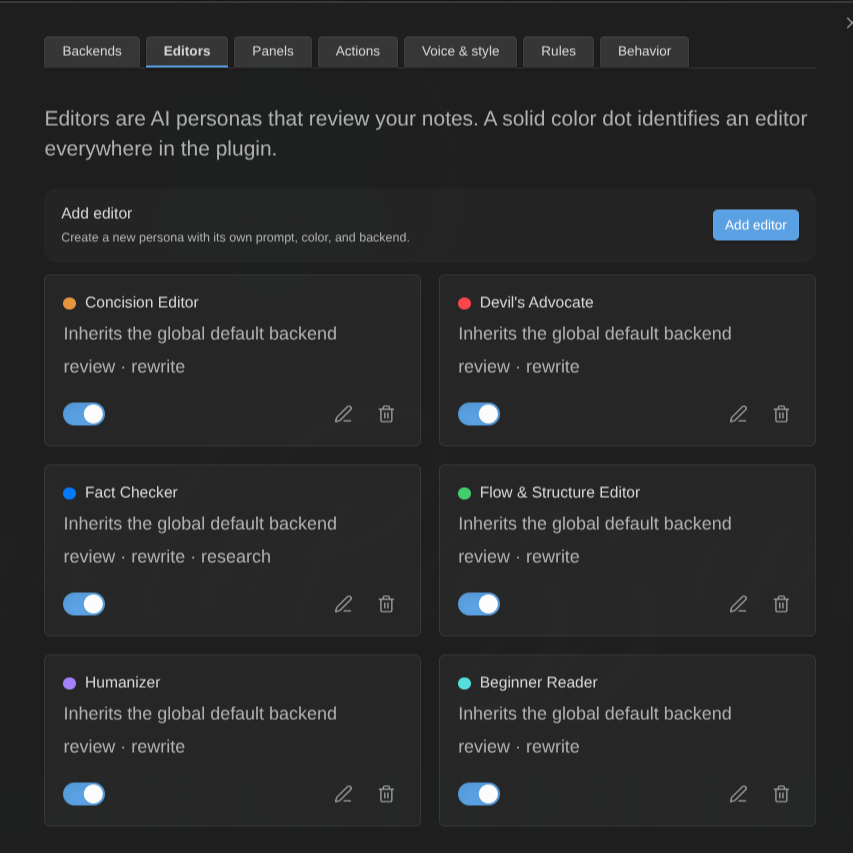
An editor is an AI persona: a name, a colour, and a prompt saying what it cares about. Seven ship with the plugin and every one of them is editable, renameable and deletable — they are examples, not fixtures.
Settings → AI Editor → Editors → Add editor, or select an existing one to open the same dialog.
The fields
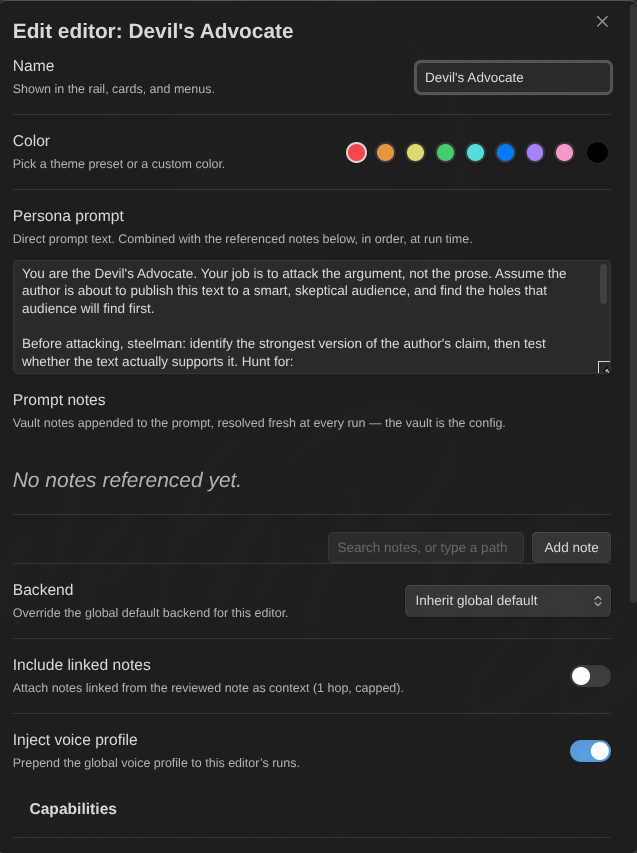
| Field | What it does |
|---|---|
| Name | Shown on the rail, in cards, menus and commands |
| Color | The tint of this editor’s highlights, and of its dot and status ring on the rail — a theme preset or any custom color |
| Persona prompt | Direct prompt text |
| Prompt notes | Ordered vault notes appended to the prompt, resolved fresh at every run |
| Follow links | Also inline the notes those prompt notes link to (one hop) |
| Backend | Override the global default backend for this editor |
| Model override | Only shown when a backend is set; empty means the backend’s default model |
| Include linked notes | Attach the notes the reviewed note links to as context |
| Linked notes cap | 1–20, default 5 |
| Inject voice profile | Prepend the global voice profile to this editor’s runs (on by default) |
| Capabilities | Review / Rewrite / Research |
| Learning memory | An extra prompt block — see below |
| Preview what will be sent | Assembles this editor’s context for the active note, using the values you have not saved yet |
Writing a good persona prompt
The seeded editors are worth reading as examples before writing your own. What they have in common:
- One mandate, stated first. “Your single mandate is economy.” “Your job is to attack the argument, not the prose.”
- An explicit hunting list — the specific things to look for, named concretely rather than as qualities.
- Restraint rules. When not to report. Every seeded persona has them, because a persona without them reports everything and becomes noise.
- A severity ladder — what counts as a warning versus a suggestion versus information, in this persona’s terms.
- Second person, direct. “You are the Fact Checker.”
Findings must quote your text verbatim; the prompt machinery already tells the model so. What you write is the judgment, not the output format.
The vault as configuration
Every prompt field takes direct text and/or an ordered list of vault notes. The notes are read fresh at run time, so editing the note is reconfiguring the editor — no settings round trip, no copy-paste drift. Keep your Devil’s Advocate’s brief in a note, revise it while you work, and the next review uses the new version.
Follow links adds one hop: the notes your prompt notes link to are inlined as well. Embeds count, duplicates are collapsed, and each referenced note contributes at most 20 followed links. Unresolved and non-markdown links are skipped silently. Notes excluded by your privacy settings are never attached and never followed.
Everything is subject to the context budget — see what actually gets sent.
Capabilities
Three toggles that decide what an editor is allowed to be asked:
- Review — may critique and flag findings. Off, and the editor is skipped by reviews with the reason “review capability disabled”.
- Rewrite — may propose replacement text. Off, and it is skipped by transform actions.
- Research — may look things up when the backend supports it. Only the Fact Checker has it on by default.
An editor with review off is not broken; it simply is not a reviewer. The skip is reported so you can see why it did not take part.
The order of editors
The order editors appear in on the Editors page is the order they run in, and the order they appear in on the persona rail and in the review panel. Drag a row by its handle to change it.
Put the editors whose findings matter most to you first. Results stream in as each editor finishes, so run order decides what you read first — on a long note with several editors that is the difference between triaging what you care about immediately and waiting for it.
The order applies to panel runs too. A panel’s membership says who takes part, never in what sequence: members are always dispatched in the order they sit in on the Editors page, whatever order you added them to the panel.
A disabled editor keeps its place in the list, so re-enabling it puts it back where you wanted it.
Disabling an editor
The Enabled toggle at the bottom of the dialog benches the whole persona. The moment you switch it off, the editor vanishes from every surface: its chip leaves the rail, its highlights leave the text, its section and findings leave the review panel, and daemon refreshes stop running it.
Nothing is deleted. The findings are hidden, not discarded — switch the editor back on and they return exactly as they were, no new review needed. (If a re-review of the note ran while the editor was off, that review replaced the note’s results without it, so there is nothing to bring back.) Deleting an editor is different: its existing findings stay visible on the note, attributed to the name the run knew.
Learning memory
An extra block appended to the editor’s system prompt — what this editor has learned about you.
- Off (default) — nothing added, nothing recorded.
- Vault note — the note at Memory note path is attached to this editor’s runs. Readable, editable, versioned by your vault like everything else. Stray spaces are ignored and
.mdis added for you when the path lacks it. The path must stay inside the vault: absolute paths and..segments are refused. - Plugin settings — the memory lives in a Memory text field right in this dialog, stored in the plugin’s own data.
You can write it yourself (“stop flagging my em dashes”, “this vault’s audience is developers”) — and the editor can learn it. While you triage findings, the plugin keeps a session-only journal of what you accepted, rejected, dismissed, argued the editor out of — and the push-backs the editor stood its ground on, so a session of pure arguing still teaches. The Distill editor learnings command turns that journal into a rewritten memory:
- Triage some findings from a memory-enabled editor, then run Distill editor learnings from the palette. (The command only appears when there is something to distill, and hides an editor whose distillation is already running.)
- One request runs on the editor’s own backend — this is the only cost, and it only happens when you run the command. Nothing is ever distilled automatically.
- The proposed memory opens in a dialog, editable, with the previous memory alongside. Save memory replaces the old memory wholesale (that rewrite is also how it stays short); Cancel discards the proposal and keeps the journal for a later try. If the destination changed while the dialog sat open — you edited the memory note or the field — Save refuses instead of overwriting your edits; cancel and distill again.
The journal lives in memory only — it empties on reload; saving a distilled memory clears the decisions that distillation saw, so anything you triage while the request is running stays queued for the next one. Findings from excluded notes never reach a distillation, and the learned memory never travels in a settings export.
The voice profile
Settings → AI Editor → Voice & style holds one global profile: direct text and/or vault notes, resolved fresh at run time like every other prompt source. It is prepended to every editor’s run unless that editor turns Inject voice profile off.
Follow links defaults to on here, unlike everywhere else: the motivating case is a My Voice Profile note that links out to your style notes, and following those links is the point.
Good material for it: sentence-length preferences, banned words, how much hedging you tolerate, whether you use contractions, who you are writing for.
What actually gets sent
Per run, in this order: the system prompt (voice profile + persona + memory), then the reviewed note, then the attachments — prompt note references, wikilinks written in the prompt text, links followed from prompt notes, and finally the reviewed note’s own links when Include linked notes is on.
The system prompt and the reviewed note are never truncated. Attachments are spent in that order and the last ones are dropped first when the context budget (default 200000 characters) runs out. Every candidate is accounted for, dropped ones included.
Use Preview what will be sent — the command, or the Preview button in the editor dialog — to see the real assembly with sizes before spending anything. The button previews your unsaved draft, which is the only useful answer while you are writing a persona; the command reads the live editor buffer, which is what a real run would send.
Deleting an editor
Deleting shows what points at it first — panels it belongs to, actions bound to it, rules that assign it — so you know what a deletion costs before it happens.