Run actions on a selection
An action is a verb you run on selected text — or, for the two placement verbs, on where you are in the note. Eleven ship with the plugin, and you can add your own.
Each action is bound to one editor (or, for review-class actions, a panel) in Settings → AI Editor → Actions. The starter pack binds sensible defaults, so the selection menu works out of the box.
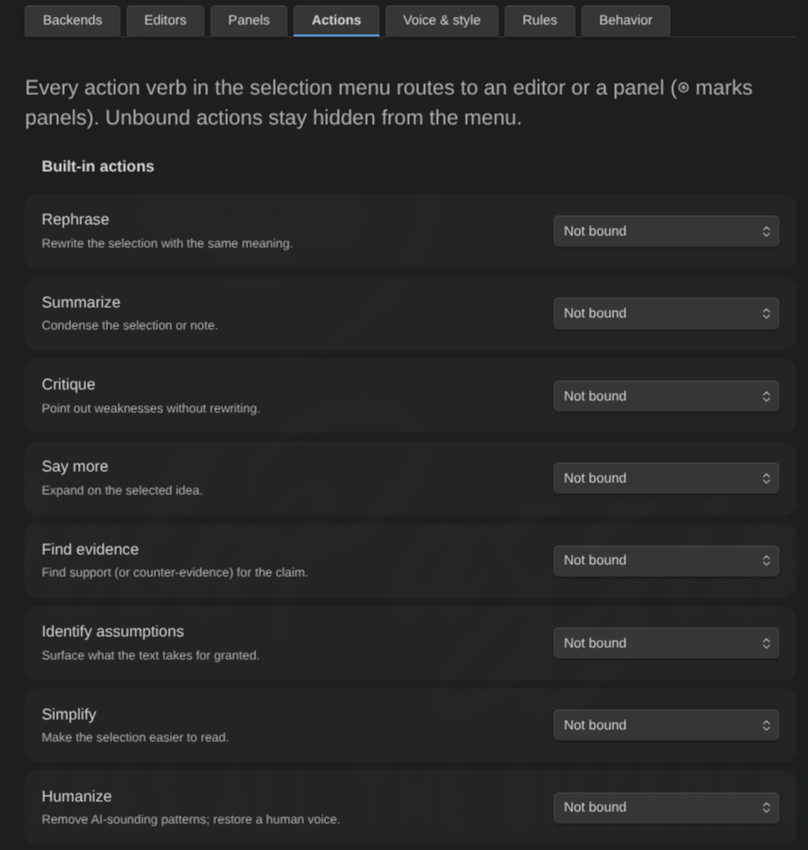
The built-in verbs
| Verb | What happens to the answer | Seeded binding |
|---|---|---|
| Rephrase | Replaces the selection | Concision Editor |
| Summarize | Replaces the selection | Concision Editor |
| Simplify | Replaces the selection | Concision Editor |
| Humanize | Replaces the selection | Humanizer |
| Continue writing | Inserted at the cursor | unbound |
| Say more | Inserted at the cursor | unbound |
| Expand section | Inserted at the end of the cursor’s section | unbound |
| Continue the note | Inserted at the end of the note | unbound |
| Critique | Comes back as findings | Devil’s Advocate |
| Find evidence | Comes back as findings | Fact Checker |
| Find references | Findings with addable sources | Fact Checker |
| Identify assumptions | Comes back as findings | Devil’s Advocate |
Continue writing, Say more, Expand section and Continue the note are deliberately left unbound: no seeded persona is an authorial voice, so any default would be a bad one. Bind them to an editor whose prompt describes your writing.
Expand section and Continue the note are the placement verbs: they need no selection, because the cursor is the gesture. Expand section develops the section the cursor sits in — from its governing heading to the next one of the same or higher level, nested subsections included — and inserts at that section’s end; right-clicking a heading line targets that heading’s section. Continue the note always appends at the very end, wherever the cursor is. Both send the whole note as context (through the normal budget), so the continuation knows everything that came before.
Running one
- Right-click a selection: the bound actions appear at the top of the context menu, with Review selection, Ask for comments… and Ask a question… underneath. Right-clicking without a selection offers just the bound placement verbs — everything else acts on a selection.
- Command palette: every bound action is also a command (for example “Humanize”), so you can assign it a hotkey in Settings → Hotkeys. Commands appear and disappear as you change bindings — no reload needed — and hotkeys survive renames, because command ids are stable.
An action bound to a panel says so in both places: “Critique (panel: Pre-publish review)”. One press there is one request per member.
What each class does
Rewrite verbs (rephrase, summarize, simplify, humanize) never touch your text directly. The proposal appears as an inline diff below the selection — old text struck through, new text underlined — with Accept and Reject. While the widget has focus, Enter accepts and Escape rejects.
Accept is a single undo step, and only applies while the selected text is unchanged; editing that text dismisses the proposal as stale rather than applying it somewhere it no longer fits. Either verdict — Accept or Reject — is archived in the panel’s History tab with the proposal it ruled on; a proposal you never ruled on (cancelled, superseded, gone stale) leaves no entry.
Generate verbs (continue writing, say more, expand section, continue the note) insert a proposed continuation through the same preview and the same Accept/Reject — after the selection or at the cursor for the first two, at the computed spot for the placement verbs.
Review verbs (critique, find evidence, find references, identify assumptions) run the ordinary review pipeline: findings arrive as highlights, exactly like Review selection, and are triaged the same way. They can also be bound to a panel, in which case the whole panel convenes — every member runs the action with the charter in its prompt — and you get a scorecard on top.
Find references goes one step further: each finding’s card lists the sources the editor attached, and every source the editor actually consulted carries two buttons — Add as footnote (an inline ^[…] footnote right after the claim) and Add to References (a bullet under your ## References section, created at the end of the note if it does not exist). A source the editor merely suggests is labeled “Not consulted — verify before citing” and gets no buttons: the plugin never writes an unconsulted citation into your note. Copy gives you the markdown either way. Editors on backends that cannot browse (most API backends) will mostly produce suggestions; a research-capable backend (a CLI agent with web access) is where this verb earns its keep.
Custom actions
Settings → AI Editor → Actions → Add custom action gives you your own verb.
- Name — what appears in the menu and the palette.
- Instruction — typed, and/or vault notes appended to it, with Follow links if those notes link out to more.
- Target — the editor that answers, or a panel for report-findings actions.
- What it does — the important one:
- Rewrite the selection — the answer replaces the selected text, through the same inline diff as rephrase.
- Write more at the cursor — the answer is inserted after the selection or at the cursor.
- Report findings — the answer arrives as highlights on the note. Only this kind can be bound to a panel.
There is no default for that last choice, on purpose. The same instruction means very different things depending on it, and an action that quietly rewrote text you only asked it to check would be the worst kind of surprise. Until you pick one — and until the action has a name and an instruction — it stays out of the menu and the palette, and its row says exactly why.
Changing a bound action away from report-findings clears a panel binding the new class cannot use.
A custom action’s referenced vault notes are inlined into its instruction (up to 10000 characters) at dispatch time, so an instruction can be a living note like every other prompt source.
When an action does not appear
- The note is excluded or a rule switched the plugin off for it — nothing is offered at all.
- The action is unbound — unbound actions are hidden rather than shown broken.
- The action is bound but cannot run (its editor is disabled, its backend is gone, the rewrite capability is off, the class was never chosen). The Actions page shows the reason under its row.
See what an action would send
Preview what will be sent has an Action picker: choose one and the preview shows what that dispatch sends, including everything the action’s instruction adds. Review-class instructions are appended to the system prompt; rewrite and generate instructions travel in the request payload, and the preview reports them separately with their size. An action that no longer resolves is reported as a refusal, because that is what the dispatch would do.