Notation blocks
Write a chord, a scale, a chord chart, a strumming or fingerpicking pattern or a progression as a small code block, and Music Practice draws it in reading view and live preview. The drawing comes from the Music Notation library; its guide lists every option.
Chord diagrams
```chord
A x02220 x01230
```
The short form is symbol frets fingers, lowest string first: x is a muted string, 0 an open one. With keys:
```chord
symbol: Bm
frets: x-2-4-4-3-2
fingers: x-1-3-4-2-1
```
- A finger on the same fret across several strings draws a barre. Frets without fingers draw a full barre too (F
133211). The chord’s root notes are drawn in a second color. - With a symbol only (
Am), the diagram uses the most common voicing from the built-in database (about 1,800 voicings);voicing: 2picks the next one. name: Aworks likesymbol: A, so chord notes written that way keep working.tuning: DADGAD,Drop Dor any notes for other tunings and instruments.caption: fingeringwrites how to play the chord under its diagram, for players who don’t read diagrams yet: “Strum from the 5th string (A). Index on the D string, 2nd fret.” It names barres, the thumb, muted and open strings and the capo, and works for piano chords too (“Left hand: little finger on E3. Right hand: thumb on C4…”). Put it in a first part before---to caption every chord of a row.
Piano chords, from a symbol or exact pitches, with fingering, in one hand or both:
```chord
Cmaj7
instrument: piano
voicing: shell
hands: left+right
fingering: auto
```
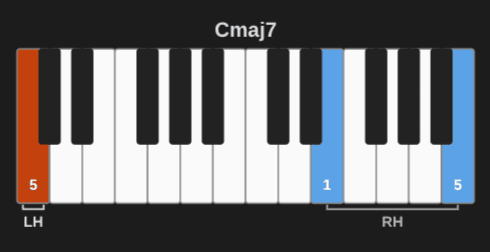
Keyboards and fretboards
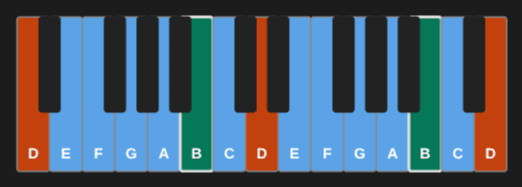
The notes of a scale, a chord or a list, with note names (the default), degrees (labels: degrees) or intervals (labels: intervals).
```keyboard
D dorian
```
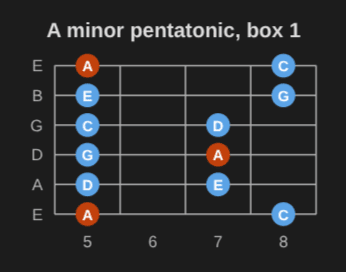
```fretboard
scale: A minor pentatonic
position: 1
```
On a keyboard, fingering: auto puts the standard fingering of a major or minor scale on the keys (auto left for the left hand), and fingering: auto both draws two keyboards: the right hand, then the left hand an octave lower.
Chord charts
Songs in ChordPro: chords in brackets inside the lyrics, sections, comments. {transpose: 2} moves every chord and the key.
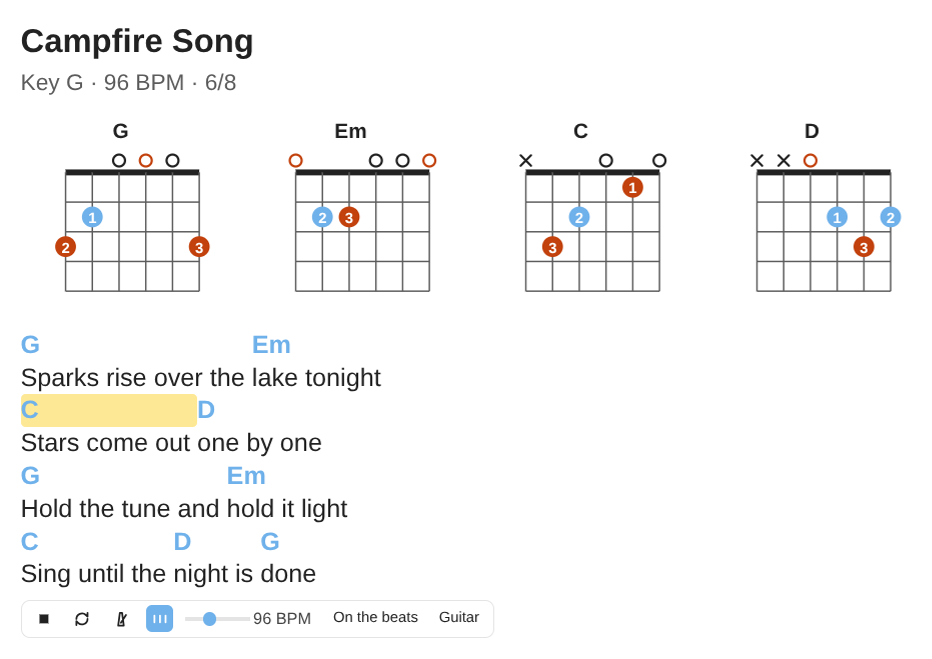
```chords
{title: Campfire Song}
{key: G}
{tempo: 96}
{time: 6/8}
{diagrams}

[G]Sparks rise over the [Em]lake tonight
[C]Stars come out [D]one by one
[G]Hold the tune and [Em]hold it light
[C]Sing until the [D]night is [G]done
```
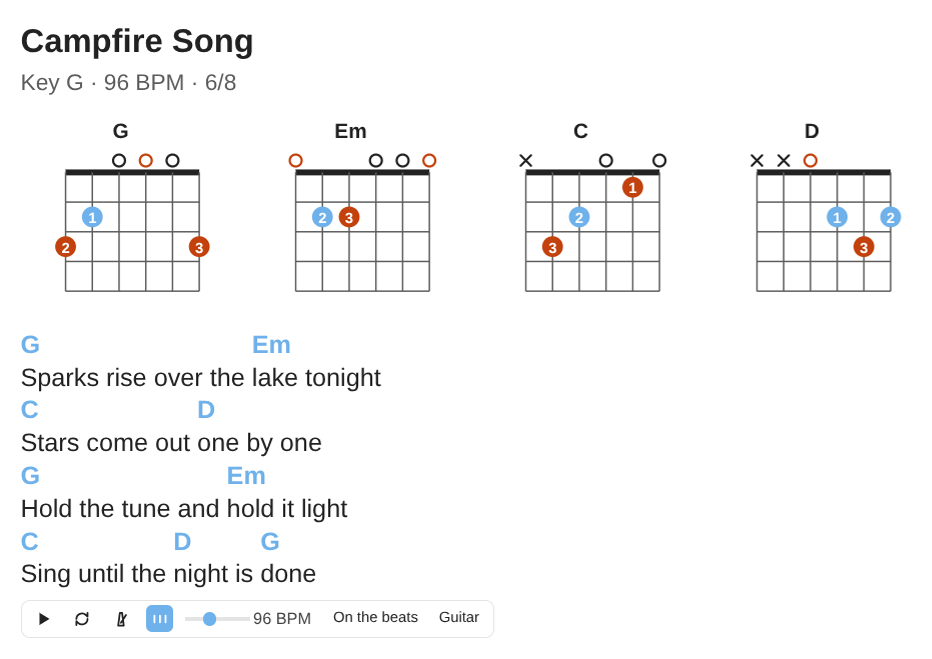
Want the chord shapes next to the song? {diagrams} draws every chord the song uses as a row above it, in the order they first appear ({diagrams: bottom} puts it under). {define} gives a chord your own shape, {chord: Am} draws one chord where you write it, and {instrument: piano} draws piano chords instead. With {capo: 2}, guitar diagrams show the shapes you play, with the capo drawn. See the guide.
A chart has a play bar under the song, the same as a progression: each chord above the lyrics plays for one bar, in order, at the song’s {tempo} and {time}. Bar lines change that (see Bars in a chart). A chord defined with {define} plays that shape, and the capo moves the sound. A chord the chart can’t read (N.C.) is skipped, except a bar of N.C. between bar lines: that bar is silent. The chord that plays lights up in the lyrics.
Bars in a chart
Write bar lines | in a chart line to say how long its chords last when the chart plays:
```chords
{time: 4/4}
| [G5]. . [D5]. [A5]. | [C] / / [G] | % | [N.C.] |
```
- The chords between two bar lines share the bar:
| [C] [G] |in 4/4 is two beats each. - Dots give each chord its beats, one dot a beat:
| [G5]. . [D5]. [A5]. |is two beats of G5, then one of D5 and one of A5. - A slash adds a beat to the chord before it:
| [C] / / [G] |is three beats of C and one of G. - A bar with no chord, or with only
%or lyrics in it, holds the chord before it. Above, G lasts five beats. - A bar of N.C. is a bar of silence. It keeps its time.
- A line without a bar line plays one chord a bar.
Dots and slashes count only when they add up to the beats of the bar. Else the chords share it. In 6/8, 9/8 and 12/8, a beat is a dotted quarter. The bar lines stay in the lyrics as you wrote them, so the chart looks the same. A chart you already wrote with bar lines, such as a 12-bar blues grid, plays with those lengths too. Practice this progression in time reads the bars the same way (see Usage). Every rule is in the guide.
Strumming patterns
A ` ```strum ` block draws a strumming pattern on a beat grid: the counts under each slot, an arrow for each strum, accents, muted strums and the chord changes above. Paste it the way you find it on the web: D - D U - U D U, D DU UDU and DDUUDU all work.
```strum
D - D U - U D U
chord: G
swing: yes
```
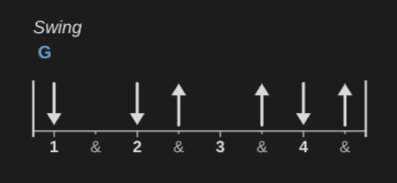
D>is an accent,Xa muted strum (a percussive chuck),(U)a ghost strum, and[G]a chord change. A line of chords above the pattern works too.time: 3/4(or6/8,12/8),subdivision: 16thsortriplets,chord: Amfor the whole pattern,tempo: 100for playback.swing: yesplays a shuffle feel, andswing: 60%a lighter swing. The pattern is still written in 8ths.- The bar under the pattern plays it over its chords, with loop, a count-in, tempo and volume, and lights the slot that plays.
Every symbol and option is in the guide.
Picking patterns
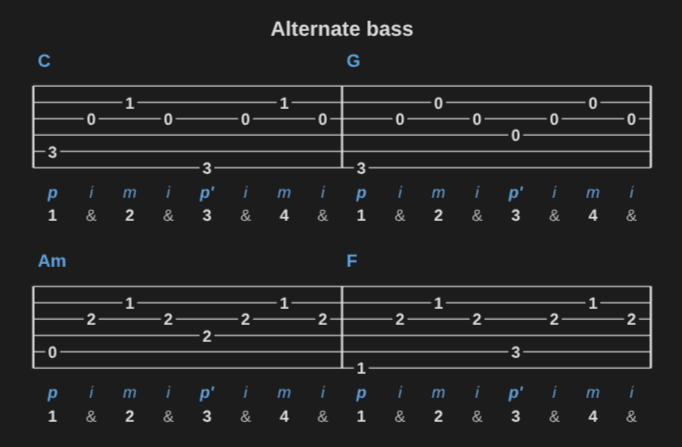
A ` ```picking ` block draws a fingerpicking pattern as a small tab: each note’s fret on its string, the finger under each slot, and the counts.
```picking
pattern: alternate bass
chords: C G Am F
```
- Write one slot at a time:
pis the thumb on the bass,p'the thumb on the alternate bass (the chord’s fifth), andi,m,athe fingers on strings 3, 2 and 1. A string number (5,3) works too,p+apicks two notes together,-is a rest and|a bar line. pattern: travis,pattern: alternate bassandpattern: 1-2-3-4fill a bar for you.chord: Amfor the chord picked,chords: C Am F Gfor one chord a bar,time: 3/4(as for strumming patterns),tempo: 80for playback.- The bar under the pattern plays it over its chord or chords, with loop, a count-in, a click (off by default), tempo and volume, and lights the slot that plays.
Every symbol and option is in the guide.
Progressions
A ` ```progression ` block writes a progression once and shows its chords in any key, each with its numeral and a diagram. Roman numerals (I V vi IV), Nashville numbers (1 5 6m 4) or chord names (G D Em C) all work.
```progression
ii V I vi
key: C
```
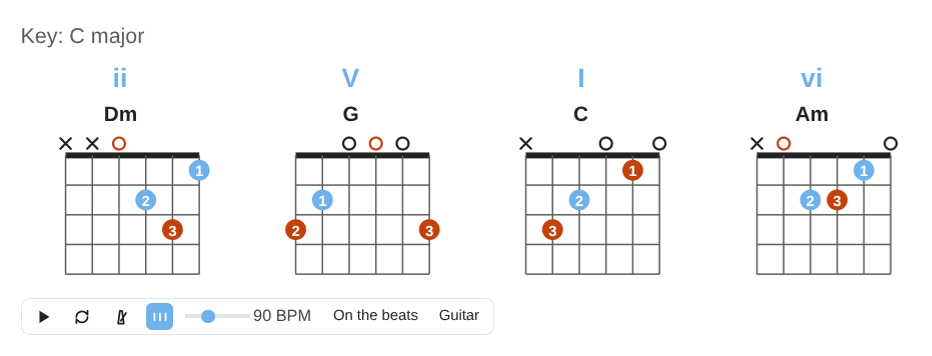
key: G,key: Emorkey: F# minor. Chord names without a key get the likeliest one, shown with the others it could be.transpose: -2moves the key, andfunctions: yeswrites each chord’s function under it (tonic, subdominant, dominant…).---starts a section in a new key.- Leave out the chords and write
harmonize: triads,sevenths,susorpowerto draw the chords of a scale, each with its numeral:key: A harmonic minorwithharmonize: seventhsgives AmMaj7 Bm7b5 Cmaj7#5 Dm7 E7 Fmaj7 G#dim7. Any 7-note scale works here, modes included (key: D dorian). - Guitar diagrams use the voicings that make the whole progression easiest to play.
instrument: pianodraws keyboards; addvoice-leading: yes, or a piano voicing such asvoicing: shellfor a ii-V-I. - A play bar under the chords plays the progression in time, one chord a bar, with loop, a count-in, a click (on by default), tempo, the strum and the sound. The chord that plays lights up. A click on a chord diagram plays that chord.
time: 3/4sets the meter,tempo: 80the tempo, andstrum:how each chord plays:beats(a strum on each beat, the default),bar,arpeggioor a strumming pattern (D - D U - U D U). - Practice this progression in time plays the note’s progressions and chord charts as a backing loop, with the speed trainer, and Save BPM offers the tempo you reach as the note’s current BPM. See Usage.
The numerals, minor keys and Nashville numbers are explained in the guide, and the play bar in play a progression in time.
Circle of fifths
A ` ```circle ` block draws the circle of fifths: the 12 major keys, their relative minors and the diminished chords, with each key signature around the outside. The key you pick has its chords tinted, with their numerals, and its IV and V stand out.
```circle
key: G
```
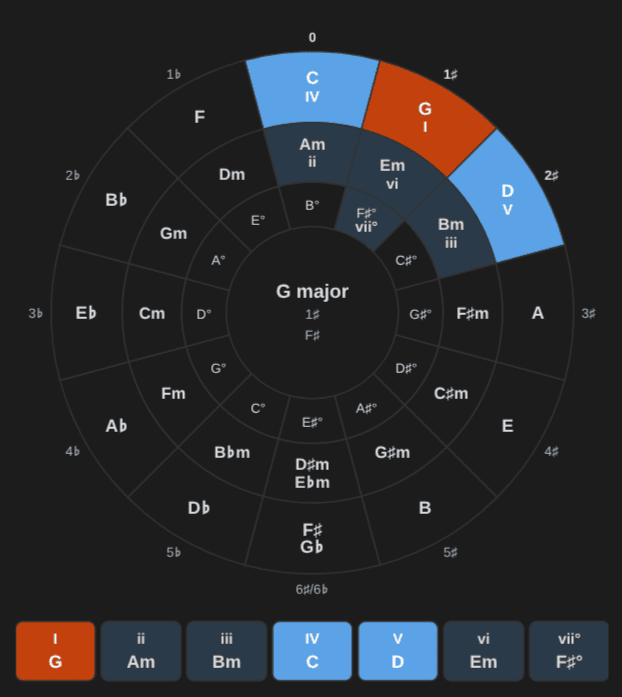
key: E minororkey: D dorianfor a minor key or a mode, andchords: seventhsfor seventh chords.- A click on a key or a chord plays it, and the play button plays the key’s scale.
See the guide.
Several diagrams
Separate diagrams with a line of three dashes to draw them side by side: a song’s chords, a progression, the positions of a scale.
```chord
G 320003 210003
---
C x32010 x32010
---
D xx0232 xx0132
```
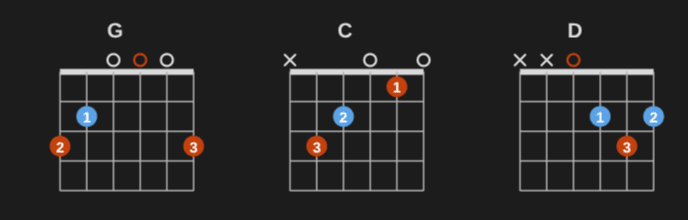
Settings shared by every diagram go first, before the first --- (orientation, hand, labels, and tuning or range); columns: 3 draws a grid. A mistake in one diagram doesn’t hide the others. Works in chord, keyboard and fretboard blocks; chord charts keep --- as text. A long title on a chord diagram or a fretboard, such as “F#m7b5, Drop 3 (strings 2-4, 6)”, wraps onto two or three lines instead of making the diagram wider. The other diagrams of the block keep the same room above them, so their necks stay in line. See the library’s guide.
Orientation and left-handed diagrams
Chord diagrams stand up by default (the nut on top); fretboards and keyboards lie down. orientation: horizontal or orientation: vertical in a block turns it; hand: left mirrors guitar chords and fretboards for left-handed players.
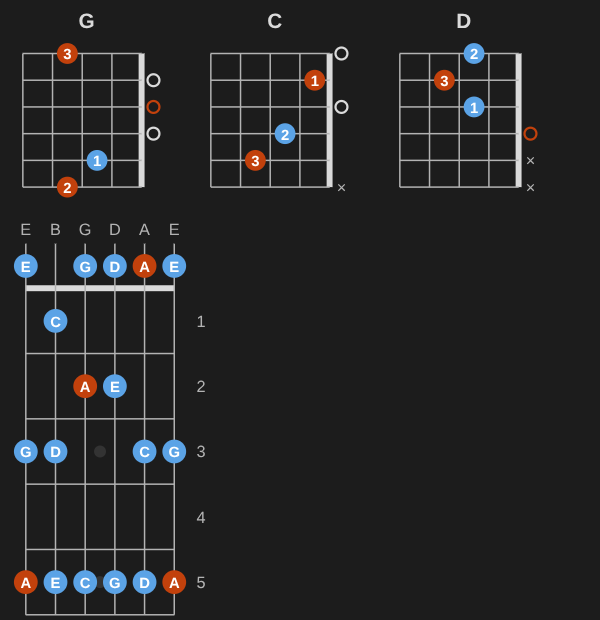
The defaults for every note are settings: Left-handed, and the orientation of chord diagrams, fretboards and keyboards (see Configuration). A block’s own orientation or hand wins over them.
Mistakes
A block with a mistake shows what’s wrong and what to write instead. The note itself is never changed.
Chords and scales, easier
The blocks accept chords in words and recognize chords from their frets, and draw scales and modes more ways (see the library’s guide):
- ` ```chord ` with
F Sharp Minor 7, or onlyfrets: x02220(named A). - Modes mark their characteristic note in a third color;
compare: majorshows what changes from the major scale. - Fretboards draw one position (
position: 2,shape: E,shape: 3nps) or all of them in a row (positions: all);modes: C majordraws every mode of a key. - ` ```chord ` with
triads: 1-3draws a chord’s triads on a string set (orkey: G majora key’s), with R, 3, 5 in the dots.from: C x32010withto: Amdraws the easiest ways from one chord to the next, with the fingers that stay or slide marked.progression: G D Em Cdraws the smoothest voicings of a progression. -
capo: 2on a `chord ` or `fretboard ` block draws a capo. Frets count from it, so an A shape is stillx02220, and playback plays the notes that sound;sounds: yesadds the chord you hear (“Capo 2, sounds B”). See capo.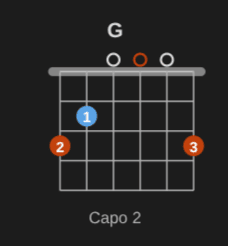
-
arpeggio: Am7on a fretboard draws a chord’s notes with their intervals;positions: alladds its CAGED shapes up the neck. See arpeggios.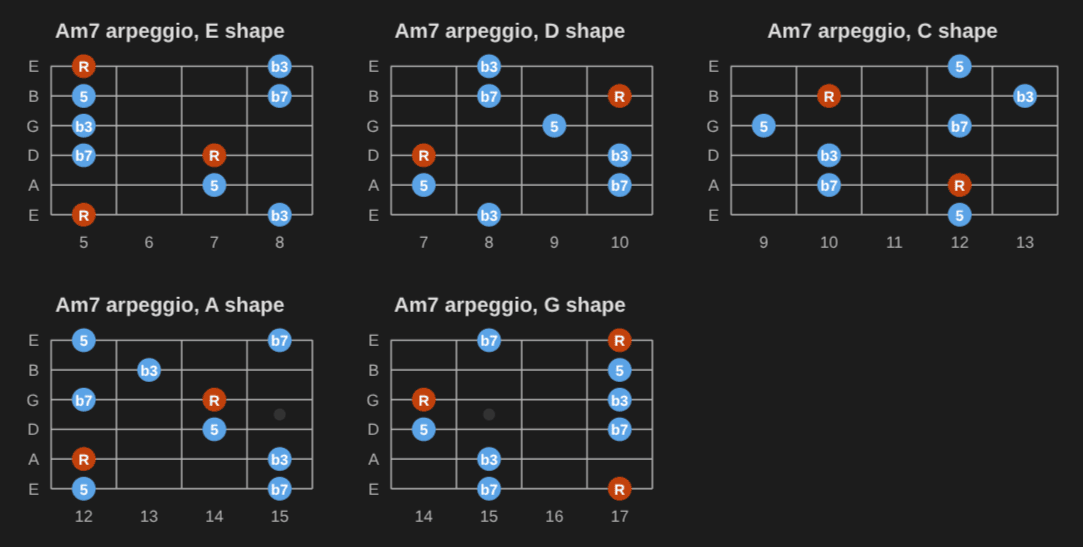
-
exercise: up-down(orup,down) on a fretboard with one position (position: 1,shape: E) draws the run of the scale or arpeggio as a tab under the diagram, to play in time.rhythm:is8ths(the default),tripletsor16ths, andtempo: 80sets the tempo. Withcapo: 2, the tab shows the frets the diagram shows, counted from the capo, and sounds where the capo puts it.frets-from: nutshows the real neck’s frets. A minor pentatonicposition: 1withcapo: 2is a tab on frets 3 to 6, or 5 to 8 from the nut. Insert a tab exercise of this scale or arpeggio writes the same run as a tab block in a scale or arpeggio note. See tab exercises and Usage.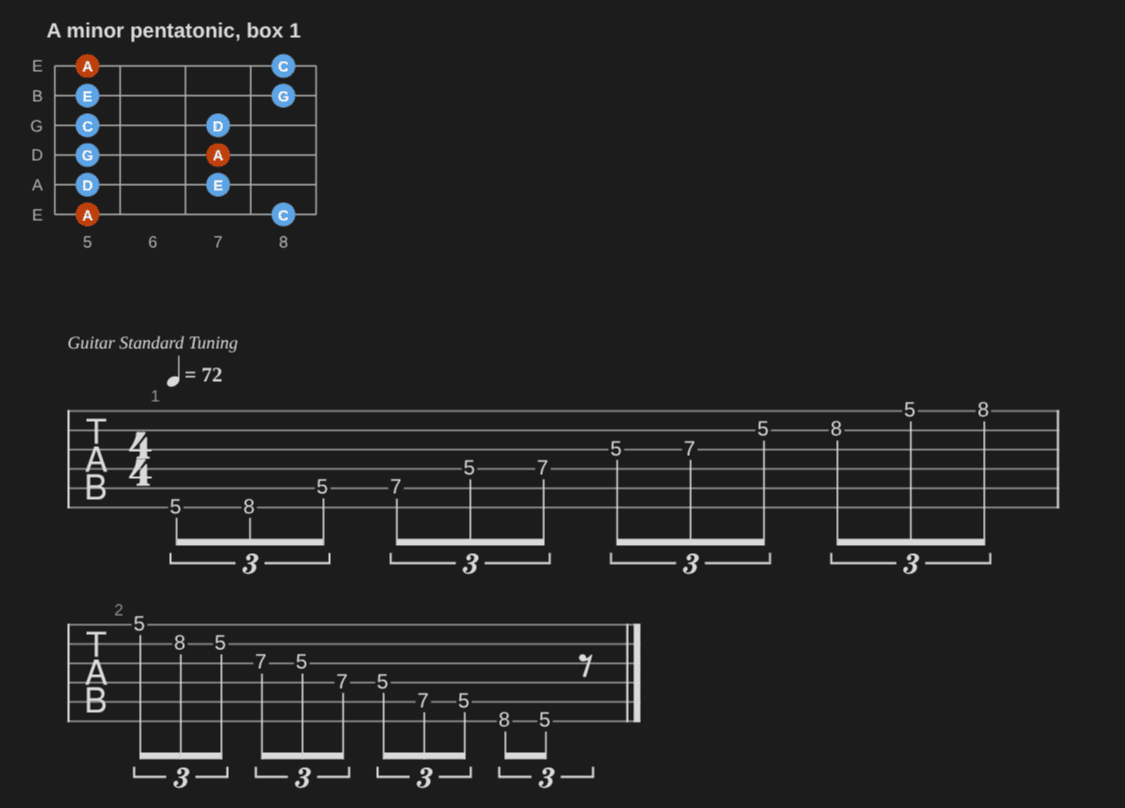
- Piano chords take
inversion: first,voicing: shell(oropen,rootless A,rootless B),hands: left+rightandfingering: auto. See piano voicings. -
scales-for: G D Em Con a fretboard or keyboard draws the scale that fits a song’s chords. See which scale fits.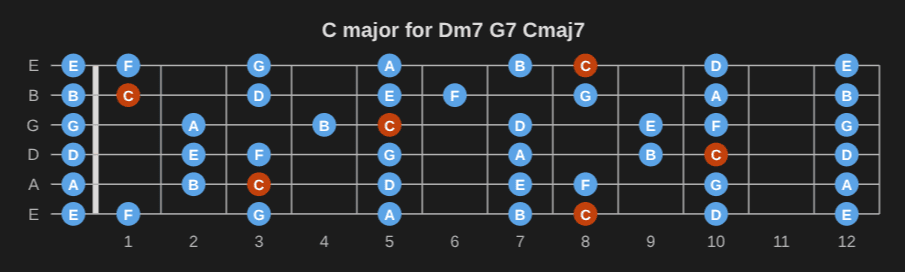
scale:withchord:keeps the scale drawn and marks the chord’s notes: the notes to aim for when you solo over that chord.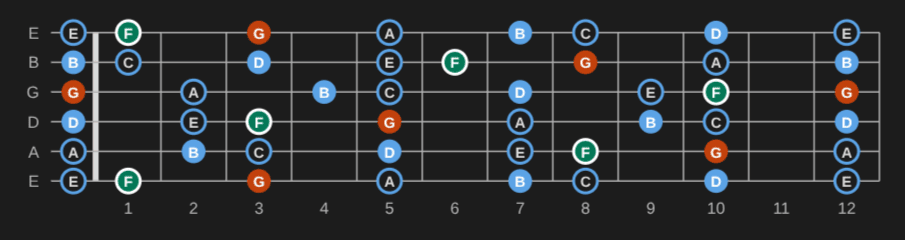
-
` ```chord ` with
voicings: 6(orvoicings: all, at most 32) draws one diagram per shape: the easiest ones, in a row up the neck, each with its name (“Open”, “E shape”, “Hendrix chord”, “Strings 3-6”).area: 5-9,root-string: 5,strings: 1-3,inversion: anynarrow them down (see the guide). The Voicings of this chord command shows every voicing of a chord note, and adds the one you pick as its own note.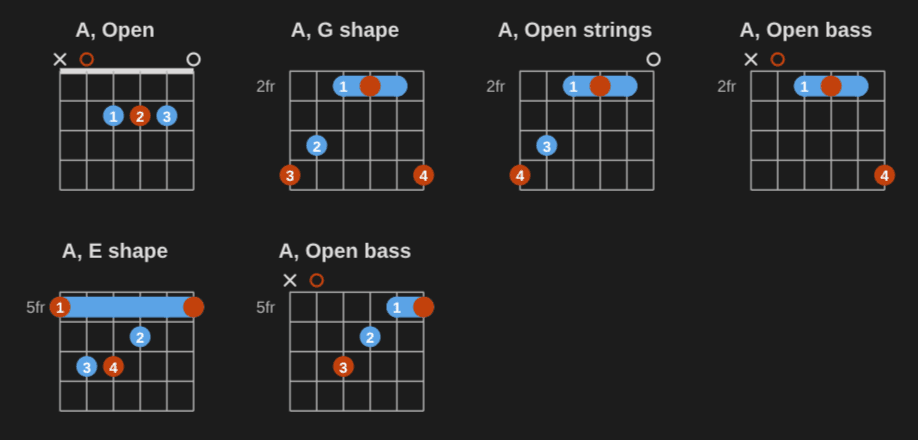
Notes draw their own diagram
An empty ` chord ` block in a chord note, or an empty `fretboard ` / ` ```keyboard ` block in a scale note, draws what the note’s properties say: the chord symbol, frets, fingers and position (guitar), pitches and fingering (piano), or the scale’s root, type and shape (a box, CAGED shape or 3NPS) and fingering. The templates already have that empty block, and new notes from Add a learning note keep it empty, so a note never repeats its frets or scale in the body. Editing a property redraws the diagram. A block with content draws its content. The property names are settings (Settings → Music Practice → Property names).
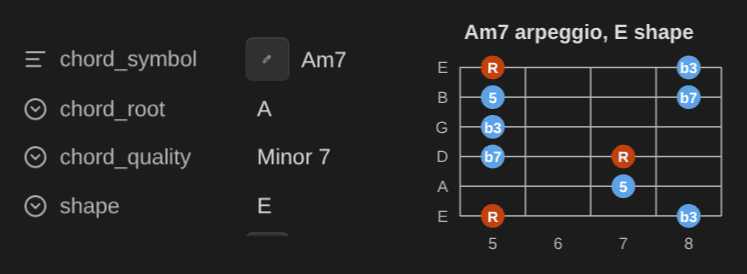
Arpeggio notes draw the same way. An empty ` fretboard ` block (`keyboard ` on piano) draws the arpeggio of the note’s chord, in its CAGED shape when it has one. A guitar chord note’s empty ` ```fretboard ` block draws its chord’s arpeggio too.
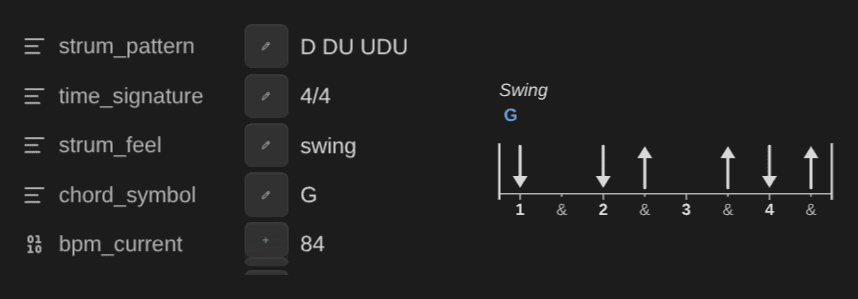
A strumming pattern note’s empty ` ```strum ` block draws its pattern, with its time signature, its feel and its chord, and plays it at the note’s current BPM.
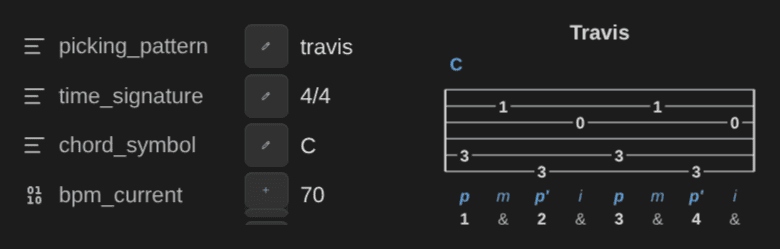
A fingerpicking pattern note’s empty ` ```picking ` block draws its pattern, with its time signature and its chord, and plays it at the note’s current BPM.
Identify this chord names a chord note from its frets or pitches when it has no chord symbol yet. See Usage.
Hear the diagrams
Click a chord, keyboard or fretboard diagram (tap it on a phone or tablet) to hear it, and click it again to stop it. A click on a dot or a key plays only that note. With the keyboard, Tab to a diagram and press Space or Enter. Guitar chords strum from the low string up and ring, and piano chords sound together. Scales play every note drawn: from their lowest tonic up to the highest note, down to the lowest, and back to the tonic.
Under each block, one bar plays its diagrams: play / stop, Play all in turn when the block has several diagrams (a row of voicings, the positions of a scale; a beat of silence between two), loop, speed (when several notes play, with its value: “90 BPM”, “12 ms”) and sound (guitar or piano; the other instrument redraws every diagram of the block for it). In a row, the diagram you clicked last is the one the bar plays and names. The volume is not on the bar: set it in Settings → Playback, and it applies at once to every bar.
While a diagram plays, each note lights up when you hear it: the dot, the key or the string’s mark. A strummed chord lights its strings from the low one up, and a clicked note lights only what you clicked. Stop, or a new sound, turns every light off. On the first play, the soundfont takes a moment to load: the lights wait for it, so they always match what you hear.
On phones and tablets, chord diagrams and fretboards are a third larger, so each string is easier to tap. They still fit the page.
Strumming and picking patterns have their own bar (see Strumming patterns and Picking patterns). Progressions and chord charts have a bar that plays them in time (see Progressions). In a learning note, each of these bars ends with Save BPM (the gauge icon). It opens Set BPM with the tempo set on the bar, rounded. In 6/8, 9/8 and 12/8, that tempo counts dotted beats, as the note’s BPM does. The circle of fifths plays a key or a chord when you click it.
The sound comes from a soundfont of recorded instruments, bundled with the plugin, so it works offline. Settings → Playback switches to a lighter synthesizer or turns the bar off.
Play this chord or scale plays the current chord or scale note.
Tabs and scores
` tab ` and `score ` blocks are written in alphaTex and drawn by alphaTab. alphaTab is bundled with the plugin, so nothing is downloaded and it works offline:
```tab
staves: both
\tempo 90
.
:8 3.6 0.4 0.3 0.2 3.6 0.4 0.3 0.2 | 2.5 0.4 1.3 1.2 2.5 0.4 1.3 1.2
```
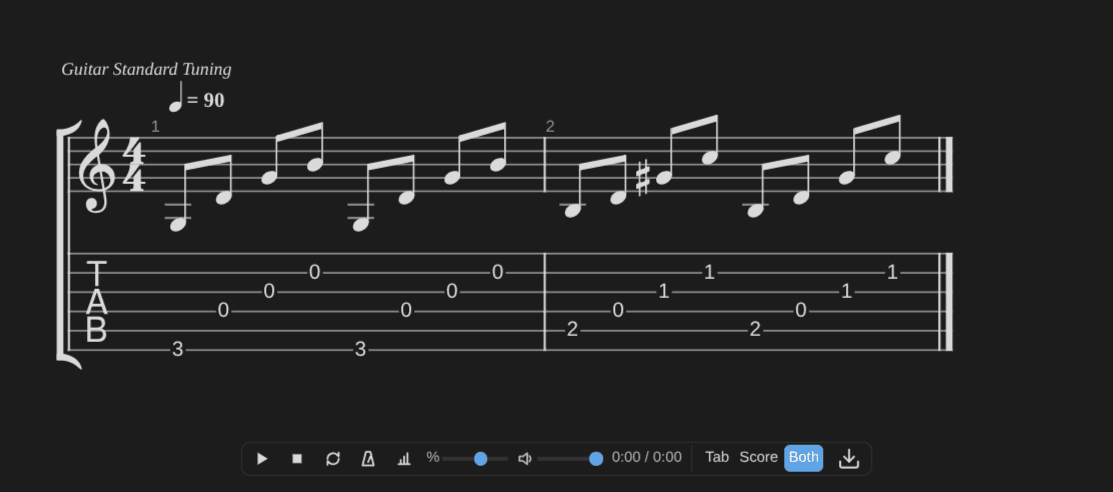
staves: tab | score | bothgoes on the first line. By default,tabblocks show tablature andscoreblocks show notation.- The player bar has Tab, Score and Both. The view you see is lit. Select another one to see the music that way: the note doesn’t change. To keep it, select Keep this view: it writes the
staves:line at the top of the block (Ctrl+Z, or Cmd+Z, undoes it in editing view). Drums and piano have no tablature, so their blocks have no view buttons. file: [[Song.gp]]draws a Guitar Pro (3–8), MusicXML or Capella file from your vault instead.tracks: 1 2picks the tracks.- Hover the music (tap it on a phone) for the player: play / pause, stop, loop, metronome, count-in, speed, volume, and Export (Guitar Pro 7 or MIDI, saved in your attachments folder, or print in black on white). In a learning note, Save BPM opens Set BPM with the tempo the music plays at: its tempo times the speed set on the bar. The sound loads at the first Play. While the music plays, a line follows the beat and the notes that sound light up.
- Tabs work in popout windows too, and when you drag a note to another window.
- A block with a mistake shows an error message. Open Block text under it to see what you wrote; the line with the mistake is marked.
- Insert a tab block starts one at the cursor, on its own lines. Insert a tab exercise of this scale or arpeggio writes the run of a guitar scale or arpeggio note as a tab block (see Usage). The imports turn files and pasted tabs into blocks.
Plain-text tabs
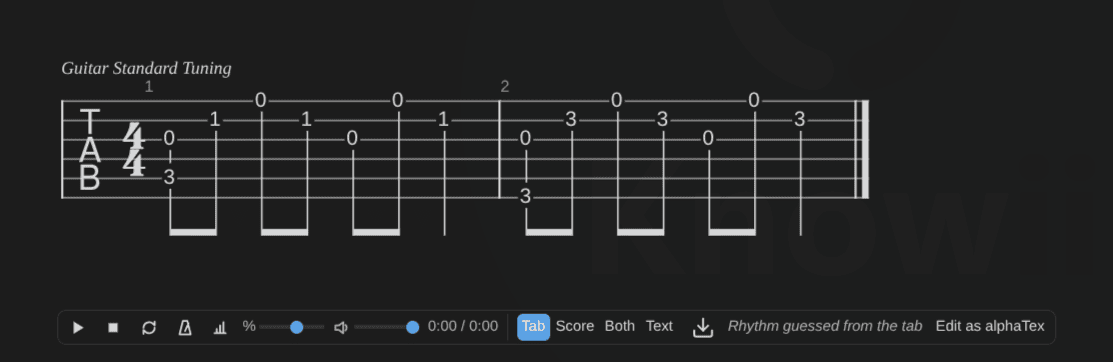
- A `
tab ` or `score ` block that holds a plain-text tab (e|---0---|lines) shows as tablature, and you can play it. Your note doesn’t change: the tab is read again each time the block shows. It shows tablature unless you write astaves:line, and keeps itsstaves:andtracks:lines. Text tabs have no exact rhythm, so the rhythm comes from the spacing, and the player bar says Rhythm guessed from the tab. - Text in the player bar shows the block as you wrote it. Show as tab under the text goes back.
- To correct the rhythm or the techniques, select Edit as alphaTex (in the player bar, or under the text), or put the cursor in the block and run Edit this text tab as alphaTex. The block becomes alphaTex, and your original text tab is kept in a comment at its end. Settings lines at the top (
staves:,tracks:,file:) stay as they are, and a block in a list or callout stays in it. To go back, select Undo in the notice, or press Ctrl+Z (Cmd+Z) in editing view. On canvas cards, the block shows as tablature, but there is no Edit as alphaTex and no Keep this view. - The converter reads string tabs (
e|---0---|), drum tabs (HH|x-x-x-x-|, read as a drum track), strings numbered1|to6|, and a single named line (A|--0--3--|) or a few. A text tab it can’t read shows as code. A blank stave, with no note on it, stays text too: it’s a template you fill in by hand.
The full syntax, with triads, chord transitions and every option, is in the library’s guide.
Play-along blocks
A ` ```playalong ` block plays a recording of your vault with an A-B loop, the speed without a pitch change, its sections and a count-in (how to use it):
```playalong
file: [[Wonderwall.mp3]]
tempo: 87
0:00 Intro
0:12 Verse
0:45.5 Chorus
```
- The recording: a
file:line, or a line with only the link ([[Song.mp3]],![[Song.mp3]],[Song](Music/Song.mp3)) or the path. Audio: mp3, m4a, wav, flac, ogg, oga, opus, 3gp, aac. Video: mp4, webm, ogv, mov, mkv, m4v. A video shows its picture; whether a file plays depends on your device, as for Obsidian’s own embeds. tempo: 87: the recording’s tempo at full speed, for the count-in and Save BPM. Optional: without it the note’s target BPM counts, and a tempo you tap on the player is written here.- A section: its time (
0:12,12:05,1:02:03, with up to three decimals:0:45.5), then its name. The name can be empty. The player shows the sections in time order, and Add a section writes new ones in that order. - A line the player can’t read is named under the player (“Line 4 is not a section: write 0:12 Verse”); the rest works. A block without a file, or with a file that isn’t in the vault or isn’t audio or video, shows a message and its text.
Turning blocks off
Settings → Music Practice → Notation blocks has one switch per kind of block, and Play-along has the switch for ` ```playalong `. A block turned off shows as code. When another plugin already draws one of these code blocks, Music Practice leaves it alone and says so there.
Music Practice claims its blocks once Obsidian has started, so plugins enabled at startup keep theirs. If you enable another plugin later that draws chord, chords, keyboard, fretboard, strum, picking, progression, circle, tab or score blocks, it can’t register them while Music Practice holds them: turn that block off here, reload Music Practice, then enable the other plugin.
Obsidian Publish
Obsidian Publish doesn’t run plugins. ` ```playalong ` blocks show as code there. To draw the other blocks on a Publish site, add the loader from the library’s Publish guide to your site’s publish.js. Pin the library at 0.8.0 or later (0.11.0 for picking patterns, tab exercises, and progressions and chord charts that play in time, 0.12.0 for bars in a chart, tab exercises with a capo and long titles that wrap), and keep strum, picking, progression and circle in the loader’s list of block languages: without them, those blocks stay code on your site.
Your layout settings (left-handed, orientations) stay in Obsidian. To get the same on your site, set them at the top of publish.js, before the loader:
window.musicNotationOptions = {
    hand: 'left',
    orientation: { chord: 'vertical', fretboard: 'horizontal', keyboard: 'horizontal' }
}
Blocks that say orientation: or hand: look the same everywhere.
Empty blocks in chord, scale, arpeggio, strumming pattern and fingerpicking pattern notes draw from the note’s properties on your site too: give the library the page’s properties (Obsidian Publish keeps them in its cache).
window.musicNotationOptions = {
    // The page's properties; nothing for embedded notes and hover previews (they aren't this page).
    properties: (el) =>
        el.closest('.markdown-embed, .popover')
            ? null
            : app.site.cache.cache[app.currentFilepath]?.frontmatter
}
Pin the library at 0.3.0 or later in the loader: 0.10.1 for arpeggio and strumming pattern notes, 0.11.0 for fingerpicking pattern notes. The library reads the default property names (chord_symbol, frets, fingers, scale_root, picking_pattern…). If you renamed them in the settings, pass the same names as propertyNames.