Usage
Video tour
Prefer watching? Here’s a full walkthrough of the plugin (~25 minutes), covering the boards, calendar, timeline, triage, WBS, and embeds:
Add a Kanban view to a Base
- Open a Base (or create one).
- Add a new view and choose Kanban from the view-type picker.
- The Base’s filters decide which notes appear, and each note becomes a card.
You can add several Kanban views to the same Base. Each one is independent.
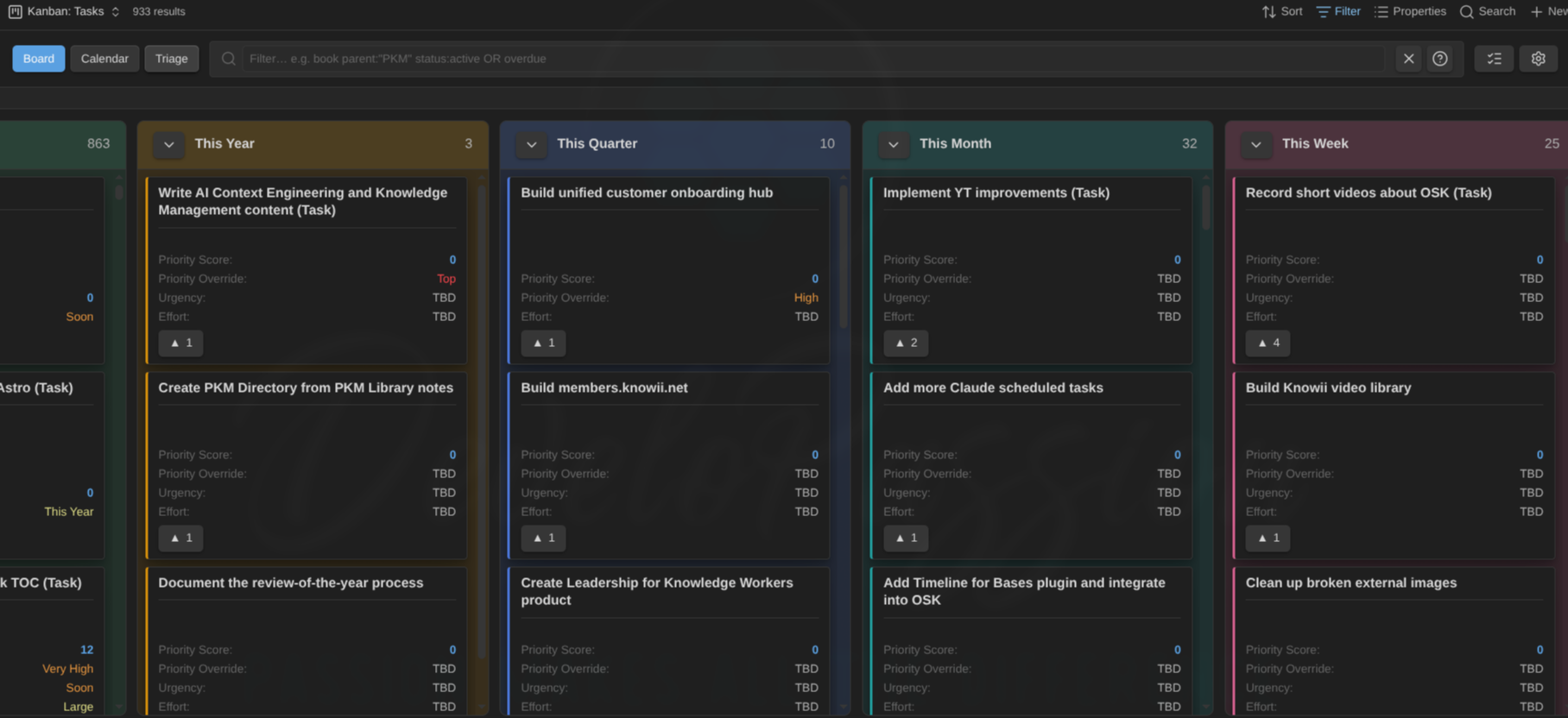
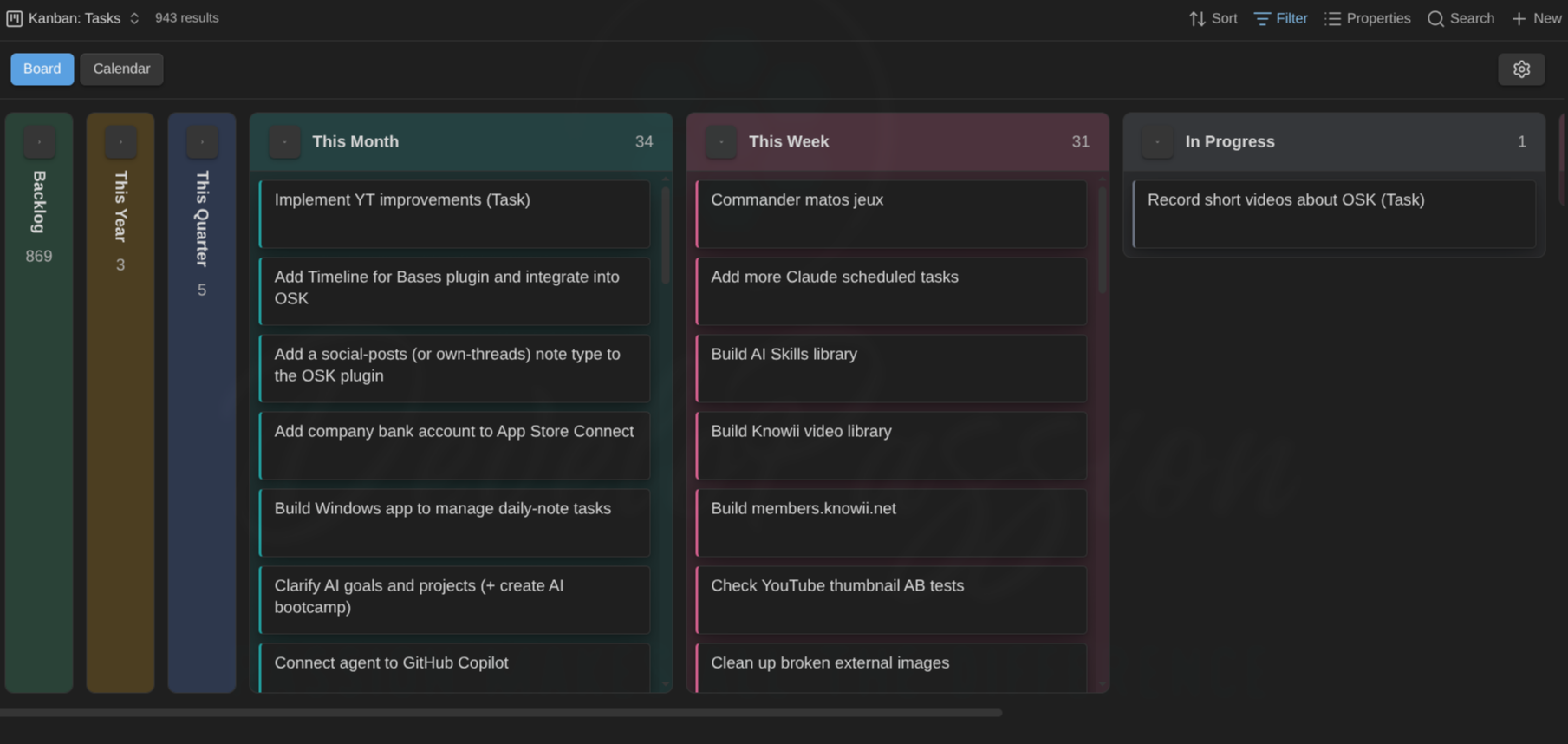
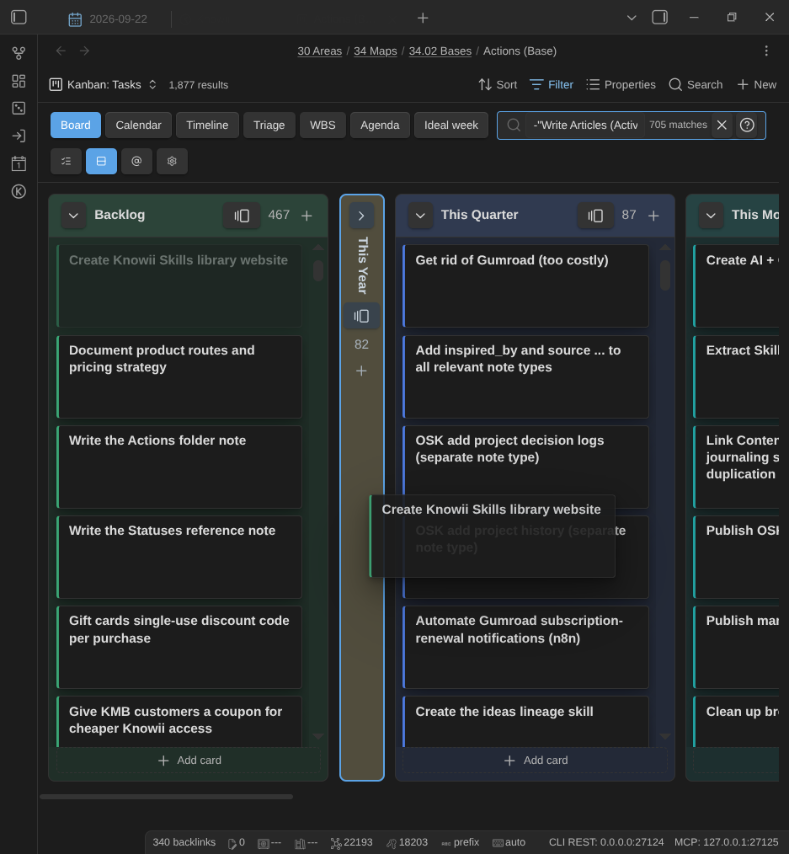
The same idea scales to a large base. Collapse the columns you don’t need right now to keep the backlog out of the way:
Embed a board in a note
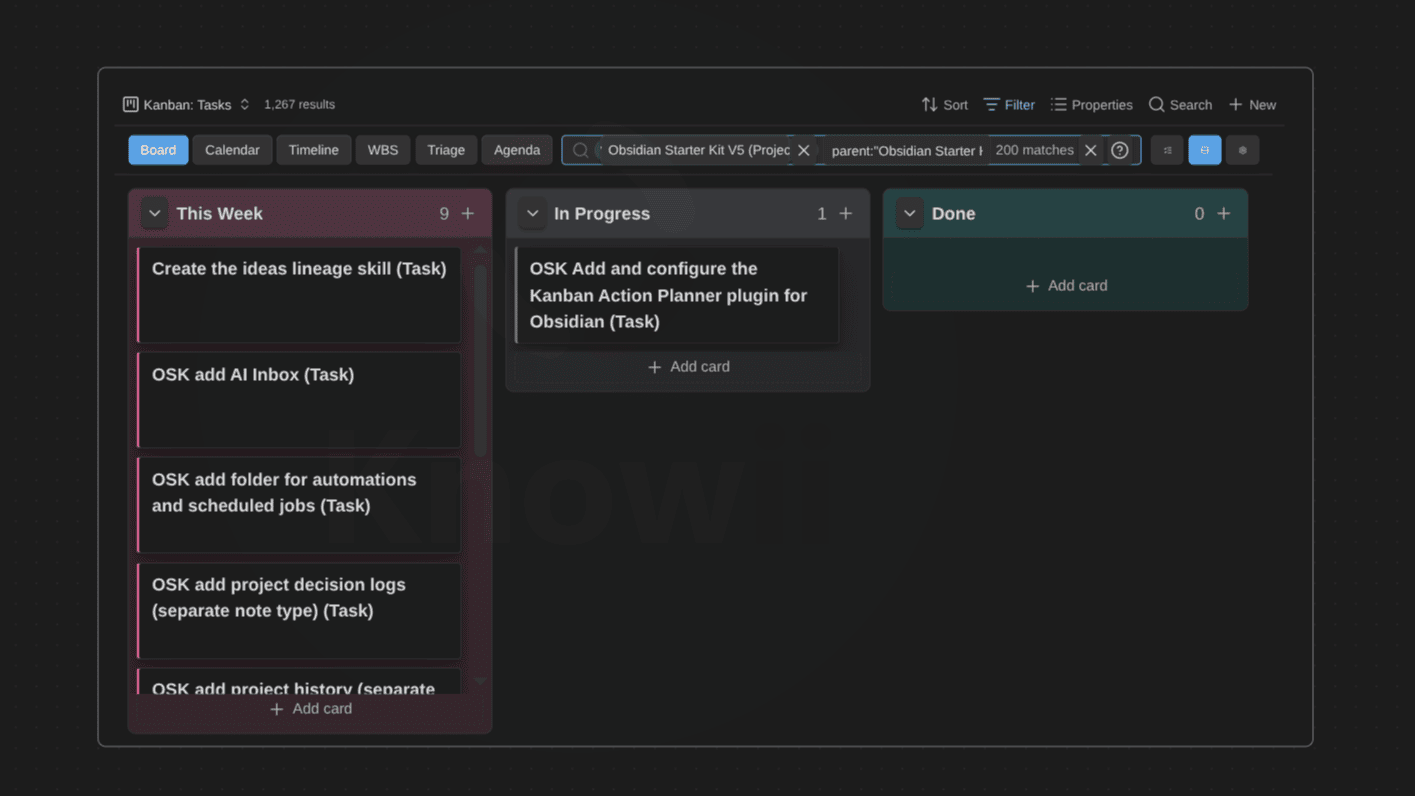
Any Kanban view can be embedded in a regular markdown note with a standard embed link:
![[Tasks.base#Kanban]]
- The
.baseextension is required in the link, and the part after#is the view name inside that Base. - The embed sizes to its content up to a height cap, then scrolls inside itself, in every mode, instead of stretching the note. A small result set only takes the space it needs.
Per-embed overrides. The wikilink alias (the text after |) can override how that one embed renders, without changing the saved view:
![[Tasks.base#Kanban|mode=wbs height=400 filter=status:active OR due:overdue]]
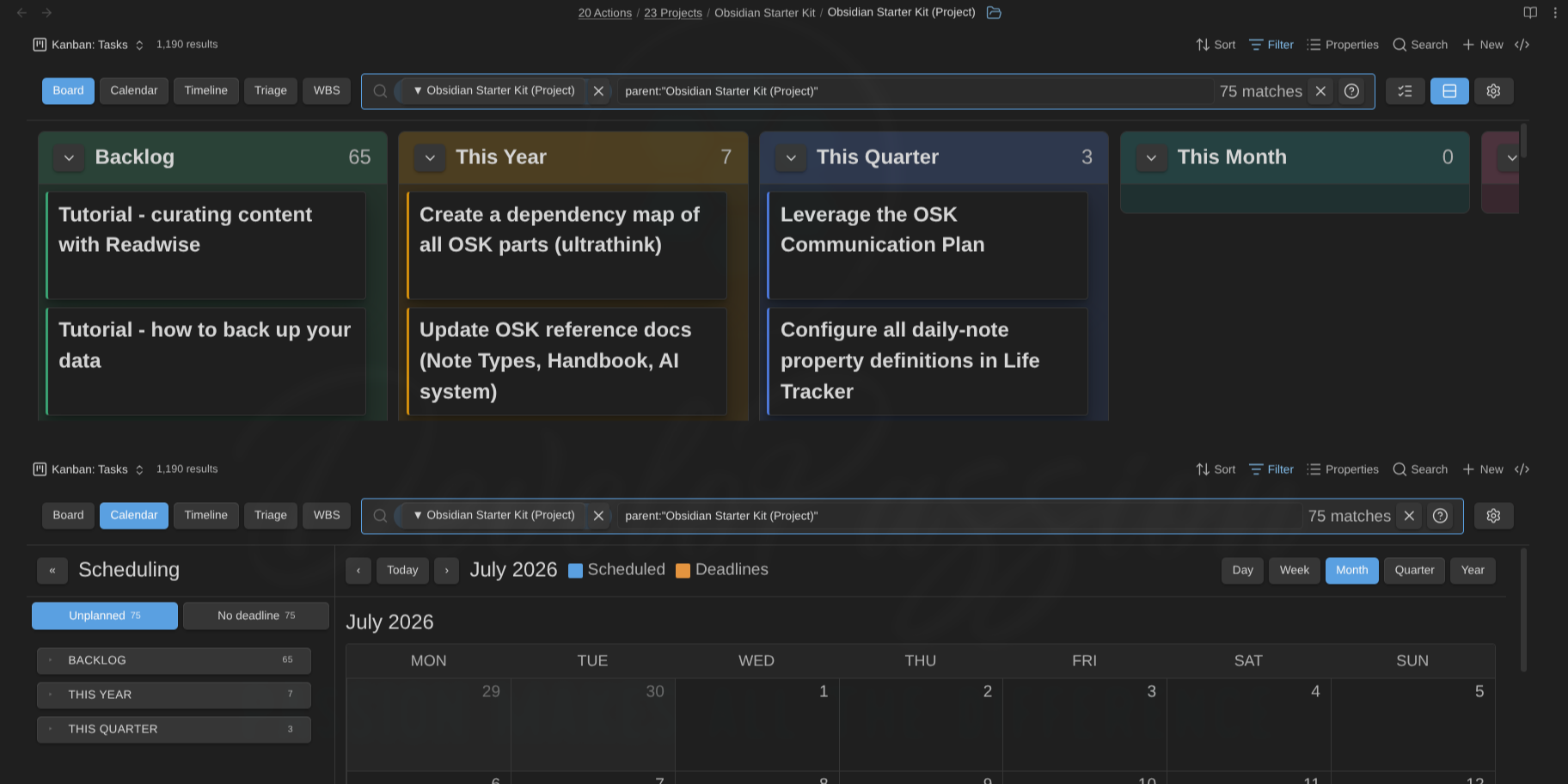
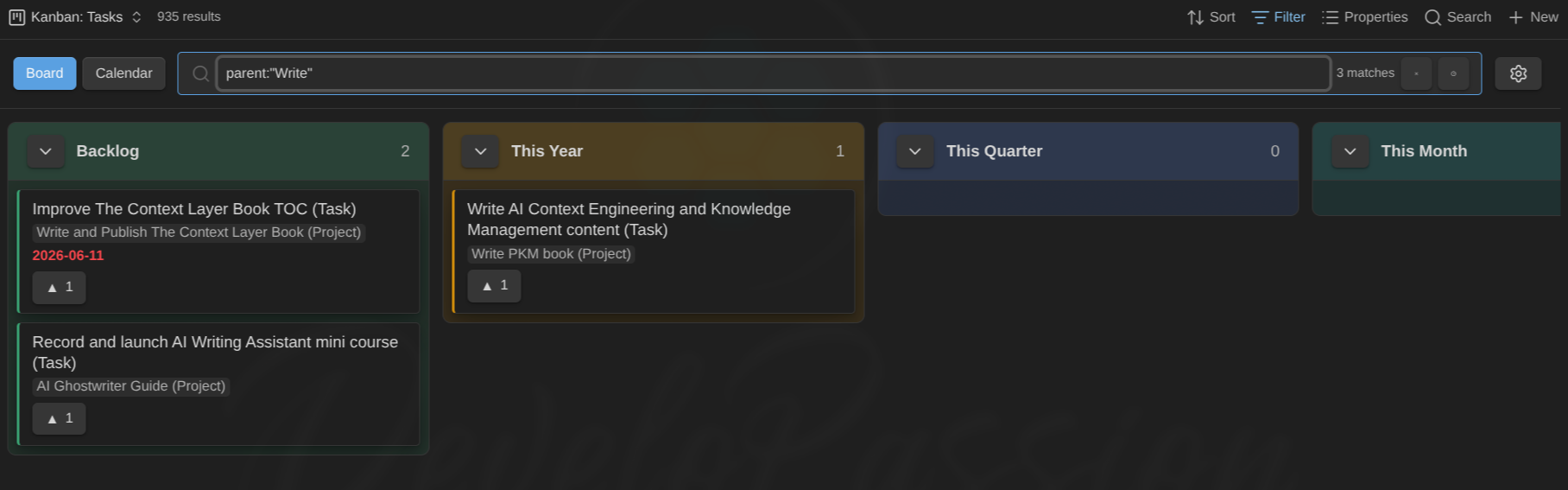
The same view embedded twice in one note, as a board and as a calendar, both narrowed to a single project with a filter=parent:… override:
mode=:board(orkanban),calendar,timeline,triage,wbs,agenda, orideal-week(aliasweek). Editing the embed line updates the rendered embed in place.height=: the embed’s height cap in pixels (kept between 200 and 2000). The embed still shrinks below it when the content is smaller. Ignored inside a Canvas, where the canvas card’s own size controls the board (see below).context=: pin the embed to one or more contexts (comma-separated, no spaces), e.g.context=@workorcontext=@work,@home. Put it beforefilter=(which swallows the rest of the alias).columns=: show only the named board column(s), e.g. a single Doing column or a Todo + Doing subset. Comma-separated; quote names containing spaces:columns="20 Doing"orcolumns=todo,doing. Each name matches case-insensitively as a substring of the column’s status value or label (todomatches a10 TODOcolumn;unmappedmatches the Unmapped bucket). Prefix a name with=to require the whole status value or label instead:columns==donekeeps onlyDone, wherecolumns=donewould also keep aDone (archived)column. The prefix is per name, so a list can mix both (columns==todo,doing), and it may sit inside or outside the quotes (columns=="20 Doing"andcolumns="=20 Doing"are the same). Board mode only. The card menu still offers every status, so a card moved to a hidden column just leaves the embed. Put it beforefilter=.lanes=: show only the named swimlane(s), same list syntax ascolumns=,=prefix included (lanes="10 Must",lanes=work,home,lanes==work;ungroupedmatches the catch-all lane). Names match case-insensitively against the lane label, as a substring or (with the prefix) whole. A restriction leaving a single lane renders it chrome-free, like a naturally single-lane board. Combines withcolumns=. Board mode only; put it beforefilter=.
Both lists filter the board rather than re-order it: the columns and lanes you keep are rendered in the board’s own configured order, whatever order you listed them in.
filter=: everything afterfilter=is the initial filter query, exactly as you’d type it in the filter box (the match count shows in the toolbar as usual). One caveat: a wikilink alias can’t contain|, so writeORinstead of|in embed filters.
All parts are optional, in that key=value form. Anything unrecognized is ignored, so a plain alias like |My tasks works as a normal alias.
Embeds never change the saved view. An embed is a projection. Switching the mode, editing the filter, collapsing panels or lanes, toggling compact cards, reordering columns: any view setting changed inside the embed applies to that embed only and is forgotten when the note re-renders. The view saved in the .base file (and shown everywhere else it is open) is never touched by an embed. Card edits are real, though. Dragging a card to another column, scheduling it, and so on write to the note’s frontmatter as usual.
Embedding in a Canvas. The same embed link works inside an Obsidian Canvas card, with all the alias overrides above. Two things differ from a note embed:
- The canvas card controls the size.
height=is ignored: the board fills the card, and resizing the card resizes the board (each column keeps its own scroller, like a full-leaf view). Below ~160 px the board stops shrinking and scrolls inside the card instead. - Dragging works as usual. Cards, columns, calendar chips, WBS rows, and timeline bars drag inside the board without moving the canvas card. To move the canvas card itself, grab it by its edge or by any empty spot on the board (the toolbar background, an empty column area).
Columns from status
Cards are placed by a status property. The plugin looks for a property named status first, then any property whose name contains status, and you can override it per view.
The columns themselves are defined explicitly. They are not guessed from the values in your notes, so a typo never creates a stray column. A board takes its columns, in order of preference, from:
- the Column values list in the view settings, or
- the note type’s allowed status values from the Obsidian Starter Kit (if installed), or
- the Default column values list in the plugin settings.
If none are defined, every card sits in the Unmapped column. That’s the starting point until you define your statuses.
- Values can carry a numeric prefix to control order.
10 Todo,20 Doing,30 Doneshow in that order, and the number is hidden on the column header. - Notes whose status isn’t one of the defined columns gather in Unmapped (shown first by default, hidden when empty).
-
Collapse a column with the chevron in its header. It shrinks to a slim labelled bar so you can focus on the rest. Collapsing applies to that status across every swimlane. Click the chevron again to bring it back. A collapsed column is still a drop target — drag a card onto the bar to park it there; the bar highlights while the card is over it, and the card lands at the bottom of that column.
Moving and reordering cards
- Drag a card to another column to change its status (the status property is rewritten).
- Drag a card within a column to reorder it. The new position is saved to a
manual_orderproperty on the note. - Right-click a card → Send to top / Send to bottom to jump it to either end of its column without dragging. The column stays where you are scrolled. The card leaves and the others close the gap.
- Drag a card to the Unmapped column to clear its status.
- Drag a column header left or right to reorder the columns. The new order is saved to this board (the per-view status list) and takes precedence over the default order. The Unmapped column stays put (its side is set by the Unmapped column position option).
Manual ordering is stored in your notes, not in plugin data, so it travels with the vault.
Touch screens. On the board, press and hold a card to pick it up, then drag it. Lift your finger without moving to open the card’s menu instead. Swiping over cards in any direction just scrolls: up and down through the column, sideways across the board. A swipe never moves a card or writes to a note. To reorder columns by touch, start the gesture on the column header downwards. In the calendar and WBS panels, start a drag sideways. See Phones and tablets.
Auto-scroll. While you drag a card, hold it near the edge of the board, a column or the lane stack and it scrolls that way, so you can reach a column or a slot that is off screen.
Drag-and-drop also works in popped-out (separate) Obsidian windows.
Auto-sort a column by a property. Instead of hand-curated manual order, a board can sort the cards inside every column by name or by any property (priority, due date, created, and so on), ascending or descending. Set Card sort, Card sort property, and Card sort direction in Configure view → Columns. Missing values sort last. While a non-manual sort is active, dragging a card within a column (plus the keyboard reorder and the menu’s Send to top/bottom) is turned off, since sorting owns the order. You can still drag between columns to change status. Switch Card sort back to Manual order to restore your saved manual_order and re-enable reordering.
Creating cards from the board (quick capture)
Every status column offers two ways in. A + in its header, always in reach at the top, and a labelled Add card button under the cards. Click either, type a name, press Enter, and a new note is created that appears as a card in that column.
The dialog previews exactly what will happen before you commit: the full path the note will get (folder + name prefix/suffix) and which template will be applied.
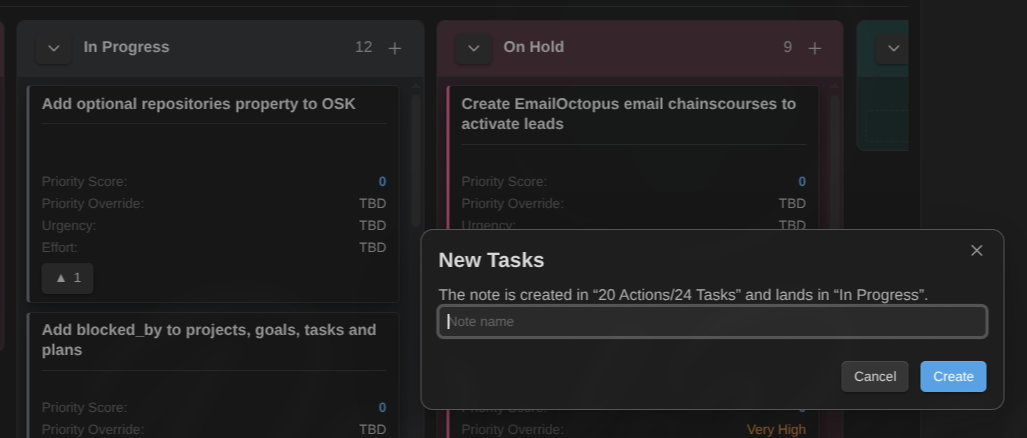
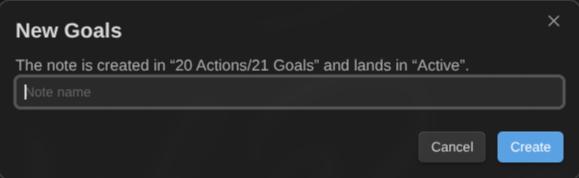
The dialog follows the note type the board is about, so the same + on a goals board creates a goal, in the goals folder, landing in the column you clicked:
What the new note gets
- The column’s status. Written last, so it wins. See “Templates” below.
- The swimlane’s value, when the board groups by a property and you added the card inside a lane (not the Ungrouped one).
- The note type’s recognition tag, so the board recognizes it as that type.
- Whatever the Base filters on: folder, tag, property value, list membership, so the note really does match the view. Only filters combined with and are used. An or / not branch has no single right answer, so nothing is guessed from it.
- A manual order placing it after the last card in the column (manual sort only). No other note is rewritten.
Where the note goes, and with which template
Settings are layered. The first one that is filled in wins:
- The note type’s own settings, in Configure board → Creating notes.
- The Obsidian Starter Kit note type, when you use it: its folder, template, and name prefix/suffix are picked up automatically, so there is usually nothing to configure.
- The folder the Base filters on.
- Obsidian’s default location for new notes.
Folders and name prefixes/suffixes accept placeholders: ,, , , ,, ,. A prefix or suffix already present in the name you typed is not added twice, so typing Ship it (Task) stays Ship it (Task).
Templates
- With Templater installed, the template is rendered through it, so
tp.commands, prompts, and a template’s own rename / move all work exactly as they do anywhere else. - The template is applied before the card’s properties are written. That order matters: if your template asks for a status, your answer is applied first and then replaced by the column you clicked. The column always wins. Everything else your template sets is kept.
- Templater’s own “Trigger Templater on new file creation” does not fire a second time: the plugin claims the file, so the template is applied exactly once and the plugin waits for it.
- If the note type has no template, the template your Templater folder / file rules would have applied is used instead.
- With Open the note after creating it on (the default), the note opens in a new tab before the template runs, so
tp.file.cursor()puts your cursor where the template says. With it off you stay on the board, the new card is focused, and any leftover cursor marker is removed. - Without Templater, the core Templates plugin’s
,and `` placeholders are substituted; with neither, the template file is copied as-is and you are told so.
Notes
- The Unmapped column has no Add button, since it has no status value to write.
- The header + does not start a column-reorder drag, and it is hidden while the column is collapsed.
- If a template moves the note somewhere the view’s filters exclude, you get a notice saying where it went, instead of a card that never appears.
- Turn the whole thing off per board with Configure view → Columns → Show “Add card” in columns.
Filtering (search bar)
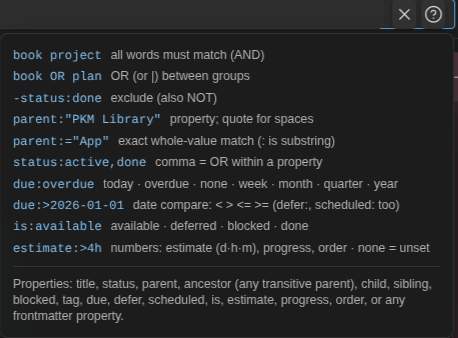
The filter box in the toolbar (right after the Board / Calendar buttons) narrows the visible cards as you type, in both board and calendar mode. It speaks a compact, Jira-like query language. The count of matches shows next to the box, and the × (or Esc) clears it. Your filter is saved with the view, so it survives reopening the board (except inside a note embed, where it stays local to the embed). Click the ? for an in-app cheat-sheet.
The ? cheat-sheet, always one click away:
Basics
- Words = AND.
book projectmatches cards containing both. OR(or|) between groups.book OR plan. AND binds tighter than OR, sobook project OR goalmeans(book AND project) OR goal.-orNOTexcludes.project -status:done.- A plain word searches the title, related note names, tags, and every frontmatter property value (not the note body).
property:value qualifiers
- Quote values with spaces:
parent:"PKM Library". - Comma = OR within one property:
status:active,done. - Recognized names:
title,status(matches the value or its column label),parent,ancestor(any transitive parent: the parent, its parent, and so on),child,sibling,blocked,tag,due,defer,scheduled,is,estimate,progress,order,context/contexts(your GTD contexts, see below), or any frontmatter property (e.g.urgency:now,effort:large), even properties not shown on the card. context:/contexts:always target your configured contexts property, whatever it is called:context:@work,context:@home,@errands(comma = OR). You never need to remember the property’s actual name.:matches substrings;:=matches the whole value.parent:appmatches children of bothAppandApp Backend, whileparent:="App"matches onlyApp(still case-insensitive). Works for every qualifier (status:=done,tag:=work, …).
due: dates
- Keywords:
due:today,due:overdue,due:none, anddue:week/due:month/due:quarter/due:year(the calendar period containing today). - Comparisons:
due:>2026-01-01,due:<2026-01-01,due:>=…,due:<=…, or an exact daydue:2026-01-15.
Configured-property aliases (scheduled, estimate, progress, order)
Like context:, these qualifiers always target the configured property, whatever it is actually called in your frontmatter, so you never need to remember its real name:
scheduled:takes the same keywords and comparisons asdue:, evaluated against your scheduled-date property:scheduled:today,scheduled:none,scheduled:week,scheduled:>2026-09-01.estimate:compares the resolved estimate unit-aware: a plain number is days (estimate:>=2), or add ad/h/msuffix (estimate:>4h,estimate:<=30m,estimate:2d). Minute-based note types (per-type estimate overrides) convert through your minutes per day setting, so a 240-minute task matches bothestimate:4handestimate:0.5.progress:andorder:compare numbers against the configured progress and manual-order properties:progress:100,progress:<50,order:>=10.nonematches cards with no value:estimate:none,progress:none,scheduled:none.
Defer dates and availability (Next actions)
A defer date (“can’t start until”) marks a card as not-yet-actionable until that day. The property is date_defer by default. Change it globally in the plugin settings, or per note type via the type’s calendar config. Cards deferred to the future render muted on the board (hover to read them normally).
defer:takes the same keywords and comparisons asdue:(defer:none,defer:>2026-09-01, …).is:matches availability states:is:available(not deferred, not blocked, not done, GTD’s “next actions”),is:deferred,is:blocked,is:done. All negatable (-is:done).
Typing is:available in the filter box (or saving it with the view, or pinning it in an embed with filter=is:available) turns any board into a Next actions list: everything you see can actually be started now.
Example: book parent:"PKM" status:active OR due:overdue.
Contexts (@work, @home, …)
If your notes carry GTD-style contexts in a list property (contexts: by default, change it under Contexts property in settings), the @ button in the toolbar (next to the mode buttons) lets you filter to one or more contexts without typing. Click it for a checklist of every context found on the current board, then pick any combination and the board shows cards in any of them (OR). Selected contexts appear as chips next to the filter box (click a chip’s × to drop just that one), and the button shows how many are active.
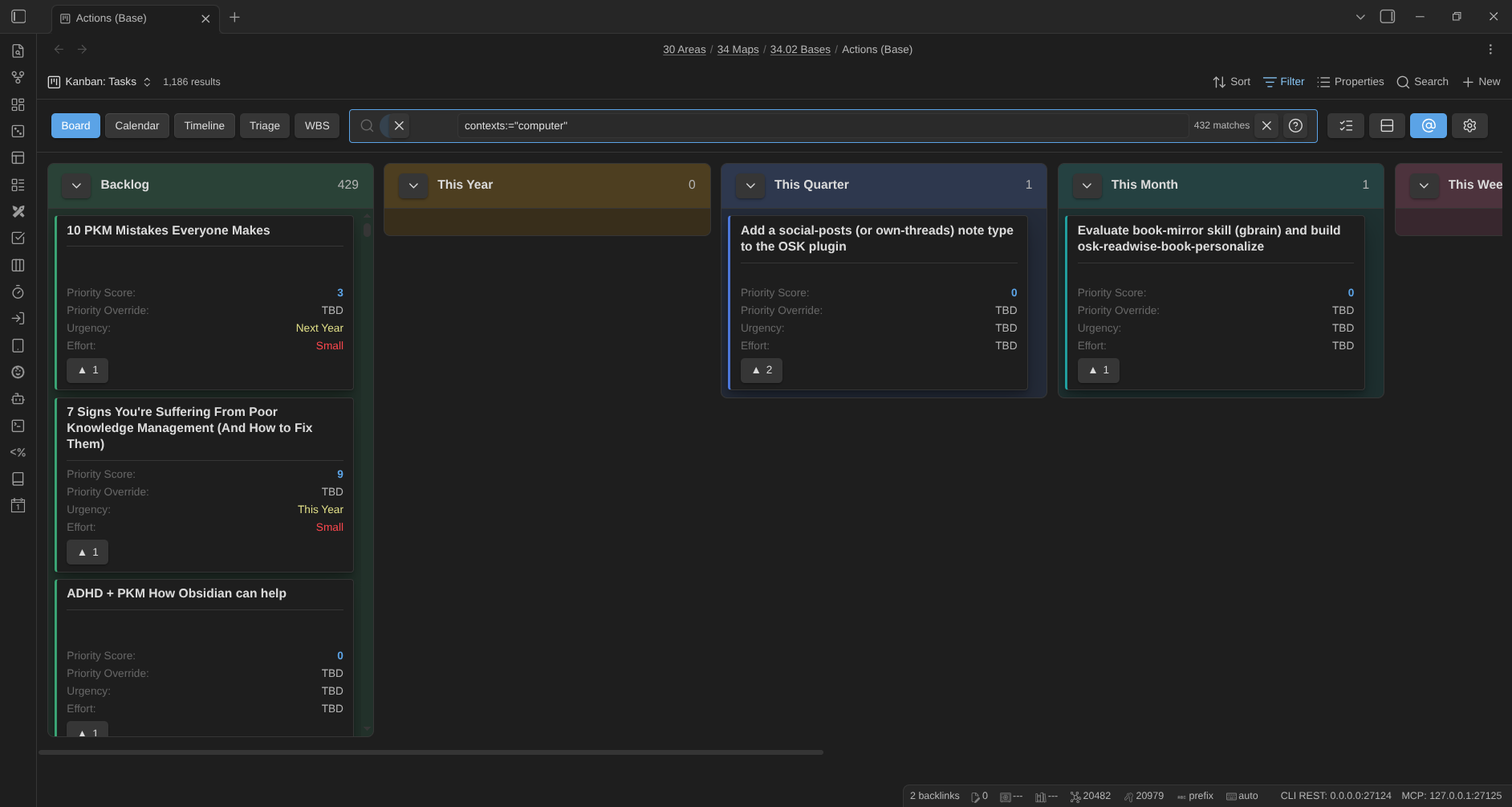
You can also just type it: context:@work in the filter box targets your configured contexts property directly (so does contexts:), and composes with everything else (context:@work is:available).
It’s built on the filter box, so it’s a handy way to write a contexts: query. The selection is saved with the view, composes with anything else you’ve typed, and works in every mode (board, calendar, timeline, WBS, triage).
Tag a card with a context. Right-click a card and open Contexts: each known context is a checkable toggle (a card can have several), and New context… adds one that isn’t on the board yet. This writes the note’s contexts list (adding or removing a single value, never overwriting the rest).
Colors on the calendar and timeline. Each context gets a stable color. Calendar chips show a colored dot and timeline bars/squares are tinted by the card’s first context, so you can scan by context at a glance. A small color legend sits in the calendar/timeline toolbar. Click a context there to pin or unpin it as a filter (the same as the @ switcher).
Triage mode
When a backlog feels overwhelming, Triage mode replaces the board with a focused, one-card-at-a-time queue. You clarify items in short passes instead of facing the whole wall at once. Switch to it with the Triage button at the end of the mode switch (or the Toggle triage mode command).
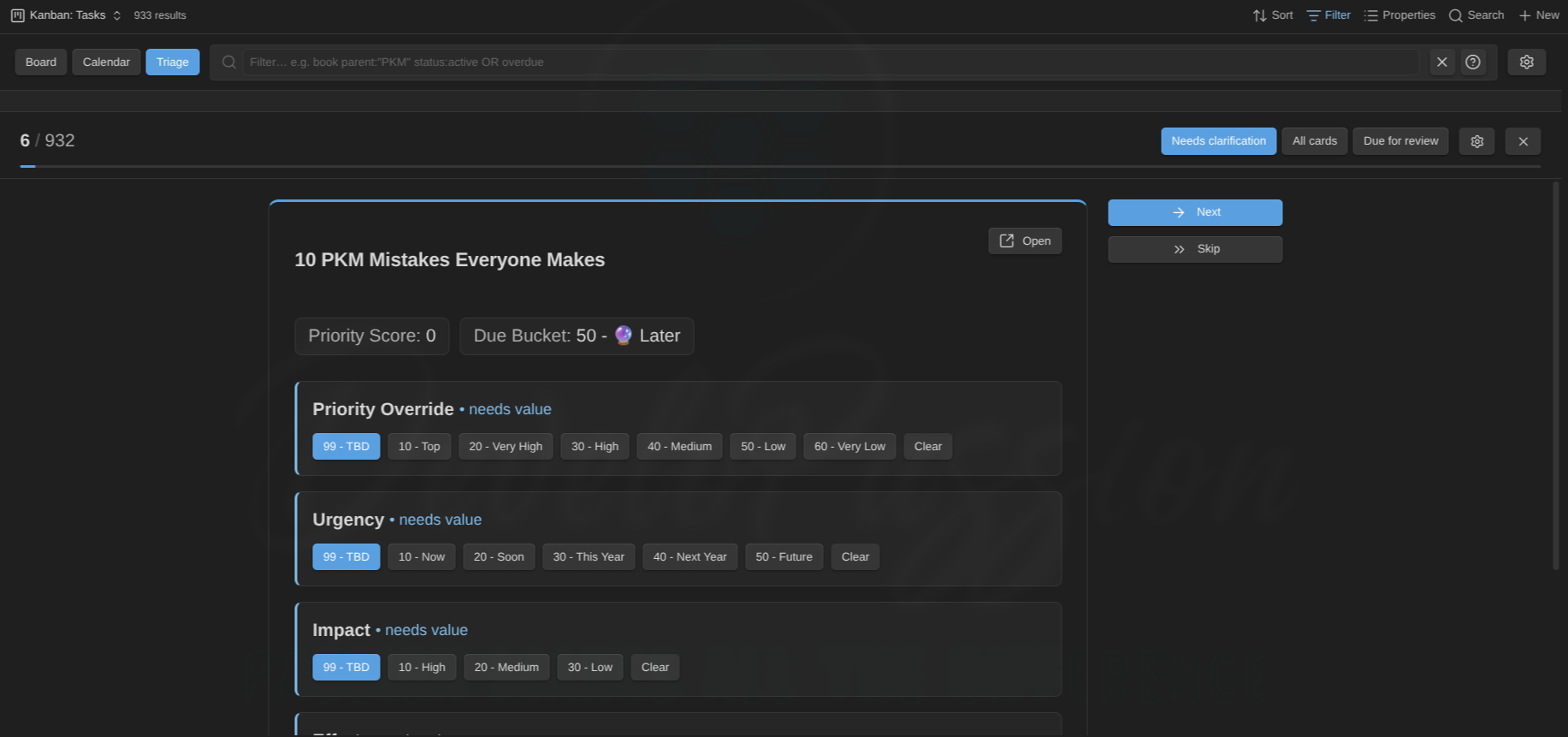
Keyboard and swipe triage. Triage is built for fast passes (issue #122):
- → next (or Reviewed in the review scope) · ← skip · O open the note (Ctrl/Cmd+O in a new tab).
- ↑ / ↓ bump the card’s priority-like enum one step (the first configured enum named priority, else urgency, else the first one). Up moves toward the list’s start.
- ⇧↑ / ⇧↓ send the card to the top / bottom of its column (manual card sort only).
- 1–9 set the status to the card’s own type’s nth column.
- Or drag the card Tinder-style: right = next, left = skip, up/down = priority bump. While you drag, a badge fades in showing exactly what releasing will do (Next / Skip / Priority ↑ / Priority ↓). Release below the threshold and the card snaps back, doing nothing.
The card scrolls on its own when it’s tall (or the UI is zoomed), and the scope tabs and the Skip / Next actions stay pinned so they’re always in reach.
A queue pane on the left lists every card in the current scope, grouped by note type then status (the type level only appears on multi-type boards). Click any card to jump straight to it on the right, where the current one is highlighted. The pane only ever shows what is left: a card leaves the queue (and the count) as soon as it no longer needs triage in this scope and you’ve moved on from it. The card you’re working on stays put until you do, even once it’s fully handled. Collapse a group with its header, or the whole pane with the « toggle (remembered per view). It’s the same panel the calendar and timeline use.
Each card shows:
- The note title at the top, with an Open button beside it to jump to the note (Ctrl/Cmd-click or middle-click opens it in a new tab).
- Read-only context below it: the properties you chose to see, including base formulas (e.g. a
priority_scoreor a horizon formula), so you decide with the computed values in view. - One-click editable controls: each editable enum property (priority, urgency, effort, and so on) as a row of its allowed values, click one to set it. The selected value is highlighted, a property that’s been handled (a real value, no longer needing triage) gets a ✓ check by its name so you can see at a glance what’s left, and properties that still need a value are flagged • needs value. (Allowed values come from the Enums config / Starter Kit, see Card content → enums.)
- Skip / Next to move through the queue, with a remaining count. Both scroll the card back to the top so the next one starts at its title. While a card still has values left to set, picking one stays put (the view re-renders in place, keeping your scroll) so you can see the recomputed score. The moment you fill the last one, triage jumps straight to the next card.
When a card’s triage is completed (its last gating property filled, or a review marked done), a short confetti burst celebrates it before advancing. Turn this off with Celebrate completed triage in Settings → Community plugins → Kanban Action Planner (under Review (triage)). Once the whole queue is sorted, an “All done! 🎉” message takes over.
Three scopes, switched in the header (the active one is highlighted):
- Needs clarification: only cards with an unset gating property. A card leaves the queue once it’s complete. A property counts as unset when it’s empty or absent, matches one of your needs-triage values (e.g.
TBD,No Target), or, when its allowed values are known, holds a value that isn’t one of them (stale or invalid). - All cards: every card, worst-first (most unset properties first), for a re-prioritization pass even when nothing is strictly missing.
- Due for review: cards whose review is overdue, most-overdue first (see Reviews below). Here the action button is Reviewed. It stamps the review fields and advances.
Configure triage with the gear in the triage header (or the Configure triage command), which opens a dialog with proper property pickers. Type to search, click to add, and each selection shows as a removable chip:
- Editable properties: the enum props triage lets you set, picked from your note types’ properties (the Starter Kit definitions, or the properties you’ve given allowed values).
- Gating properties: what decides “unclarified”. Leave empty to use the editable set.
- Context properties: read-only info to show. You can also pick the base’s formulas here (e.g.
priority_score). Leave empty to use the view’s displayed properties. - Needs-triage values: values that count as unset (e.g.
TBD), added as free-text chips. - Scope: the default scope (also switchable live in the header).
Everything is saved per view (in the .base), so each board has its own triage setup. (The Triage scope also appears in the standard Configure view panel for quick access.)
On a mixed-type board (e.g. an “All actions” board of goals + plans + projects + tasks) triage and review keep working, resolving each card against its own note type:
- Editable controls and their values come from the card’s type. A control only appears for a card whose type defines that property.
- Gating is type-aware: a gating property only flags a card when that card’s type actually defines it. A task-only property (e.g.
time_estimate) never marks goals/plans/projects as needing a value, and vice-versa. (This is why a board of shared planning properties like priority/urgency/effort triages cleanly across every type.) - Review uses the global review properties, so it’s the same on every card whatever its type.
Reviews (spaced repetition)
The Due for review triage scope turns the queue into a periodic review ritual, so the backlog never quietly rots. It uses three note properties:
- last reviewed (a date): when you last reviewed the note,
- review interval (a number of days): how often it should be reviewed,
- review count (a number): how many times it’s been reviewed.
A card is due when last reviewed + review interval is on or before today, or when it was never reviewed (which sorts first). The queue is ordered most-overdue first, and each card shows its review status (last reviewed, count, how overdue) on top. Clicking Reviewed sets last reviewed = today and increments review count, then advances, so the card drops out until it’s next due. You can still adjust the enum values while you review.
The property names are configurable in Settings → Community plugins → Kanban Action Planner under Review (triage). They default to last_reviewed, review_interval, and review_count. A Default review interval (days) (default 30) is used for notes that don’t set their own interval. Review works on any Kanban view via the scope switch, with no per-view setup needed.
Column triage (board mode)
Triage also comes to the board itself (issue #170): every column header carries a small triage button that starts a Tinder-style one-card pass over that column. The cards of that specific status, in the column’s current order, one at a time, as a card stack (the next cards peek behind the current one). The header keeps the column name front and center (with the progress count on the left and a progress bar underneath), so the pass never loses track of which column it is working through.
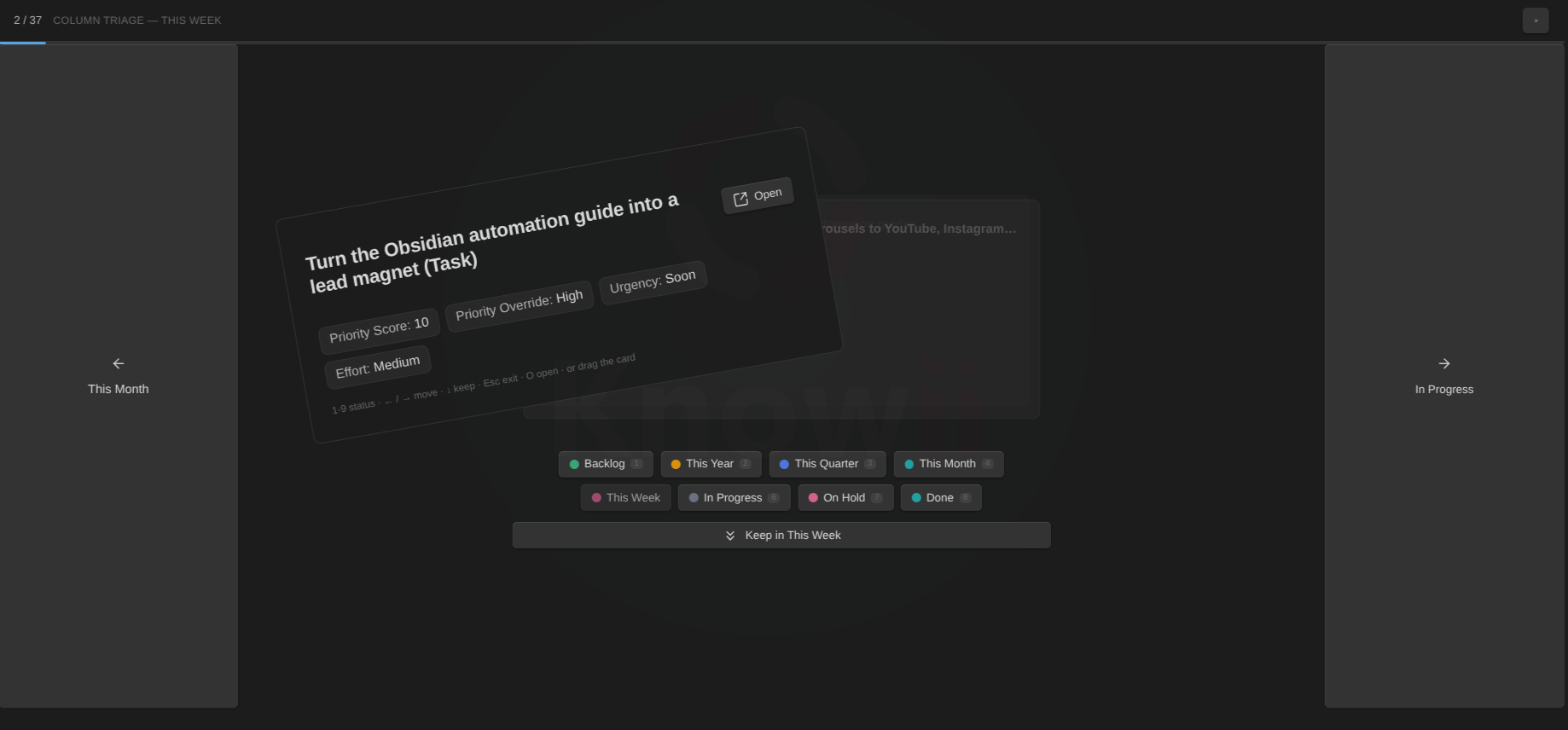
Under the card sits a stationary status tray: every status of the card’s own type as a color-dotted chip (the current one highlighted), plus **Keep in
Every decision path triggers the same stamp + fly-out animation. The destination status slams onto the card as a tinted passport stamp, then the card flies off toward its new column:
- Click a chip to move the card straight to that status (keys
1–9do the same). - Click a rail (or ← / →, or swipe the card left/right) for the carousel move.
- Drag the card onto a chip, the Keep button, or a rail. Targets light up as the drag passes over them, and releasing commits that exact status.
- Keep (or ↓ / Space, or swipe down) leaves the card and advances.
- ↑ steps back to the card you just decided, cancelling that decision: a move is written back to the status the card had before, a keep just rewinds. Works all the way back through the pass, including on the very last decision while the completion celebration plays.
- Esc exits; O opens the note (Ctrl/Cmd-click the Open button for a new tab); right-click shows the full card menu. Leaving the board tab (to read or edit the note in another tab, say) keeps the pass alive: coming back returns keyboard control to it, and a card archived or otherwise removed in the meantime just leaves the queue.
Decisions are optimistic: the next card is on screen the instant you decide, and the status write settles in the background. A failed write puts the card back into the pass. The pass also stays fast on big columns. The board behind the overlay is left alone until you exit, so a decision takes a couple of milliseconds where a 200-card column used to freeze for up to a second (1.19.2).
Moving a card into its type’s done state fires a confetti burst, and finishing the whole pass celebrates too. Everything respects reduced-motion settings, and all moves go through the standard status write path, so your automations fire exactly as if you had dragged the card on the board.
Agenda mode
Where the board answers “what state is everything in”, Agenda answers “what’s on my plate right now”. A flat, prioritized list of Overdue, Today (due or scheduled today), and Upcoming (due or scheduled in the next 7 days). Switch to it with the Agenda button at the end of the mode switch (or the Toggle agenda mode command).

- The Today / Week switch controls the look-ahead: Today shows only overdue and today’s items, Week adds the Upcoming section.
- Available only (on by default) hides cards that can’t be started right now: deferred, blocked, or done (see Defer dates and availability). The bar shows how many were hidden, and switching it off shows them muted in place.
- Rows are sorted by date, then manual order, then title. Click to open the note (Ctrl/Cmd-click for a new tab), right-click for the usual card menu: set the status, reschedule, archive, and so on without leaving the list.
- The agenda respects the active filter (and the Base’s own filters), like every mode.
- A past scheduled date alone never lists a card. A slipped schedule is not an overdue deadline. Reschedule it from the calendar, or give it a due date.
The agenda is the “do” end of the workflow. Triage clarifies, the board organizes, the calendar plans, and the agenda tells you what’s next now.
Swimlanes (grouping)
Split the board into horizontal lanes, each with its own columns. Choose how to group in the note type’s Swimlanes section (Settings → Note types), or override it per view (see View options):
- None: a single plain board.
- By note type: one lane per note type (recognized via the Obsidian Starter Kit or your own local recognition rules).
- By property: one lane per distinct value of a property you choose (e.g. a
projectorarea). Lanes order by a numeric prefix just like columns (10 Alpha,20 Beta).
Mixed boards group by note type automatically. When a Base’s results contain more than one recognized note type (e.g. an “All actions” view with goals, projects, and tasks) and you haven’t chosen a grouping, the board auto-groups by note type. Each type gets its own lane with its own columns (see below). Set the per-view Swimlanes option to None to keep a flat board instead.
Mixed note types on one board
Different note types often have different status vocabularies (a task’s Backlog → Done vs a project’s Idea → Abandoned). On a mixed board:
- Each note-type lane shows its own type’s columns, colors, and WIP limits, so a project card sits in Active in the Projects lane while tasks flow through their own columns below.
- A card’s own note type owns its status. Dragging, the card menu’s Set status, and keyboard moves only ever offer or write values from the card’s own type. A project can’t be given a task status.
- Bulk set status (multi-select) works when the selection is a single type. A mixed selection shows a notice instead (Archive / Open / Clear still work).
- Column drag-reorder is off on mixed boards (order comes from each note type’s definition); it still works on single-type boards. Setting an explicit per-view Statuses (columns) list reverts the whole board to one shared column set, for when you want to mix types in the same columns on purpose.
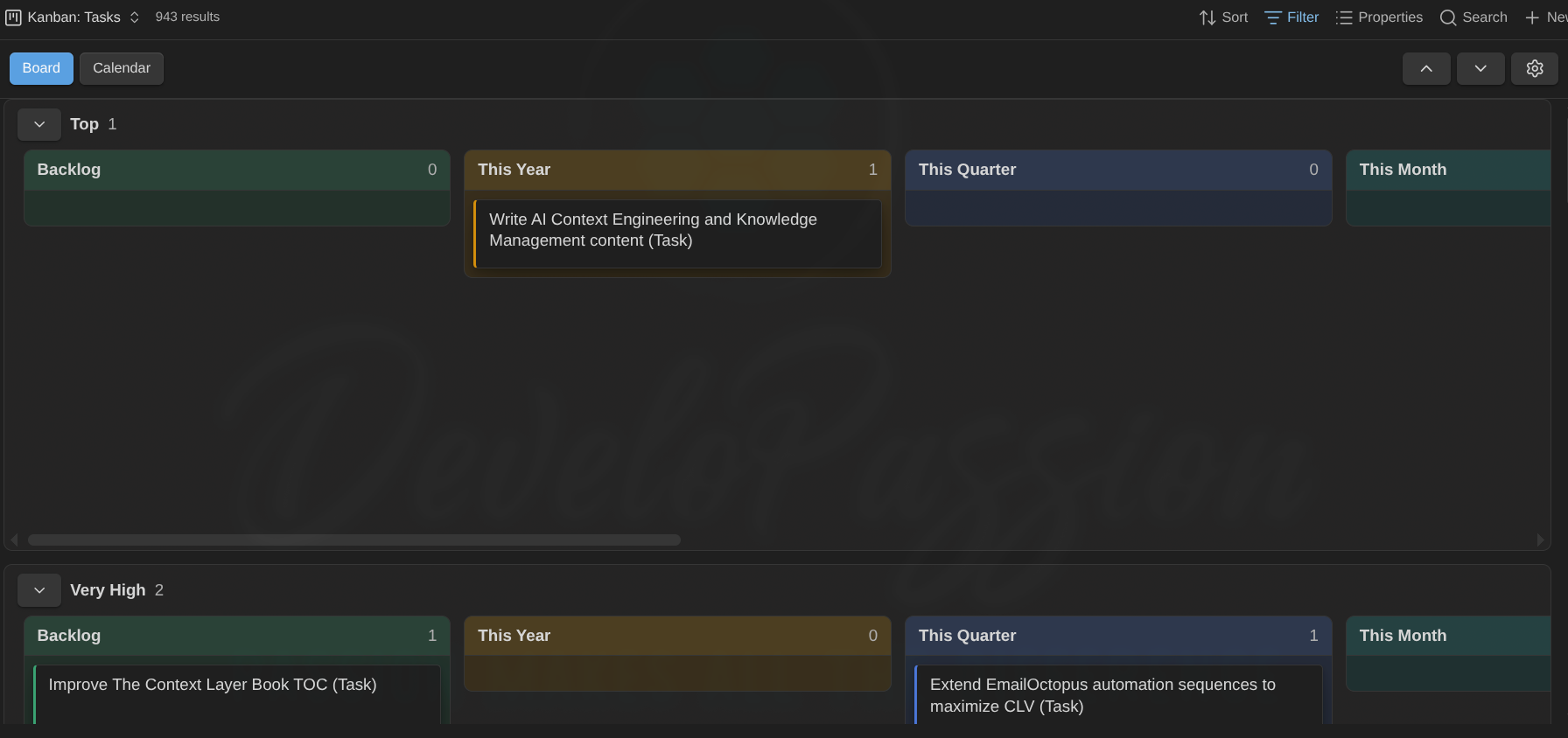
Cards with no value for the grouping property collect in an Ungrouped lane, which is hidden when empty. Each lane header has a chevron toggle to collapse it, plus its card count.
Each lane is as tall as it needs to be, up to one screen. A lane with a few cards stays short, while a full lane stops at the screen height and its columns scroll inside it (so the lanes don’t push each other off-screen). When there’s more than one lane, up and down buttons appear next to the gear to jump to the previous or next lane.
- Drag a card to another lane to reassign it. For property grouping, the grouping property is rewritten to the target lane’s value (or cleared when you drop into Ungrouped). You can cross lanes and columns in one drag, updating both the lane property and the status.
- Note-type lanes can’t be reassigned by dragging (a note’s type comes from its tags or folder), so a cross-lane drop there is ignored. Moving within the lane still works.
On small screens lanes stack and collapse, so you can focus on one lane at a time.
Relationships
Cards can show how notes relate. The plugin reads link-properties (frontmatter holding wikilinks) for four roles, parent, sibling, child, and blocked by, and detects the inverse automatically (if A lists B as a child, B shows A as a parent; siblings are mutual). Configure which property feeds each role in the note type’s Relationships section (Settings → Note types). You can also detect children by tag: a note carrying one of the chosen tags that links back to a card is treated as its child.
Each note resolves relationships with its own type’s properties. On a mixed board, a task can point at its project via related_projects while that project points at its goal via related_goals, and the whole chain resolves (badges, WBS tree, zoom). Edits work the same way: adding, removing, or drag-re-parenting always writes the owning note’s own property.
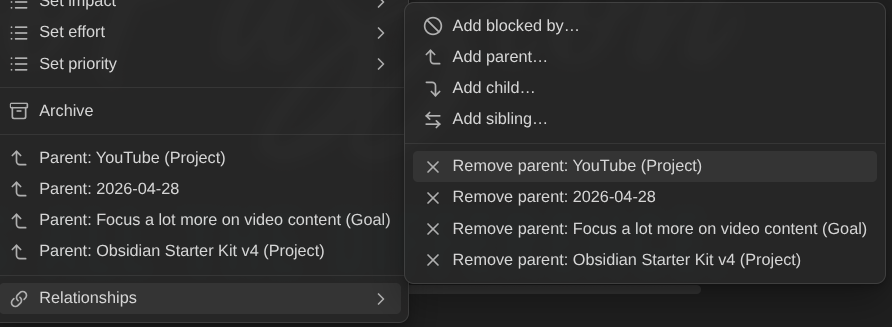
On each card:
- A small badge row shows one counted badge per role (▲ parents, ▼ children, ↔ siblings), so a note with three children shows ▼ 3, and hovering lists the names. Click a badge to open the related note. When there are several, you get a menu to pick one. Ctrl/Cmd-click (on the badge or a menu item) opens in a new tab. The ▼ children and ▲ parents badges always open a menu. On top of it, Focus on children on this board (▼) / Focus on children of X (▲) zoom the board (see Focus on a card’s children).
- A note with a non-empty blocked by gets a red ⛔ badge (counted the same way, ⛔ 2 when blocked by two) and a red edge. Click it to jump to the blocker, or pick from the menu when there are several (Ctrl/Cmd-click for a new tab). Blocking never changes a card’s status on its own.
- The card’s right-click menu also lists related notes to open.
- Edit relationships from the board. The right-click menu’s Relationships submenu lets you Add a parent/sibling/child/blocked-by (pick a note from the fuzzy list) or Remove one. This writes the link to the note’s frontmatter property for that role, so it shows up everywhere, and the blocked badge and filter update live. You can only add a role that has a property configured (a role set to None has nowhere to store the link), and you can only remove links stored on this note. A relationship the plugin infers, e.g. a child shown because the other note names this one as its parent, is edited from that other note.
Blockers can live on another board, and archiving a blocker clears it. A blocker counts wherever it lives: a task blocked by a project stays blocked even though the project sits on a different board. A blocker stops counting only when it’s archived (moved into a note type’s archive folder). The ⛔ count drops, and the card unblocks once its last non-archived blocker is gone. (Parent/sibling/child badges aren’t affected by archiving.) Edits apply live: change or remove a blocked by link, or archive a blocker, and the board updates without a reload.
Use the Blocked cards view option to show all, show only blocked, or hide blocked cards.
Focus on a card’s children (zoom)
Zoom into a card that has children: the board re-filters to show only the notes whose parent is that card, laid out in the usual status columns. Focus a project and you see just its tasks; focus an area and you see its projects.
Three ways to trigger it:
- The card’s right-click menu → Focus on children (shown only when the card has children).
- The ▼ children badge menu → Focus on children on this board (top item).
- From a child, going up: the ▲ parents badge menu → Focus on children of X. On a mixed board (e.g. an “All actions” view), click a task’s ▲ badge and focus its project to see all of that project’s children (the task itself and its siblings) in one move.
Each entry point also offers Focus on all descendants: instead of the direct children only, the board shows the whole subtree, children, grandchildren, and so on. Focus all descendants of a goal and you see its projects and their tasks at once. Under the hood this writes an ancestor:="Title" term (a card matches when the focused note is any of its transitive parents). The chain is climbed through the notes on the board, so a hierarchy that passes through a note the Base excludes stops there.
Under the hood, zooming writes a parent:="Card Title" (children) or ancestor:="Card Title" (descendants) term into the filter box. There is no separate mode. That means:
- It ANDs with whatever you already typed (e.g.
status:activestays applied). - Zooming again drills down or re-scopes: the next focus swaps the zoom term (a children zoom replaces a descendants zoom and vice versa), one focus at a time. To go back up, dismiss the chip and focus another card (or edit the query directly).
- It persists with the view, like any filter, across close/reopen.
While focused, a chip (▼ Website Redesign ✕) shows next to the filter box:
- Click the ✕ to remove only the zoom term. The rest of your query survives.
- Click the label to open the focused parent note.
Focus on children matches direct children only (the same parent/child links the ▼ badge counts, including inferred ones); Focus on all descendants matches the whole subtree. The focused card itself is not shown. The chip is the context.
Heads-up: zoom filters within the notes this view’s Base already selects. If the Base’s own filters exclude the children (e.g. you focus a project on a projects-only view, and its children are tasks), the board comes up empty. Use a view whose Base includes the children, like a mixed “All actions” view.
Archiving
When you’re done with a card, you can archive its note: move it out of the board into a dedicated folder while keeping all links intact.
Archiving is per note type. Each note type has its own archive folder, set in its Archiving section under Settings → Note types. So on a board mixing e.g. Tasks and Projects, each card is archived to the folder that belongs to its type (Archive/Tasks/ vs Archive/Projects/). A card whose type has no folder set can’t be archived at all (the menu item is hidden).
Set this up in each type’s Archiving section:
- Archive folder: where archived notes go. Start typing and existing folders autocomplete, and any
placeholder you've added is kept. The path supports placeholders that resolve at archive time:,,,,,,, ``. For example,Archive/files intoArchive/2026. Leave it blank to turn archiving off. Intermediate folders are created for you, and a name clash refuses the move and logs it, so nothing is ever overwritten or silently renamed. - Auto-archive on status: optional and off by default. Tick one or more statuses and a card is archived on its own the moment it transitions into any of them (by drag or menu). Reordering a card that’s already in such a status does nothing. Only the transition triggers it.
- Done-date properties: comma-separated frontmatter properties, first present wins (e.g.
date_completed, date_abandoned). Only matters with a grace period (below); leave it blank and the type archives on the transition itself.
To archive manually, right-click a card → Archive (only shown when an archive folder is set). If the note still has active children or blockers you get a non-blocking heads-up: the move proceeds and the wikilinks are preserved. Archived notes leave the board because they no longer match the Base’s filter.
To clear out a whole done column at once, use the Archive button (archive icon) in its header. It shows on a column only when the note type has a done definition based on the status property that lists that column’s status, and an archive folder is set. After a confirmation, every card shown in the column is archived (filtered-out cards stay put), each through its own note type’s archive folder; cards whose type has no folder are skipped. Same path as the bulk Archive action: archived automation rules run, and a notice summarizes what moved.
Folder notes move with their folder
A note that is the namesake of its folder (Projects/Foo/Foo.md, or with a parenthesised type suffix like Projects/Foo/Foo (Project).md) is archived by moving the whole folder: every sibling file (sub-notes, attachments, plans) goes along and wikilinks keep resolving. On a name clash in the destination the move is refused and logged, for the folder as for the note. Any other note moves alone. The same applies to the Move to folder automation action.
Grace period: keep done cards around for a while
By default an auto-archive status archives the card the moment it gets there, so your Done column is always empty. If you’d rather see finished work linger for a week, set Settings → Archiving → Archive grace period (days). From then on:
- A card entering an auto-archive status stays on the board. It is archived once its done date (the first present of the type’s Done-date properties) is at least that many days old.
- Aged cards are archived when a board loads (once per open board), or on demand with the Archive aged done notes (open boards) command. A notice tells you what moved.
- A card in an auto-archive status with no done date gets one stamped with today: the property an automation rule of its type would write on that transition (so an Abandoned project gets
date_abandoned, a Done taskdate_completed), else the first listed one. That starts its clock, and it also catches notes you marked done in the editor or with a script, which never went through the board. A date the plugin can’t parse is left alone. The note just waits. - Types with no done-date properties ignore the grace period and archive at once, as before.
- Two boards showing the same note don’t race: sweeps run one at a time, and a note something else already archived in the meantime is skipped.
Tip: pair it with an automation that stamps the done date on the transition (enters a done state → set date_completed to ``) so the clock starts from the exact day you finished, whatever write path you used.
Automation rules
Let the board do the bookkeeping: per note type, Configure board → Automations runs actions whenever a note hits a trigger. Take the classic example, one rule on your Tasks type: When the note enters a done state → set progress to 100, remove date_due, set date_completed to ``. Every way of completing a task (dragging it to Done, the card menu, the WBS status dot, a bulk edit, triage) then stamps the note for you.
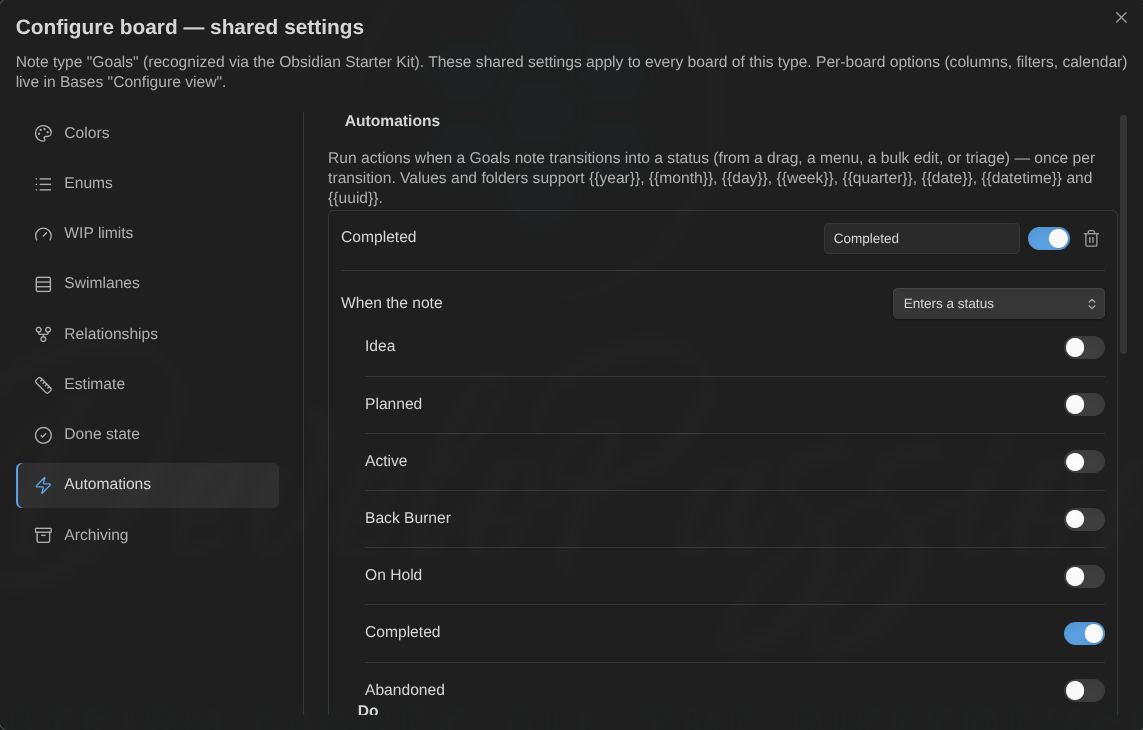
Each rule is a trigger plus a list of actions that run in order:
- Triggers: enters a status, leaves a status (toggle any of the type’s statuses), enters a done state (any of the done values you configured, Completed, Abandoned, Superseded…, in one rule), is archived, or a property matches a condition (
progress ≥ 100,priority = 10 - Top,date_due is set, …). Condition rules fire when the condition becomes true, from any edit source, as long as a board showing the note is open. - Actions: set a property (values expand
,and the other archive placeholders; numbers and true/false are written natively; only if empty never overwrites a value that is already set), remove a property, add or remove a tag, and move the note to a folder (placeholders, auto-created folders, links preserved: the archive machinery).
With the Obsidian Starter Kit (1.13+), a note type whose Status section declares done states and stamped dates gets its Done state and one Stamp … on … rule per stamping status mirrored here, read-only and re-synced on every board load. Configure them once in the Starter Kit and every board, the osk-cli and your AI skills agree on what “done” means.
Rules fire once per actual transition and automation writes never trigger other rules, so you can’t build an accidental loop. When a transition both auto-archives the note and matches rules, the property/tag actions land first and the archive owns the final folder (a rule’s move on that transition is skipped); with a grace period the archive waits and a rule’s done-date stamp is what the later sweep reads. Rules live on the note type, so they apply on every board showing that type, and they work the same for types mirrored from the Obsidian Starter Kit.
Calendar mode
Turn the board into a scheduling calendar. Use the Board / Calendar switch at the top-left of the view to flip between the two modes (it persists per view). The view splits into a left Scheduling panel and a calendar on the right.
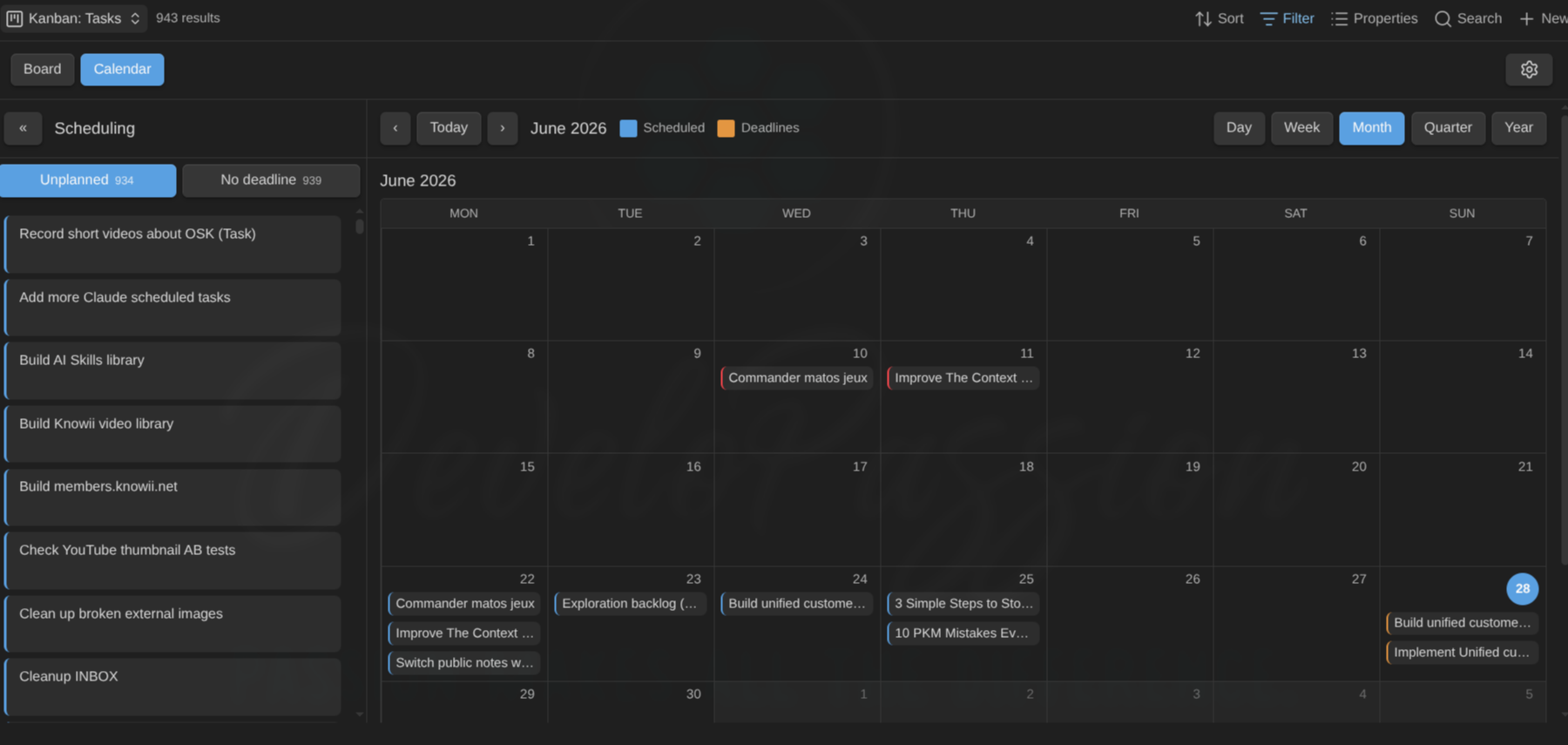
The calendar shows both dimensions at once. Every card is plotted on both its scheduled date (date_scheduled by default) and its deadline (date_due), so you can see what’s planned and what’s due in one view. Chips are color-coded by their left edge:
- Blue: a scheduled date (when you plan to work on it).
- Orange: a deadline.
- Split blue/orange: both fall on the same day.
- Red: an overdue deadline (its day is already in the past).
- Dimmed, dashed edge: the continuation of a multi-day span. A card with a scheduled date and an estimate appears on every day it covers (hover shows
day 2 of 5). Only the first day’s chip is draggable; moving it moves the whole span.
A card with a scheduled date and a deadline therefore appears twice, once on each day, so a task planned for Monday and due Friday shows up on both. Use the legend in the calendar toolbar (◼ Scheduled ◼ Deadlines) as a filter: click either swatch to hide or show that dimension (both on by default).
The panel’s two tabs are backlogs (cards still missing a date), and they decide which date a panel drag sets:
- Unplanned: cards with no scheduled date.
- No deadline: cards with no deadline.
Each tab count is the size of that backlog. Within a tab, the cards are grouped by note type, then by status. The type level shows as full-width tab-style headers on multi-type boards (single-type boards skip it), and all groups start collapsed (click a header to expand). Collapse the panel itself with the « toggle (the “Scheduling” title stays visible, turned vertical). When the calendar gets too narrow, for example in a split pane, the panel collapses on its own and re-opens when there’s room again. Your own manual collapse or expand always wins.
The calendar toolbar switches range (Day, Week, Month, Quarter, Year) and navigates with ‹ / › / Today. Quarter and year show compact month grids with a per-day count. Click any card to open its note. Weeks start on the day set by First day of the week in the plugin settings (default Monday).
Day view and zoom into a day: click Day in the range switcher to open today as a focused single-day view, or click any day number (or empty cell space) to zoom into that specific day. Grid days show a pointer (hand) cursor to signal they’re clickable. The day view lists all of that day’s cards and has its own ‹ / Today / › day navigation (plus ‹ Back to return to the previous range). Handy from Quarter or Year, where days only show a count: click one to see what’s on it. You can still drag a card from the panel onto the focused day to schedule it, or drag one out to the panel to clear its date.
Schedule by dragging:
- Drag a chip on the calendar onto another day to move its own date. A blue chip reschedules, an orange chip moves the deadline, a split chip moves both together (written in your configured date format,
YYYY-MM-DDby default). - Drag a card from the panel onto a day to set the date for the active backlog tab (Unplanned → scheduled date, No deadline → deadline).
- Drag a chip back onto the panel to clear the date it represents.
- Drag a panel card onto another status group (its header or its cards) to change its status without leaving the panel, the same effect as the menu’s Set status. Groups belong to a note type, so only same-type groups accept the drop (others highlight red).
Schedule from the right-click menu (any card, board or calendar). Right-click a card for Schedule for today / tomorrow / on a date… / Clear scheduled date and the same for Set deadline. “On a date…” opens a small date picker that also understands dates typed in words: tomorrow, fri, next mon, next week, in 3 days, 2w, in 1 mo… A live hint shows the day that will be written (e.g. → Mon 2026-08-03 · in 5 days) as you type, and the picker below stays in sync, so use either. next week and next <weekday> follow your First day of week setting. This is the quickest way to set or change a date without dragging, and it works on the board too, not only the calendar.
Sort the panel (view options): order the cards by Manual order, Name, or a property (e.g. a priority or estimate). To narrow the panel, use the toolbar filter box. It applies to the calendar and its panel together.
Timeline mode
Where the calendar answers “what happens on day X”, the Timeline shows how the work spreads and overlaps over time: one row per card on a shared axis, Gantt-style. Switch to it with the Timeline button next to Board / Calendar (or the Toggle timeline mode command).
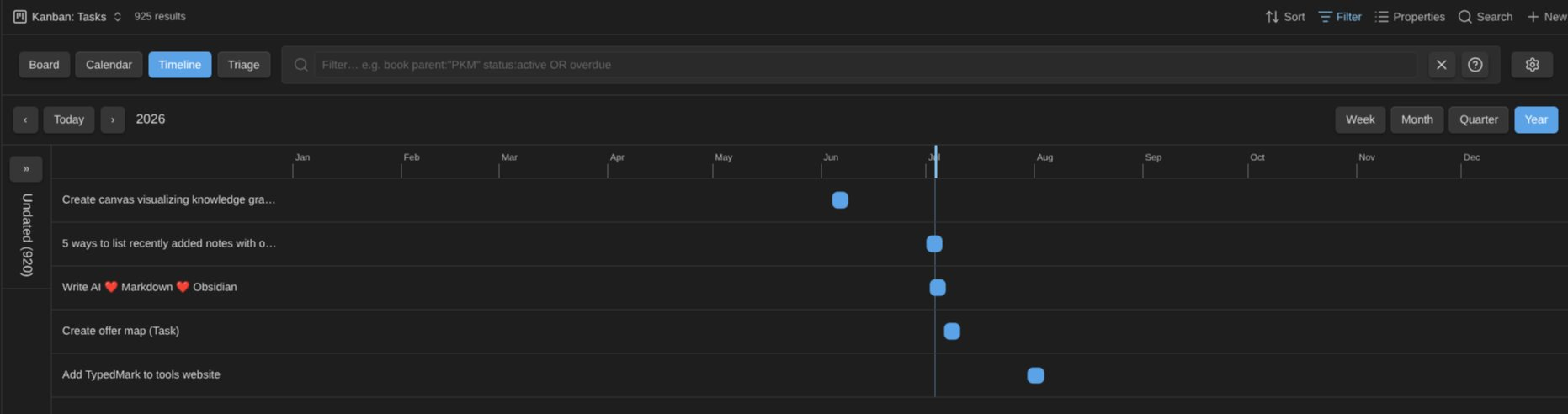
A card is placed by its start date plus an estimate. There is no end-date property. The properties are global plugin settings (no per-view overrides):
- Start date: your scheduled-date property (
date_scheduledby default). - Estimate property: a plain number of days (default
estimate). A note type can override both the property and the unit (days or minutes, e.g. a tasknotes-compatibletime_estimate) in its Configure dialog. Minute estimates convert to days via the Minutes per day setting (default 480 = an 8-hour workday) and always span at least one whole day on the timeline. - Milestones property: the list property holding milestone entries (default
milestones).
So a board already set up for calendar mode gets a working timeline with zero configuration.
Migrating from the start/end model? Boards that used the end-date property now show a square for cards with a start date. The stored end date is ignored; set an estimate to get a bar back. Cards that only had an end date move to the Unplanned panel until you give them a start.
What a row shows:
- Start + estimate → a rectangle spanning from the start to the derived end (start + estimate − 1, inclusive, so a 1-day estimate covers just the start day). The rectangle carries no text except a small duration badge (e.g.
5d) at its right edge. The row label on the left already names the card, and the tooltip repeats the badge for bars too narrow to fit it. When the start or the derived end lies outside the visible window, that edge is squared and dashed (the bar continues off-screen). A rectangle whose derived end is in the past gets a red overdue wash. - Start only (no estimate) → a square on the start day. Squares are never marked overdue: a past start is work in progress, not an error.
- A vertical today line crosses every row.
- A card with a deadline (your due-date property) shows a vertical red deadline line in its own lane. Hover the row for the date, which also sits in the tooltip when the line falls outside the window.
- Cards whose dates all fall outside the window show a small Out of view hint.
The Unplanned panel. Cards with no start date collect in the collapsible Unplanned panel on the left, named like the calendar’s Unplanned tab and styled like its Scheduling panel, as fixed-size cards (kanban-like), grouped by note type, then by status. The type level renders as full-width tab-style headers (count badge, accent tint when expanded), all groups collapsed by default (single-type boards skip the type level). Drag a card to schedule it, click to open, right-click for the menu. You can also drag a card onto another status group (its header or its card area) to change its status right there, the same effect as the menu’s Set status; groups belong to a note type, so only same-type groups accept the drop (others highlight red). The panel scrolls on its own, so a big backlog never squeezes out the rows. Collapse it with the « toggle (the “Unplanned” title stays visible, turned vertical); on a narrow pane it collapses on its own and re-opens when there’s room, with your manual choice always winning. The collapse is remembered per view.
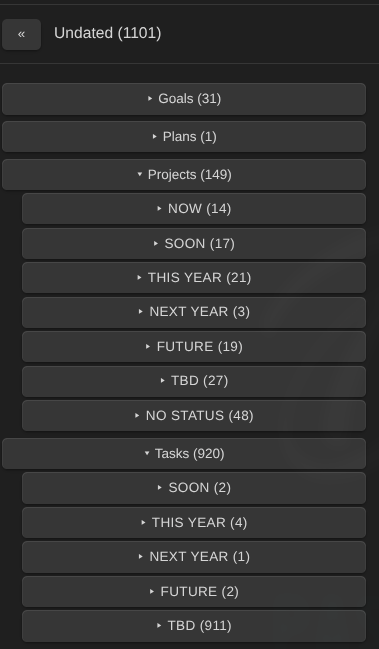
Schedule from the timeline. Drag a card out of the Unplanned panel and drop it anywhere over the timeline: its start date is set to the day under the pointer and it jumps onto its own row. A card without an estimate gets an estimate of 1 day as it lands, so every new entry starts as a one-day rectangle you can resize (an existing estimate is kept). While you drag, the timeline highlights and a striped New entry lane appears at the top. The drop creates a new row there (it never lands “inside” an existing card’s line), with a guide line marking the snapped day and a floating label showing the exact date that will be written.
Drag to reschedule: drag a square or rectangle horizontally. It snaps to whole days, and on release only the start date is written (the estimate travels with the card, so the span is kept). The floating label shows the new start date the whole time. Click a card or the row label to open the note; right-click anywhere on the row for the usual card menu (set status, schedule, relationships, …).
Resize a rectangle: hover it and drag the small handle at either edge:
- Left edge → changes the start date and adjusts the estimate with it, so the derived end stays anchored (the start can never pass it).
- Right edge → changes the estimate (never below 1 day); the label shows
5d → ends 2026-07-18as you drag.
While you resize, the to-be-written date also appears inside the rectangle at the dragged edge, larger for readability. When the bar is too narrow to fit it, the floating label near the pointer takes over.
Handles are hidden on a clipped (dashed) edge, where the real date is off-screen, and on very narrow rectangles; squares have no handles. Use the right-click menu for those.
Unschedule by dragging off: drag a square or rectangle onto the Unplanned panel (or use the menu’s Clear start date) and only the start date is cleared. The estimate and milestones are kept. By default the start is your shared scheduled date, so the card also leaves the calendar. A card that has milestones stays on the timeline as a milestone-only row; one without them drops into the Unplanned panel until you set a start again.
Mixed note types. When the board’s cards span more than one note type, timeline rows are grouped by type: collapsible header rows with a name and count, alphabetical, No type last.
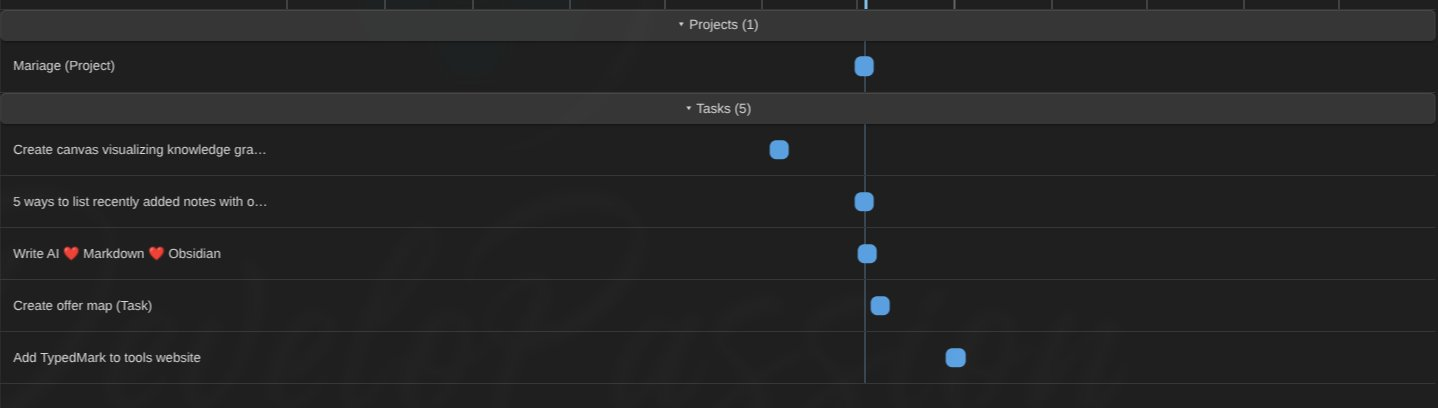 A Types toolbar button lets you show or hide individual types (hiding a type also hides its unplanned cards); the choice is remembered per view.
Define milestones from the timeline. Double-click a card’s row at the date you want: a small dialog opens with the date pre-filled (still editable) and an optional label. Add milestone appends a <date> <label> entry to the configured milestones list property and the diamond appears at once. Drag a diamond left or right to move the milestone to another day (whole-day snapping, with the guide line and date label; the label is kept). Right-click a diamond to remove that milestone.
Milestones. A configurable list property (default milestones) turns entries like:
milestones:
    - 2026-09-01 Beta release
    - 2026-10-15 GA
into diamond markers on the card’s row (hover for the label and date). Entries are <date> <optional label>; wikilink brackets around the date are tolerated, and anything that doesn’t start with a date is skipped.
Navigate with the same range switcher as the calendar, Week / Month / Quarter / Year (default set per view, your choice is remembered), and ‹ / Today / ›. Or zoom with the mouse: Ctrl/Cmd + scroll over the timeline steps through Week ↔ Month ↔ Quarter ↔ Year, choosing the new window around the date under your cursor. The zoom level is remembered exactly like the range buttons. Rows are sorted by start date.
More from the right-click menu: timeline rows and unplanned cards add Add milestone…, Set estimate… (a number in the note’s own unit, or any duration like 2h, 90m, 0.5d, converted for you, with a live preview; Clear estimate removes the property), and Clear start date (same effect as dragging off, shown only when a start exists) to the usual card menu. When the timeline uses a custom start property, Set start date… appears too. With the default scheduled property, the existing Schedule items already write that date.
The toolbar filter and zoom narrow the timeline like every other mode. Zoom into a project and the timeline becomes that project’s plan.
WBS mode
Where the board answers “what state is everything in”, the WBS (work breakdown structure) answers “how does the work decompose”. Your parent/child relationships rendered as a collapsible tree, goal → projects → tasks, with estimates, progress bars, and dates rolled up the hierarchy. Switch to it with the WBS button in the mode switch (or the Toggle WBS mode command).
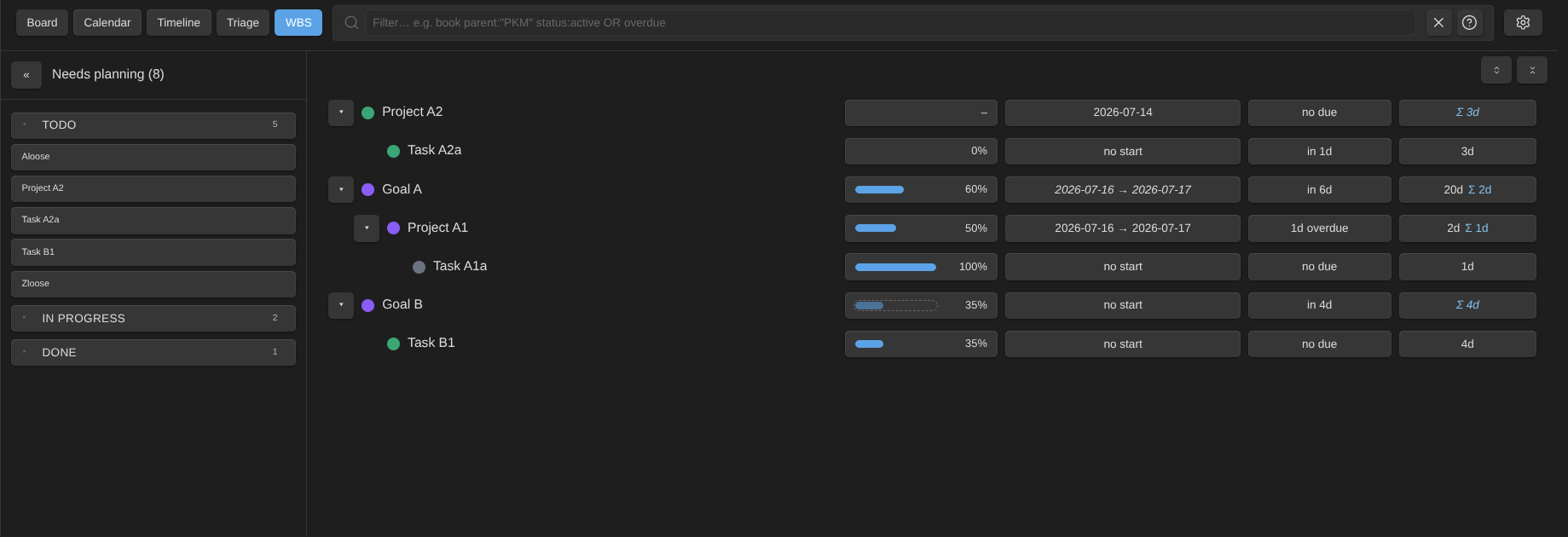
What’s in the tree: every note in this view’s result set. Notes link into trees through their parent/child relationships. A note with no relationships still shows as a standalone row, so a flat board stays workable: drag rows onto each other to grow the breakdown. When a note’s parent is excluded by the view’s filters (say the view shows only tasks, but tasks belong to projects), the out-of-view ancestors still appear as muted context rows (italic, dashed border, an “outside view” badge) so the hierarchy keeps its shape. Ancestor chains are followed through each note’s own type configuration (tasks → projects → goals). Context rows are display-only (no chips to edit, no dragging them), but they show the rollups derived from their in-view descendants, you can click them to open the note, and you can drop rows onto them to set a parent. Their chips render ghosted to signal they are read-only. To set an estimate, a date, or progress on such a note, open the note itself, or widen the view’s filters so it becomes a regular row. Out-of-view children are not shown. A note with several parents shows under each of them (marked ⧉). Fold and unfold any node with the chevron (←/→ on a focused row also work, and ↑/↓ move between rows). Collapse state is remembered per view, and the two buttons above the tree expand or collapse everything at once. Click a row to open the note (Ctrl/Cmd-click for a new tab).
Sibling order follows your plan: under a common parent, notes with a planned (start) date come first, chronologically; undated siblings follow, ordered by the view’s Card sort (name, any property, or title as the fallback).
One rollup model: own value wins, else derived from the children. Estimates and progress work the same way, so you can plan top-down (estimate the goal, split it later), bottom-up (estimate the tasks, let the parents derive), or mix both:
- Estimate: every estimate shows in one uniform duration format (
45m,1h 30m,1d 2h,5d, the day component sized by Minutes per day), so day-based and minute-based notes read the same at a glance. A parent without its own estimate shows the children’s rollup instead (Σ 4h 30m, italic = derived, three 90-minute tasks under a project). A parent with its own estimate also shows the rollup when it differs, an at-a-glance “does my budget match the breakdown?” signal. Long values cap at the two largest units (1d 1h 30mdisplays as1d 2h) to keep the columns tight, and each unit renders in its own fixed slot, so days, hours, and minutes line up vertically as you scan down the tree (a plain–marks notes with no estimate). Editing, Save rolled-up estimate, and Distribute estimate to children all read and write each note’s own property and unit. - Progress: every row has a progress bar, driven by a 0–100 number in the progress property (
progressby default, configurable in settings). A note without its own progress (or at 0) derives the weighted combination of its children (an explicit0on a child counts, so a parent of all-0% children shows a derived0%rather than a blank), and derived bars render dimmed with a dashed outline. If the note’s type has a done state (Configure board → Done state), a done note counts as 100%, no progress numbers needed: mark 2 of a goal’s 4 tasks done and the goal derives 50%. - Dates: a row with a start date shows its span (start → start + estimate − 1). A parent without one shows the span its subtree covers, in italics.
- Due dates: every row also shows a due chip with the countdown (
In 3d,2d overdue, color-coded by urgency like the board’s due countdown). Click it to set or change the due date; the dates chip does the same for the planned date.
Rollups are displayed by default, and you can persist them when you want. Right-click a node and use Save rolled-up estimate (Nd) or Save rolled-up progress (N%) to write the derived value into the note. The estimate chip’s inline editor and the Set estimate… / Set progress… dialogs pre-fill the derived value too, so adopting a rollup is click → Enter (or open → Set). Because an own value replaces its subtree’s contribution (it never adds to it), saving a rollup never double-counts.
Top-down estimating: right-click a node that has an estimate and children and choose Distribute estimate to children. What remains of the estimate (after the children’s own coverage) is split equally, whole days, across the children that have no estimate yet. Existing values are never overwritten.
Editing per node: click the estimate chip, the dates chip, the due chip, or the progress bar on any row to set that value directly. The estimate chip edits inline: clicking it turns the chip into a small input right in the row. Type a plain number in the note’s own unit or any duration (2h, 90m, 0.5d, 1d 4h), converted for you (days ↔ minutes via the Minutes per day setting). Enter saves (an empty input clears the note’s own estimate), Esc cancels, and clicking away saves a valid change. The input pre-fills the current value, or the derived rollup when the note has none, so persisting a bottom-up total is click → Enter. The context menu offers the same (Set estimate…, Set progress…, Set parent…), plus everything the card menu has elsewhere, including Set status, so you can move work through its workflow without leaving the tree (the status dot updates instantly). Even faster: click a row’s status dot to open a compact status menu with the note’s own status values, the current one checked, plus Clear status. No right-click needed.
Re-parenting by drag and drop: drag a row onto another row to move it under a new parent. The wikilink in the relationship property is rewritten for you (whether the link lives on the child’s parent property, the old parent’s children list, or both). Invalid targets, the node itself, its current parent, anything inside its own subtree, highlight red and refuse the drop. While dragging, the tree auto-scrolls when you near its top or bottom edge, and hovering a collapsed node expands it so you can drop deeper. Relationships detected from the tag+link heuristic can’t be un-linked for you; the new parent link is added and a notice explains. Prefer menus? Set parent… and the Relationships submenu do the same without dragging.
Detach by drag: drop a row onto the left panel (“Drop here to detach from parent”) to remove it from its parent. The stored link is deleted, nothing else changes. The note then roots its own tree: with its children if it has any, as a standalone row otherwise.
The “Needs planning” panel on the left lists every card missing a start date or an estimate, grouped by note type → status and sorted by the view’s card sort. Your estimation backlog. Drag a card from the panel onto a tree node to give it a parent (and grow the breakdown), or onto another status group (its header or its card list) to change its status right there, the same effect as the menu’s Set status; only same-type groups accept the drop (others highlight red). The panel collapses to a slim rail with « (remembered per view, auto-collapses on narrow panes).
The toolbar filter and zoom apply here too. Zoom into a goal and the WBS shows just that subtree’s breakdown. Notes excluded by the Base’s filters never appear as regular rows, only as the muted context ancestors described above, and persisted numbers (saved rollups, distribution) always compute over the Base’s own result set only.
The WBS never creates notes. It structures, estimates, and re-parents the ones the Base already selects.
Ideal week mode
The Ideal week mode (issue #172) draws how you want to spend a week: the recurring time blocks of every active note on the board, on a date-less weekly grid, one column per weekday. It is not a planner for a given week. You shape it once and revisit it now and then (yearly, say), so there is no week-to-week navigation. Switch to it with the Ideal week button at the end of the mode switch (or the Toggle ideal week mode command), or embed it with mode=ideal-week (mode=week works too).
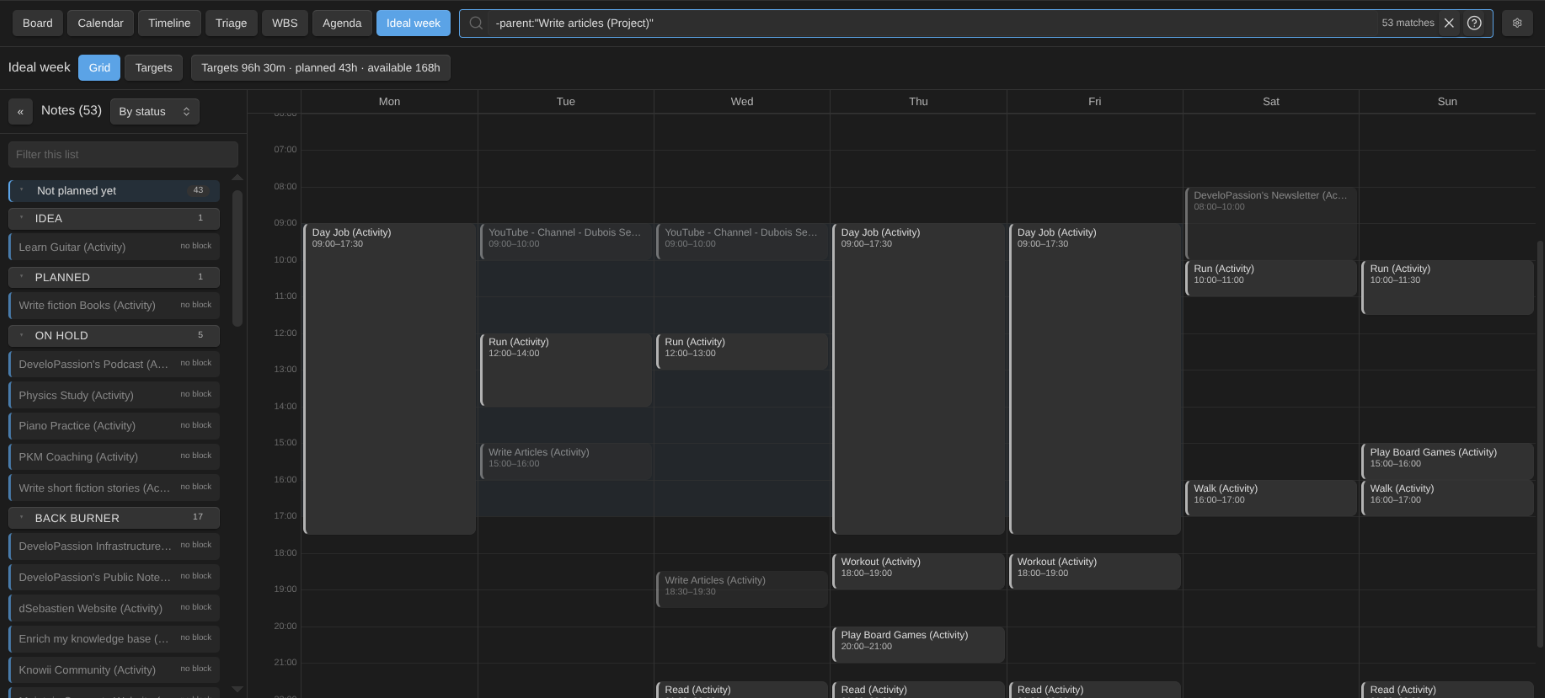
- What is on the grid. Every note whose status has the active planning role in its type’s status configuration (mirrored from the Obsidian Starter Kit; without roles, every non-done status counts) and that carries the time blocks property (
time_blocksby default; an empty list is enough, an absent property keeps the note out, and tasks stay in calendar and agenda modes). A note with a start and a due date (a project’sdate_startedanddate_due) is part of the ideal week only while today lies between them. - The rail on the left lists every note of the board that carries the time blocks property, whatever its status: a Not planned yet section and a Planned one, each grouped by status (collapsible headers in column order), every note with its planned minutes against its weekly target (
minutes_per_week), orange when under target, dimmed when the note is not active. A filter box at the top of the rail narrows this list only (title, type, status, area or context; Escape clears it) while the grid keeps every block, so you can find a note to drag without losing sight of the week. Drag a note from the rail onto the grid to plan a block for it. -
Change a status without leaving the week. While the rail is grouped by status, drag a note onto another status group (its header or any note in it) to set that status — the same write as moving a card between columns on the board, so your automations and date stamping run exactly as they would there. The group lights up while the note is over it, dashed red when that status is not one the note’s type defines, and the note jumps to its new group immediately. The grid wins whenever the pointer is over a day, so planning a block stays the primary gesture; the No status group clears the status. Grouping by area or context offers no status drop — those headers are not statuses.
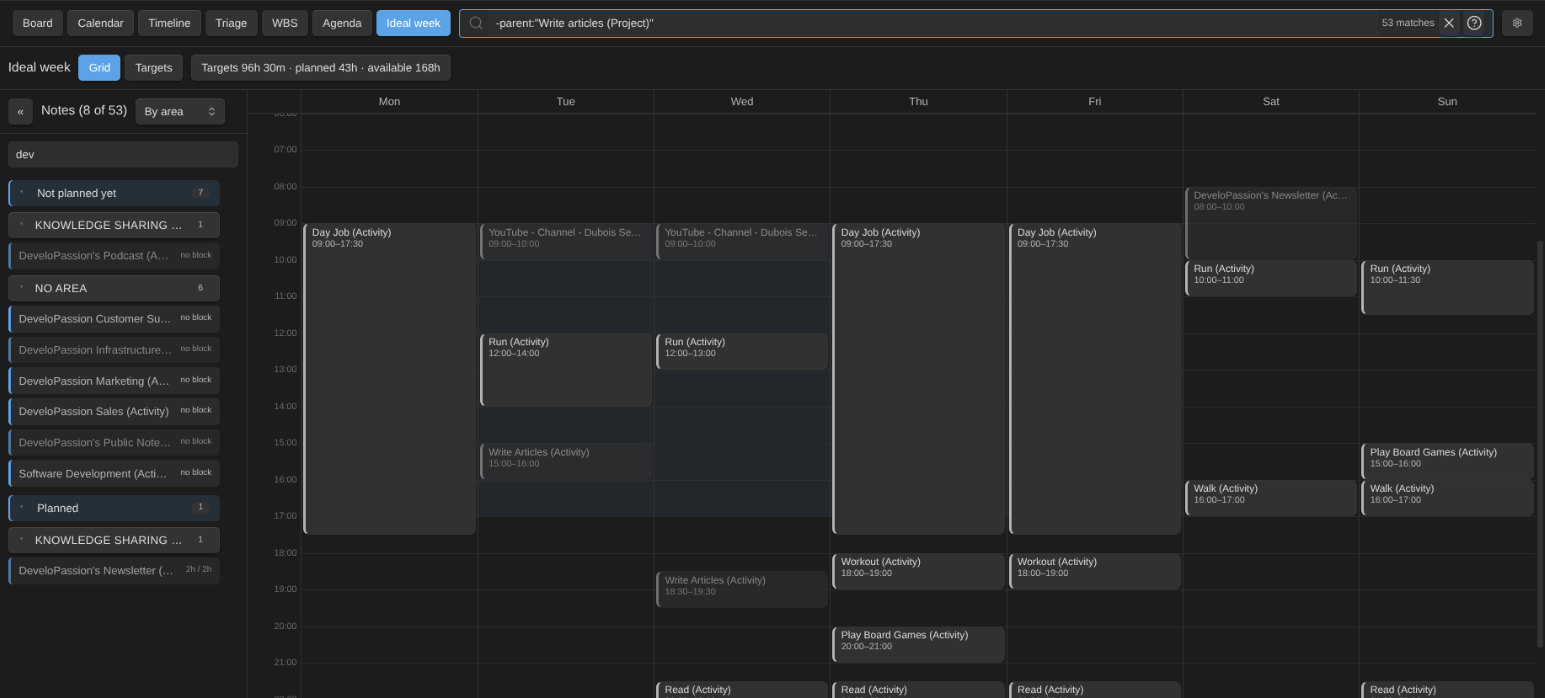 Blocks of notes that are not active render dimmed and dashed (they are on the grid so nothing you plan disappears, but only active notes count in the planned total); a dated note whose window does not include today keeps its blocks saved but not drawn (a notice says so when you plan one).
 - Blocks are frontmatter. Each entry of the list is
<days> HH:MM-HH:MMon a 15-minute grid:mon-fri 09:00-12:00,tue,thu 14:00-16:00,mon-wed,fri 08:00-09:00. A day list or range repeats the block; an end earlier than the start crosses midnight (fri 23:00-01:00renders as a Friday tail and a Saturday head). Entries the plugin cannot read are listed in a strip above the grid, naming the note and the problem; nothing is rewritten until you edit them. - Opening. Click a block, or a note in the rail, to open the note. Ctrl/Cmd-click opens it in a new tab. Hovering a block outlines its resize edges.
- Editing. Every edit shows at once. The note is written in the background, and the grid does not flicker when the Base picks the change up. Drag a block to move it (day and time, snapped to 15 minutes; a dashed phantom shows where it will land), drag its top or bottom edge to resize, drag its left or right edge to stretch it across days (the run of days it repeats on grows or shrinks:
mon-weddragged to Friday becomesmon-fri), hold Alt while dropping to copy it, right-click for the card menu plus Remove this block. With a block focused: arrows move it by 15 minutes or one day, Shift+↑/↓ resize its end, Delete removes it, Enter opens the note. Select several blocks by Shift-dragging a rectangle on an empty area of the grid (or Shift-click them), then Delete removes them all. Escape or a click on empty space clears the selection. Ctrl/Cmd+C copies the selection (or the focused block) and Ctrl/Cmd+V pastes it at the grid cell under the mouse pointer. Several copied blocks keep their layout relative to the earliest one, and a pasted block that would overlap something or fall outside the week is skipped with a notice. Moving one occurrence of a repeat only changes that day (mon-fri 09:00-10:30becomestue-fri 09:00-10:30+mon 11:00-12:30); the list is re-serialized in its canonical form and the planned minutes property (minutes_planned_per_week) is recomputed in the same write. - Creating. Click an empty spot of a day (the block starts at the 15-minute cell you clicked in): a picker lists the notes of the ideal week (grouped by note type on a mixed board, filter as you type) and writes a block of the configured length (60 minutes by default) at that time; or drag a note from the rail. A note that has no weekly target yet gets one from its planned minutes in the same write (a notice says so; adjust it with Set weekly target…), or, with Target follows planned off, is asked for one the first time you plan a block for it (minutes, or
5h; the target is written together with the block, Cancel plans nothing). - No overlaps. A move, resize, copy, or creation that would overlap another shown note’s block (or another block of the same note) snaps back with a notice naming the conflicting note and its time; nothing is written.
- Colour comes from the note’s first GTD context (the same palette as the calendar and timeline, with the click-to-filter legend in the toolbar). A note without a context renders neutral grey. A tinted work band marks your work hours on work days, and the toolbar sums the planned minutes across the grid against the targets.
- Undo and redo. Ctrl/Cmd+Z undoes the last ideal-week edit and Ctrl/Cmd+Shift+Z (or Ctrl/Cmd+Y) redoes it, with the grid focused; the commands Undo the last ideal week edit / Redo the last undone ideal week edit do the same from anywhere. A paste, a selection move or delete, and an import are one step each. The history lives in memory and ends with the view.
- More gestures. Drag on the empty grid to draw a new block over the cells you cover: down for the length, sideways for the days (
mon-wed 09:00-10:30in one gesture). The picker then asks which note. Shift-drag on the empty grid is the marquee selection. Dragging a selected block moves (or Alt-copies) the whole selection at once, all-or-nothing when something would overlap or leave the week. Ctrl/Cmd+A selects every block. Right-click an empty cell to plan a block there or paste the copied blocks there; while the clipboard holds blocks, the cell under the pointer is lit. The card menu of a block or rail note offers Set weekly target… (the target property, in minutes or5h; empty clears it) and Remove every block of this note. - Print. Print the ideal week (command) sends a print-friendly copy of the grid to the system print dialog (A4 landscape, contexts’ colours kept).
-
Targets table. The toolbar switches the ideal week between its two faces: the Grid (when the blocks fall) and Targets (how much each note gets per week), a table that takes the whole pane. Every note of the rail is listed with its weekly target editable in place (type minutes or
5h; Enter saves and moves to the next row, ↑/↓ move too, Escape reverts, an empty cell clears the target, an unreadable value is refused and outlined), its planned minutes with the gap to the target (orange under, red over), and the share of the available time the target represents. Notes that are not active are dimmed and left out of the sums. Group the table by area or by context (a note files under its first value): every group gets a subtotal and a repartition bar (the target’s share of the available week, the planned share drawn over it, red when a group exceeds the week), and a totals row closes the table with the sum of the targets, the planned minutes, the available time, what is left after the targets and what is not planned yet. The toolbar summary (Targets 32h · planned 30h · available 168h) is shown on both faces and opens the table; the command Toggle the ideal week targets table does the same from anywhere. The choice of face and grouping is remembered per view.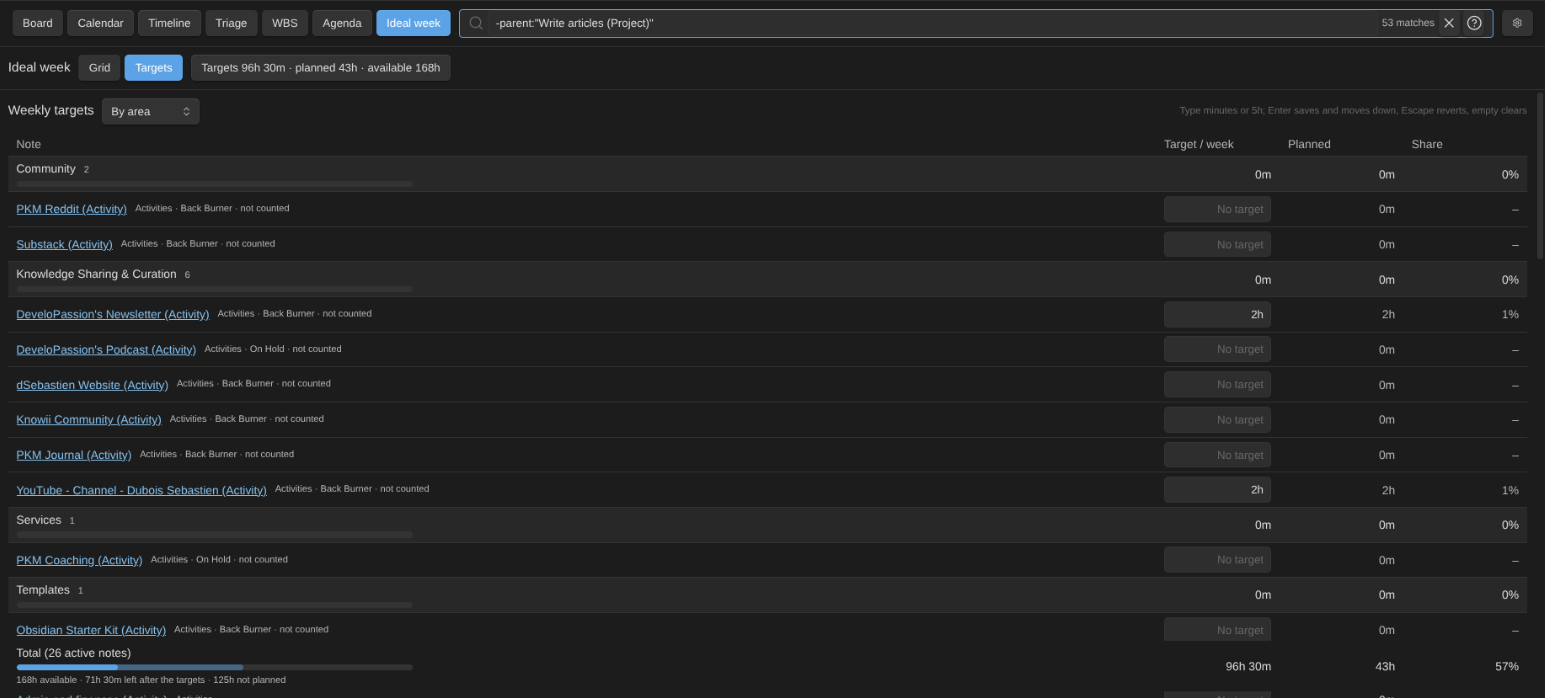
- Fits the day. The grid’s scale follows the height of the pane: the day window (06:00 to 22:00 by default, a setting) fills it exactly, on any window size, and the rest of the day scrolls above and below (the grid opens scrolled to the window start). Make the pane taller and the hours get taller with it; make it very short and the grid stops shrinking at the minimum pixels per hour setting and scrolls instead.
- Available time. Every share is measured against the Available hours per week setting (a number of hours,
37.5say). Leave it empty and the plugin uses the visible grid hours times seven days: the whole week, 168 hours, by default. That default is on purpose. Sleep, meals and rest are activities like any other, with their own blocks and targets, and whatever the table shows as left is your free time. - Target follows planned. When an edit plans more minutes for a note than its weekly target allows, the target is raised to the planned minutes in the same write and a notice says so (one notice for a paste, a group move or an import). A note without a target gets one from whatever is planned for it on the grid (the whole note, not just the block you just added) on its first edit, again with a notice. A target is never lowered. Turn it off with the Target follows planned setting: the grid then never writes a target, and a note without one is asked for it when its first block is planned.
- Areas. Notes can carry a list of areas, the life domains they belong to (Health, Exercise, Work…), in the
areasproperty by default (Areas property setting, or a per-type property in Configure board → Ideal week). The rail’s grouping switch (next to its title) groups the Not planned yet / Planned sections by status, by area or by context; the targets table groups by area or context too. Colour stays with the first context. Areas are grouping only, and the plugin never writes them. -
Import and export. The commands Import ideal week (JSON or Markdown), Export ideal week (JSON) and Export ideal week (Markdown) move the whole ideal week in and out of a file. Importing reads a JSON file or a Markdown one (
## Mondaysections with- 09:00 - 10:30: Note titlelines), pasted or picked as a file: each block’s text names the note it belongs to (exact title first, then case-insensitive, with or without the ` (Activity)style suffix); you are asked about anything else (Escape skips it). A note's imported blocks replace its current ones (or join them, with the toggle off). A note whose result would overlap another is refused and named, and styling is not imported (contexts colour the blocks). Exporting writesIdeal week.json` or `.md` into the attachment folder: day lists and ranges become one block per run of consecutive days, and 15-minute times are rounded outwards to a 30-minute grid, each rounding listed in the notice. 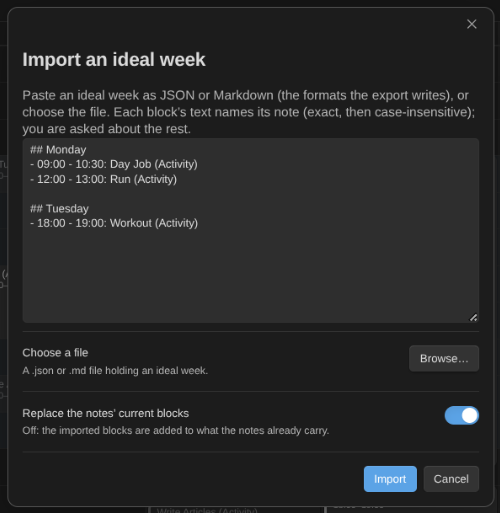
- Settings. Under Ideal week in the plugin settings: the five property names (time blocks, planned, target and alarm minutes, areas), the committed date property used by the WBS lifecycle chip, Target follows planned, Available hours per week, the visible hours (the full day by default), the work hours and work days (09:00–17:00, Monday to Friday by default), the new block length, the day window that fills the pane (06:00–22:00) and the minimum vertical scale. The column order follows the global First day of the week setting (block strings stay Monday-first:
mon-fri 09:00-12:00means the same days whatever the setting). A note type can map its own five properties in Configure board → Ideal week (blank = the global default).
Time tracking
Track actual time against your estimates (issue #119, rewritten in #172 to share TaskNotes’ records), straight from the cards, on any note type:
-
Start / Stop time tracking in a card’s right-click menu starts (or stops) a session for that note. Only one session runs at a time: starting another card stops the previous session first, writing its entry. A global Stop time tracking command stops the active session from anywhere, and a status-bar readout (
⏱ 12m · Note) shows what runs. Click it for stop / pomodoro actions.
- Stopping appends a time entry, a
{startTime, endTime, description}object with local ISO datetimes, exactly TaskNotes’ shape, to the note’s time entries list property (time_entriesby default), then recomputes the note’s duration property from the whole list (minutes; an entry you edited or deleted by hand is honoured, nothing accumulates blindly) and stamps the last session date property (date_last_session). A session that crosses midnight is one entry with its real start and end. The session survives an Obsidian restart, since elapsed time derives from the stored start, not a running timer. - Property names per note type. Each type can map the four tracking properties (duration, total duration, time entries, last session) in Configure → Time tracking; blanks fall back to the global settings. Notes that only carry a legacy
durationnumber from an older version keep reading correctly (it is used when both the entries list and the duration property are absent). Nothing migrates data. -
Pomodoro mode. Start pomodoro in the card menu runs a timed work pomodoro on the card (25 minutes by default) and opens its time session at the same time, so the entry ledger stays complete. The status bar counts down (
🍅 24:31 work pomodoro · Note); when the time is up the pomodoro completes, the session stops, and one record in TaskNotes’ shape ({id, taskPath, startTime, endTime, plannedDuration, type, completed, activePeriods}) is appended to the pomodoros list of today’s daily note, resolved through the Periodic Notes plugin, else the core Daily Notes plugin, else the folder and format in the plugin settings (the note is created empty when missing). Breaks come from the Start pomodoro break command or the status-bar menu: a short break (5 min), or a long one (15 min) after every 4th completed work pomodoro. A break stops any running session. Stop pomodoro ends one early (recorded as not completed). Durations and the cadence are settings.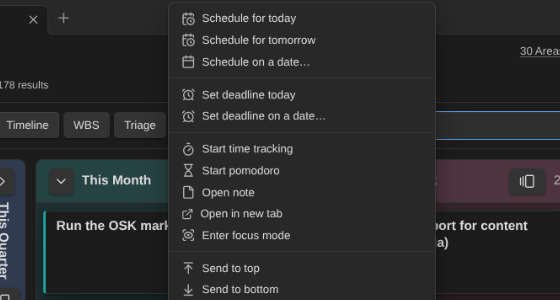
- Phases chain by themselves. When a phase completes, the next one starts on its own: work, then the break the cadence calls for, then work again on the same note (its time session stays open across a work → work chain and re-opens after a break). A phase you stop early never chains — that is a decision, not a boundary. Skip to the next phase (status-bar menu, command palette, or the timer’s ⏭) records the current phase as it stands and moves on at once. Turn chaining off with Chain phases automatically in the settings. Optional cues at each boundary — a short two-tone sound and a system notification — are both off by default.
- Pause. Pause or resume pomodoro (command, status-bar menu, or the timer’s ⏸) freezes the countdown; the status bar shows
⏸. Every run segment is kept, so the record’sactivePeriodslists each stretch and the pomodoro completes on time actually run, not on the clock. Elapsed time still derives from stored instants, so a paused pomodoro survives a restart exactly where it was. - A description for the entry. Turn on Ask for a description when a session stops and a small prompt asks what the session was about; the answer lands in the entry’s
description. The entry is written before the prompt appears, so skipping or closing it loses nothing, and the last description used on that note is prefilled. -
A timer you can see. Open pomodoro timer (command, ribbon icon, or the status-bar menu) opens a compact widget in the right sidebar: a ring that drains over the phase, the phase name, the note it runs on (click to open it), the remaining time large enough to read from across the room, the pomodoro count in the current cycle, and the controls in place — start work (on the tracked note when a session runs), start the break, pause / resume, skip the phase, stop. Colour tells work (red) from a short break (green) and a long break (blue), never alone: the phase name is always printed, a paused ring goes dashed, and the view carries an accessible label announcing the phase and the remaining time. Open pomodoro timer full screen (command, status-bar menu, or the widget’s ⤢) shows the timer alone, centred in a main-area tab with both sidebars folded away — for focus stretches and a shared screen. Escape leaves it and puts back the sidebars it folded; Space pauses and resumes. It is a rendered view, not a window, so it follows your theme in light and dark and survives a theme switch. Both derive from the same stored start as the status bar, so they are right after a reload.
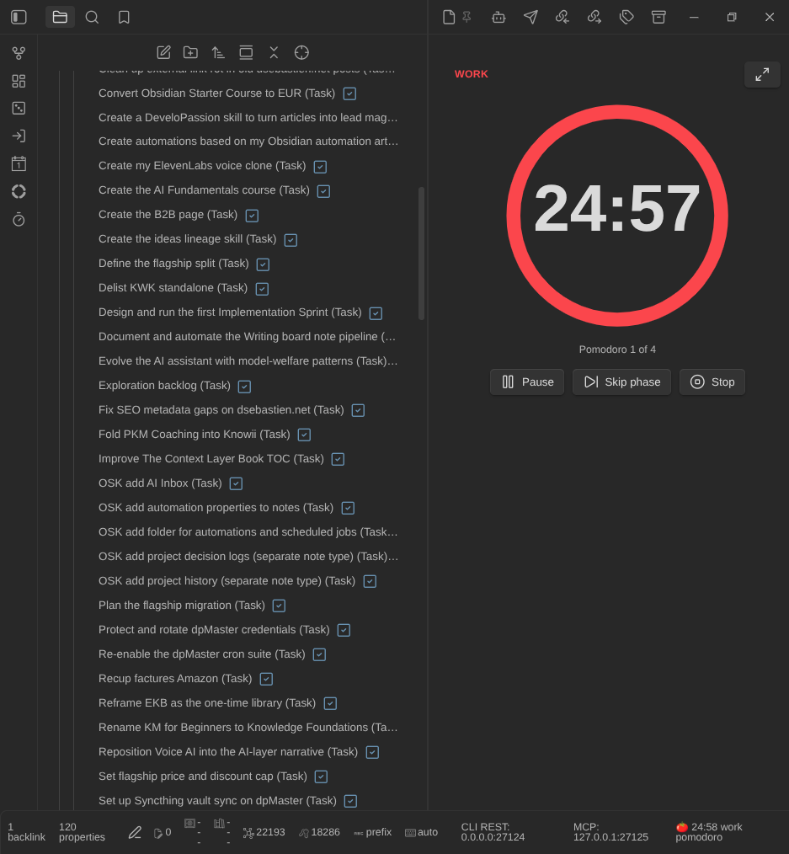
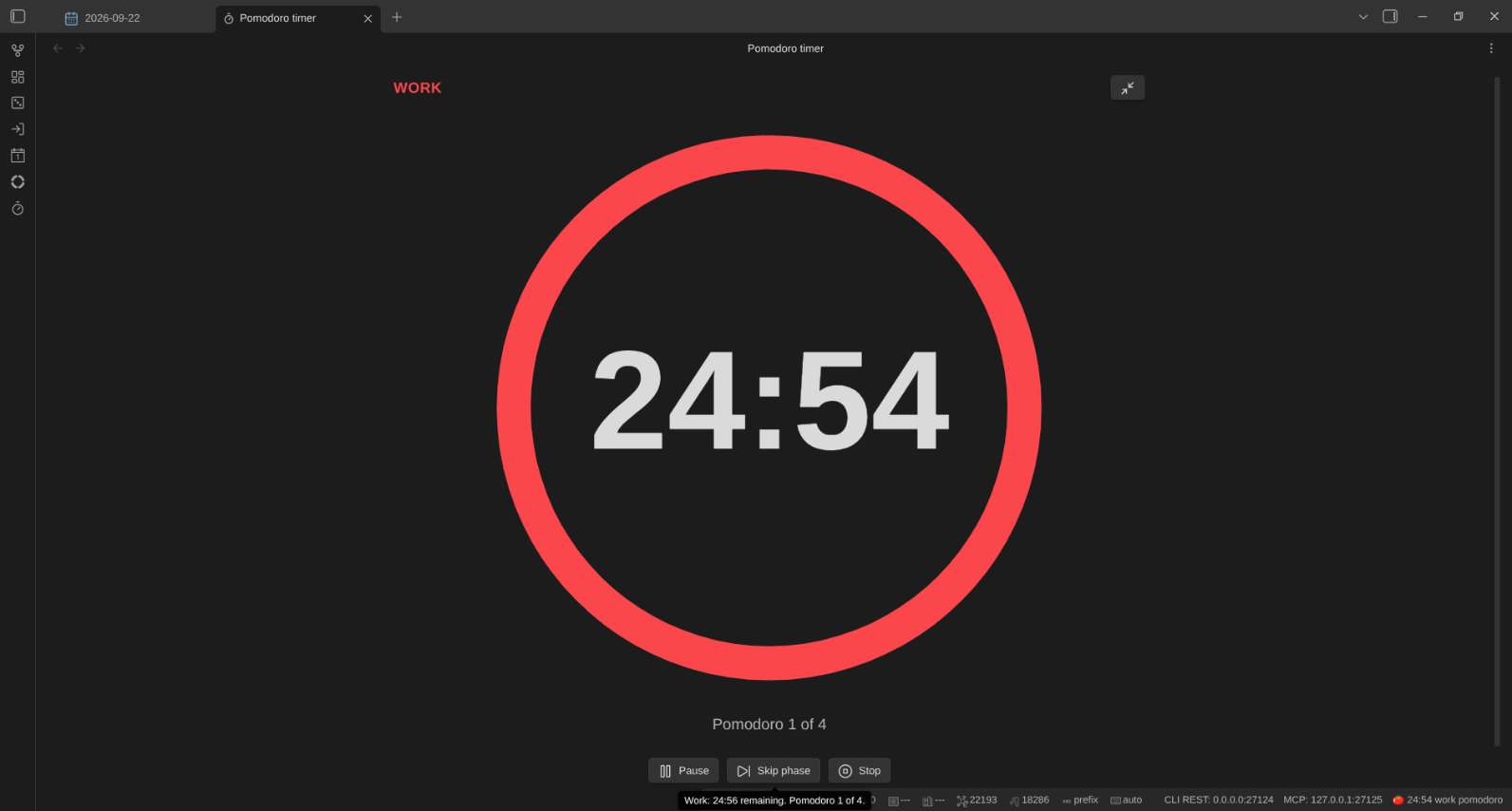
-
Idle detection and a session cap. A session forgotten overnight used to record the whole night and inflate every roll-up. Now, after Idle detection (minutes) without any activity in Obsidian (30 by default), or once a session passes the Session cap (minutes) (8 hours by default), you are asked once: end it when the activity stopped (or at the cap), keep it running, or discard it. Closing the prompt keeps the session — the tracker never ends one behind your back. A suspicious session found running after a restart gets the same prompt. Set either value to 0 to turn that check off.
-
Activities and projects carry a weekly budget ring on their cards and WBS rows: the arc is the time tracked this ISO week (the note’s own entries plus its linked tasks’, clipped to the week) against the weekly target, the label reads
1h 30m / 4h, and the tooltip adds the planned minutes and the alarm. Blue is under the target, green at 90% or more, orange over it, and red above the alarm (minutes_alarm_per_week), with one notice per note per week. In the WBS, goals and plans without a budget of their own show one rolled up from their subtree (target and planned own-wins-else-children, tracked adds; styled derived).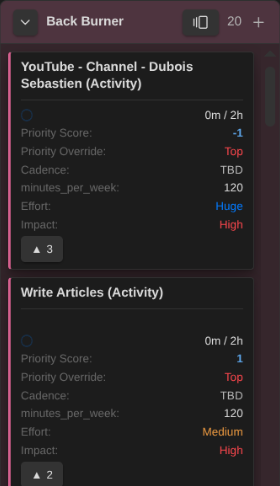
-
Every WBS row also carries a lifecycle chip: ⏳ lead (started − committed), then ⟳ cycle (done − started) and the lateness (+2d late, -3d early, done − due) once the item is done, or ▶ the days active for an open one. A missing date leaves its slot blank, never guessed. The done date is the property the done status stamps; the committed date is a global setting.
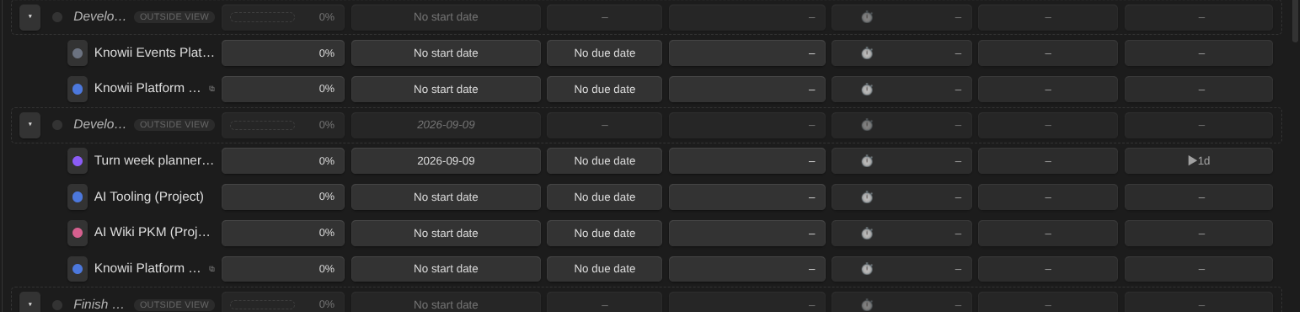
- The WBS shows a ⏱ tracked chip per row: the subtree’s total tracked time, own minutes plus every distinct descendant’s (actuals add; unlike estimates, an own value never replaces the children’s contribution). A total the children contributed to is styled derived, and the row menu offers Save total tracked time to persist it (in minutes) to the total duration property (
total_durationby default). Recompute tracked time from entries repairs a note’s duration and last-session date after the list was edited by hand or by TaskNotes. - Tracked time renders with the same
d / h / mgrammar as estimates, sized by Minutes per day, so tracked vs estimated reads side by side.
Focus mode
When it’s time to actually do the work, spotlight a single card full-pane (issue #160). Right-click any card, on the board, agenda, triage, timeline, or WBS, and pick Enter focus mode (or run the Toggle focus mode command, which spotlights the first card of the current view).
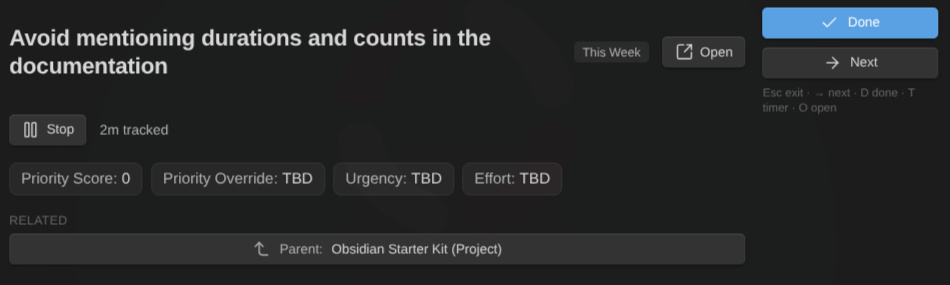
The spotlight shows the note’s title and status, the properties from your Bases view, its subtasks (children, checked off as they reach their done state), and its related notes (parent, blockers, siblings). Click any of them to open the note. A timer button starts or stops a time-tracking session for the card (Time tracking): the elapsed time ticks live next to the estimate, and stopping writes the minutes to the duration property.
- Done marks the card done per its note type’s done definition, through the same write path as the board so automations fire, and offers the next card from the same queue (the view’s current filtered order).
- Next (or →) advances without changing anything; Esc exits; D marks done; T toggles the timer; O opens the note. Right-click anywhere for the full card menu.
Phones and tablets
The plugin runs in the Obsidian mobile apps. What changes there:
- Pick up a card with a long press. Press and hold a card until it lifts, then drag it. Hold it near an edge to scroll. Lifting your finger without moving opens the card’s menu (the same menu a right-click opens on the desktop).
- One column at a time on a phone. Every column takes the full width and the board snaps from column to column as you swipe. A row of chips above the board names every column with its card count; tap one to jump to it. Collapsed columns stay narrow bars. Tablets keep the full board.
- Bigger touch targets. The column and lane buttons, the mode switch, and the resize handles in the ideal week and the timeline are sized for a finger. The resize handles are always faintly visible, since there is no hover on a touch screen. A timeline bar needs a little more width before it shows its handles.
What mobile does not do, on purpose:
- Print the ideal week. The mobile apps have no print dialog, so the command isn’t offered. Print from the desktop app.
- Import an ideal week from a file. Pasting the JSON or Markdown into the import box works everywhere. Browse… depends on your device’s file picker and may not offer every file type.
Still desktop-first: the calendar, timeline, WBS and ideal week work on a phone, but their touch gestures and layouts haven’t been redesigned yet. Follow the linked issues in the mobile plan.
Keyboard
Cards are fully keyboard-operable. Tab to a card, then:
- Enter / Space: open the note (Ctrl/Cmd for a new tab).
- Ctrl/Cmd + ← / →: move the card to the previous or next column (changes its status).
- Alt + ↑ / ↓: reorder the card up or down within its column.
- Menu key (or Shift + F10): open the card’s context menu.
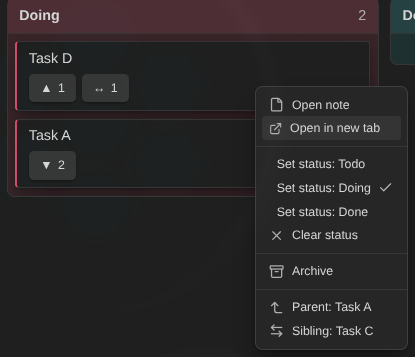
Focus follows the card after it moves, so you can keep going. (See also the command palette commands above, which are hotkey-bindable.)
Multi-select and bulk actions
Press the Select button (the checklist icon next to the gear) to enter select mode:
- Click cards to select or deselect them. Shift-click selects a range.
- An action bar appears under the toolbar for the whole select session, showing how many cards are selected, with bulk actions: Set status (pick a column, or clear), Archive, Open (each in a new tab), and Clear. The actions are disabled until at least one card is selected, and the bar keeps its place so the board never jumps as you select.
- Right-click a selected card (or press the menu key / Shift+F10 on a focused one) to get the same bulk actions at the pointer. With two or more cards selected, the context menu acts on the whole selection (set status, archive, open, clear selection). Right-clicking an unselected card still opens the regular single-card menu.
- Press Select again to leave select mode.
Bulk writes are applied to each note and a summary notice reports how many succeeded (and any that were skipped or failed). Bulk Set status changes only the status, so it doesn’t trigger auto-archive and you never mass-archive by accident.
Compact cards
Press the compact button (the rows icon next to Select) to show titles only: covers, fields, badges, and relationship chips are hidden so far more cards fit on screen. Press it again to bring the details back. The toggle is off by default and is remembered per view (it’s saved into the .base file, like the Board/Calendar/Triage mode).
Other interactions
- Hover a card to preview its note. Obsidian’s native page-preview popover, the same as hovering a link, and it works in every mode: board cards, calendar chips, timeline rows and undated-panel cards, WBS tree rows and “Needs planning” cards. By default it’s Ctrl/Cmd-gated (hold the key while hovering). Change that under Settings → Core plugins → Page preview (the source is listed as “Kanban Action Planner”).
- Click a card to open the note. Ctrl/Cmd-click opens it in a new tab.
- Right-click (or long-press on touch) a card for a menu: open the note (or in a new tab), send it to the top or bottom of its column, set its status, clear the status, set an enum property (see below), schedule it, set a deadline, archive the note, open or edit a related note.
- Set a property in one click. For any property with known allowed values, the card menu shows a **Set
** submenu (e.g. **Set priority → 10 - Top**) with the current value checked and a **Clear** option, just like **Set status**, but for `priority`, `urgency`, `effort`, and any other enum. Allowed values are detected from the **Obsidian Starter Kit** when present, or defined per note type under **Configure board → Enums** (see below). The note is written and the board updates immediately.
Remembered view state
Each Kanban view remembers how you left it, per view, across reloads and reopening Obsidian:
- Board vs Calendar vs Timeline vs WBS vs Triage vs Agenda vs Ideal week mode, and the calendar range (Week/Month/Quarter/Year), active tab, panel collapsed state, and the Scheduled/Deadlines legend toggles.
- The agenda window (Today/Week) and its Available only toggle.
- The timeline range (Week/Month/Quarter/Year), its panel collapsed state, and its hidden types.
- The WBS collapsed nodes and its panel collapsed state.
- The ideal week’s panel collapsed state.
- Collapsed swimlanes and collapsed columns.
- Compact cards (titles only) on or off.
- The toolbar filter query.
A few bits are not remembered on purpose, and reset every time you reopen the view: the calendar/timeline anchor (both jump back to today) and the calendar’s focused day zoom (cleared).
A board embedded in a note never saves anything back to the view. Mode, filter, collapse states, compact cards, column order and the rest all stay local to the embed.
View options (Configure view)
Open the view’s options (the Bases Configure view panel) to tune this board without changing your notes. They’re grouped:
Columns
- Column property: choose which property drives the columns (overrides auto-detection). It doesn’t have to be a status: pick
priorityorurgencyto build a priority board. New cards added to a column get that column’s value on this property. - Column values: the list of values to show as columns, in order (one per entry). This is the per-view column definition.
- Manual order property: choose where card order is stored.
- Card sort: how cards are ordered inside each column. Manual order (default, drag to arrange), Name (A–Z), or By property. Card sort property picks the property for the last option, and Card sort direction sets ascending or descending. A non-manual sort disables in-column drag and keyboard reorder (missing values sort last). The sort property can be a base formula (e.g. a
priority_scoreyou define in the base’s formulas): pick aformula.…(orfile.…) entry to sort by a computed value. Same for Grouping property below. - Show empty columns: keep columns with no cards visible (useful when columns come from a note type’s defined statuses).
- Unmapped column position: show the Unmapped column first (left, the default) or last (right). It still only appears when something is unmapped.
- Show “Add card” in columns: show the per-column quick-capture button (on by default). See Creating cards from the board.
- Column aggregate / Column aggregate property: roll one numeric property up per column and show it next to the card count:
Σ 13for a sum, or an average, minimum, or maximum. Non-numeric and empty values are skipped (they are not counted as zero), so a column with nothing numeric in it shows no badge at all. The property can be a base formula (formula.…) or afile.…column, since the aggregate only reads. Picking your estimate property rolls estimates up in the usual1d 2hgrammar, converting each note type’s own unit (days or minutes) first, so a board mixing both still sums correctly. Aggregates hide on a collapsed column.
Cards
- Title property: show a property as the card heading instead of the note name (falls back to the note name when it is missing or empty). Formulas allowed.
- Show due countdown: show the
In 3d/2d overduebadge on cards. Its position and the “soon” threshold are global plugin settings. - Countdown counts down to: whether that badge tracks the deadline (the due date, the default) or the scheduled date (when you plan to start). Pick
scheduledon a board you triage by when work lands rather than by when it is owed:In 2dthen means “planned to start in 2 days”. The overdue / due-today card emphasis always follows the deadline, whichever the badge tracks, and a card with no value for the chosen date shows no badge.
Swimlanes
- Grouping: override lane grouping for this view. Use note type default (which auto-groups by note type when the board mixes types), None, By note type, or By property. (The per-type default is set in Settings.)
- Grouping property: when grouping By property, the property whose values become lanes. This can also be a base formula (
formula.…) orfile.…column. Grouping by a computed column is read-only, so cross-lane drag is off for those lanes (there’s no property to write back).
Filters
- Blocked cards: show all cards, only blocked ones, or hide blocked ones.
Calendar
- Default range: Week, Month, Quarter, or Year.
- Scheduling panel sort / sort property: order the panel’s tab cards (narrowing is done with the toolbar filter box).
(Calendar mode itself is toggled by the in-view Board / Calendar switch. The scheduled and due date property names are set globally in plugin settings.)
Timeline
- Default range: Week, Month, Quarter, or Year. (The start/estimate/milestones property names are global plugin settings, not view options.)
Triage
- Triage scope: which cards the queue offers by default. Needs clarification, All cards (re-prioritize), or Due for review. The property lists and needs-triage tokens are edited in the Configure triage modal, not here.
Note type configuration (colors, enums, relationships, estimate, done state, automations, archiving)
A note type’s shared config lives centrally in Settings → Community plugins → Kanban Action Planner → Note types. Pick a type and click Configure to open a dialog with sections on the left (Colors, Enums, WIP limits, Swimlanes, Relationships, Estimate, Archiving) that apply to every board showing that type. The gear in the board’s top-right is a shortcut that jumps straight to these settings. (What each card shows is set per view via the Bases Properties selection, see Card content above.)
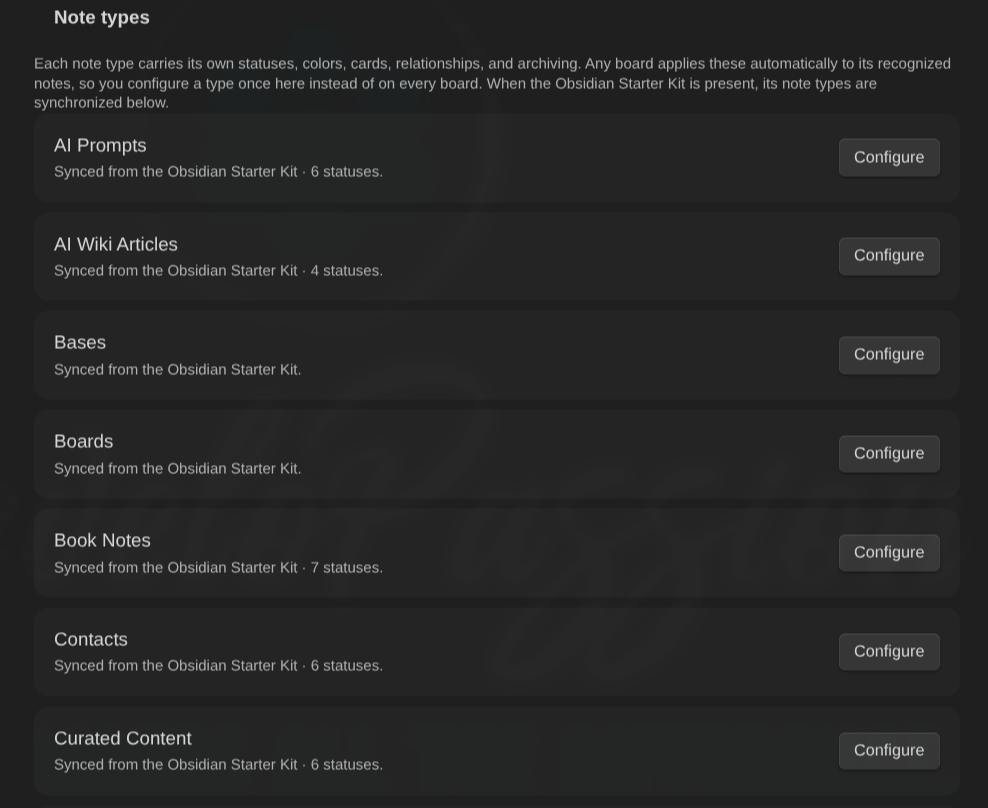
Define your own note types, no Starter Kit needed. Click Add note type to create a local type. Its Note type section lets you name it and add recognition rules: a note is recognized as this type when any rule matches, by tag (including nested tags, so type matches type/task), by folder (the note is in that folder or a subfolder), or by a regex on the note path. Recognized notes then pick up that type’s colors, relationships, and archiving, and can drive By note type swimlanes, all without the Obsidian Starter Kit. Delete a local type with the trash icon (your notes are untouched). When the Starter Kit is installed, its recognition is tried first and your local rules act as a fallback.
The Estimate section lets a type use its own estimate property and unit: e.g. tasks tracking effort in a tasknotes-compatible time_estimate (minutes) while projects and goals keep the global day-based property. Leave the property empty to keep the global name and only change the unit. Minute estimates convert to days everywhere (rollups, timeline, spans) via the global Minutes per day setting (default 480 = an 8-hour workday), and all edits are written back in the note’s own unit. This works for Starter Kit–loaded types too, since the estimate association is owned by this plugin, not the Starter Kit.
In the WIP limits section, set a soft per-column limit for any status (leave blank for no limit). The column header then shows count / limit, and a column over its limit turns its count red, a gentle nudge toward classic Kanban flow. Limits are a warning only. They never block moving a card into a full column. Trust me, that’s the right default.
In the Colors section:
- Toggle Auto-assign colors to give each status a palette color automatically.
- Per status, pick a palette color, choose Custom… and use the color picker, or pick Auto to reset.
Card accents and column shades follow the status color and adapt to your light or dark theme.
In the Enums section, define the allowed values for any property (e.g. priority, urgency, effort), one per line, in order. These power the card menu’s **Set
Card content
Cards show the properties you’ve added to the view, the same Properties selection you set with the Bases toolbar (the Properties menu / “Configure view”). Each property in that list (other than the note name, which is the card heading) renders as a labelled field on the card, in the order you arranged them. This works for ordinary note properties and base formulas (a formula.… column like a priority_score) and file columns (file.…), so a computed value shows on the card with no extra setup. The field label is the property’s display name from the base. Empty or unset values are skipped. Add, remove, or reorder card fields the same way you would for any Bases view: change the view’s properties and every card updates.
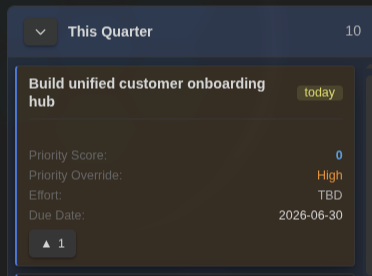
Card title. By default the card heading is the note name. If your filenames aren’t meant to be read (date-prefixed slugs like 2026-07-07-technical-meeting, ID-based names), pick a Title property in the view options (Configure view → Cards → Title property), for example a title or name property, and the card heading shows that property’s value instead. Base formulas work too. A card whose note doesn’t have the property (or has it empty) falls back to the note name, so cards never go blank. The chosen property is not repeated as a body field, and clicking the card still opens the underlying note. The title applies everywhere the card appears: the board, the calendar chips and scheduling panel, triage, search, and name sorting.
Card titles drop the note type’s name decoration. Note types decorate file names so their recognition rules can key off them: the Obsidian Starter Kit writes ` (Task), (Project), AI Wiki - `. On a board where every card is the same type that is noise, so the card shows Ship the plugin, not Ship the plugin (Task). It is on by default for every note type, in every view mode, and it is purely presentational: the file name, search, links, and every write keep the full name. Turn it off per type, or add your own prefixes/suffixes to strip, in Configure board → Card titles (see the configuration guide).
Field rendering is tuned for scanning the whole board at a glance:
- Enum values are color-coded by where they rank, a warm (red/orange) signal for the top or most-urgent values down to cool (blue/muted) for the bottom ones, so the board reads at a glance. Ranking uses the numeric
NN -prefix, so it doesn’t matter what order the allowed values come in, and a99 - …“not decided” value lands coolest. Note properties rank against their allowed values, and base-formula values rank against the distinct values present on the board. A value with no rankable scale stays neutral. - The
NN -sort prefix is stripped from display:30 - Highshows as High,99 - ⏰ No Targetas ⏰ No Target. (Dates like2026-01-15are never touched.) - A numeric formula value (e.g. a
priority_score) is the standout score. - A percentage field (display name contains
%or “progress”, numeric value) renders as a small progress bar with a%caption. - Labels stay legible (different properties can share a value set, e.g. priority vs priority override both reading
High), so the label still tells them apart.
Choose the chip style in Settings → Community plugins → Kanban Action Planner → Card chip style (applies to every board):
- Minimal (default): no fills, a faint label plus a heat-colored value, laid out as a clean vertical stat list. The calmest, most consistent look.
- Tinted: each value is a flat color-filled pill, so the board reads like a heatmap.
- Rail: uniform neutral pills, each with a colored left edge for the heat signal.
A note’s due date is always shown in red when set, regardless of which properties you’ve added.
Overdue emphasis. Cards with a past due date get a red background wash so overdue work pops at a glance, and cards due today get a softer amber wash. This uses the card background, so it stays distinct from a blocked card’s red left edge: a card that is both blocked and overdue shows both signals. The state updates whenever the board refreshes (e.g. as the date rolls over).
Due countdown. Turn on Show due countdown in a board’s view options (Configure view → Cards) to add a compact badge that says how soon a card is due: Today, In 3d, 2d overdue, in 2w, in 3mo (the unit scales automatically, days, then weeks, then months). The badge is color-coded by urgency: red overdue, amber today, orange soon, and a muted tone further out. The toggle is per board (off by default), reusing the same due date the red emphasis uses.
Two global settings (Settings → Community plugins → Kanban Action Planner) tune it for every board:
- Due countdown position: where the badge sits. Title row (default) a right-aligned pill on the title, Field chip among the bottom chips, Top-right corner a pill in the card corner, or Footer row a strip at the bottom.
- Due “soon” threshold (days): within how many days the badge turns warm (orange). Default 7. This changes the color, not whether the badge shows.
The dialog also has Swimlanes (group the board into lanes) and Archiving (move finished cards into a folder) sections. See Swimlanes and Archiving above.
Using this plugin with the Obsidian Starter Kit
The plugin is fully standalone. Nothing below is required. You can define your own note types by tag, folder, or regex and never think about this again.
That said, this plugin was built alongside the Obsidian Starter Kit, and the two are designed to fit together. The Starter Kit is a complete, opinionated knowledge-management system for Obsidian: a folder structure that scales, a set of note types (goals, projects, tasks, plans, literature notes, people, periodic notes, …) each with its own properties, statuses, templates, and naming conventions, plus the workflows to keep it all coherent. If you have it, this plugin becomes the board on top of that system, with no configuration at all.
What the board picks up automatically
When the Starter Kit plugin is installed and recognizes a note’s type:
| It provides | What the board does with it |
|---|---|
| The type’s status property and its allowed values | Builds the columns, in the type’s defined order, including the empty ones, so a board of Tasks shows every task status, not only the ones in use |
| The type’s recognition rules (tag / folder / regex) | Recognizes each card’s type, so a mixed board can give each type its own lane with its own columns. A project can never be given a task status |
| The type’s allowed values for any other property | Powers the card right-click “Set …” quick-set menu and the one-click controls in triage mode |
| The type’s associated folder, template, and note name prefix / suffix | Drives quick capture: the Add card button creates a note exactly where a note of that type belongs, with the same template you would get from the Starter Kit’s own “Create new note” command |
In short: point a Base at your tasks, add a Kanban view, and you already have the right columns in the right order, the right template on new notes, and the right lanes on a mixed board, without configuring anything.
What stays yours
Everything this plugin adds on top is stored locally, per note type, and keeps working if the Starter Kit is ever disabled or removed: colors, WIP limits, swimlane grouping, relationships, estimates, done states, automation rules, archiving, card display, and any creation overrides. The Starter Kit is the source of truth for the note-type facts; the board is the source of truth for how they are shown and acted on.
Without the Starter Kit
Everything still works. Define columns per view (Statuses (columns)) or globally, and, if you want per-type behaviour, create your own note types in Settings → Note types → Add note type, recognized by tag, folder, or path regex. Quick capture then falls back to the folder your Base filters on and to Obsidian’s default new-note location, plus any Templater folder template you already use.
💡 Want the whole system?
The Obsidian Starter Kit gives you the structure, note types, templates, and workflows this plugin was designed around: a complete PKM system you can start using today instead of building from scratch.
Command palette
A few commands act on the currently focused Kanban view (they do nothing when another view is active, and each can be given a hotkey in Settings → Hotkeys):
- Toggle board / calendar mode
- Toggle timeline mode
- Toggle WBS mode
- Toggle triage mode / Configure triage
- Toggle agenda mode
- Toggle ideal week mode
- Undo the last ideal week edit / Redo the last undone ideal week edit
- Print the ideal week
- Import ideal week (JSON or Markdown)
- Export ideal week (JSON) / Export ideal week (Markdown)
- Stop time tracking (only while a session runs)
- Start work pomodoro (on the tracked note when a session runs, else on nothing)
- Start pomodoro break (short, or long after every Nth completed work pomodoro)
- Stop pomodoro (only while one runs)
- Pause or resume pomodoro / Skip to the next pomodoro phase (only while one runs)
- Open pomodoro timer / Open pomodoro timer full screen
- Focus filter: jump to the filter box
- Clear filter
- Go to next swimlane / Go to previous swimlane
One command acts on every open Kanban view instead:
- Archive aged done notes (open boards): run the archive grace sweep now (a no-op with a grace period of 0).
Where it lives
Most of the experience is inside the Bases Kanban view itself. The plugin’s settings tab holds the global default property names used when a note or board doesn’t override them.