Kanban Action Planner
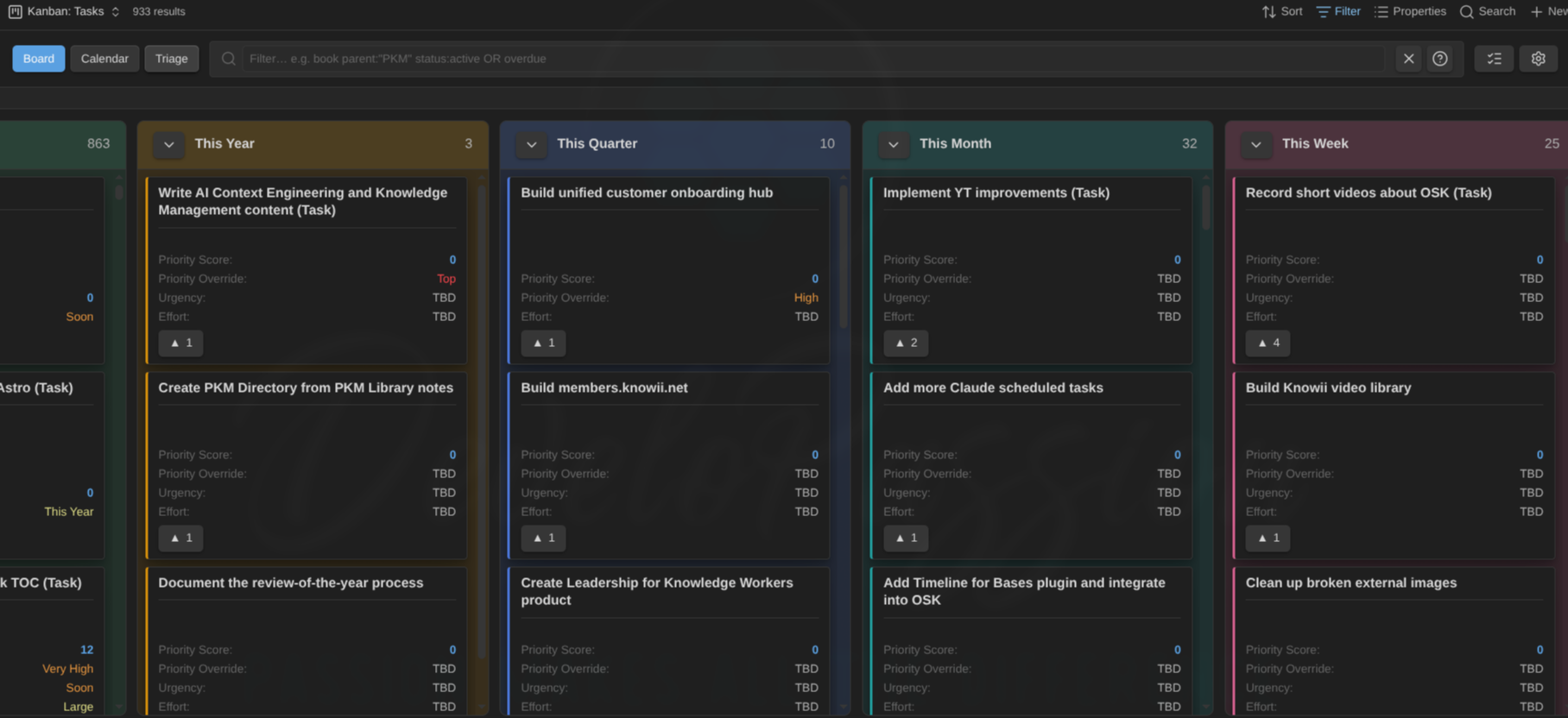
Kanban Action Planner adds a Kanban board view to Obsidian Bases. Any set of notes selected by a Base can be planned and tracked visually. Notes become cards, a status property becomes the columns, and you drag cards between columns or reorder them, with every change written straight back into your notes.
In development. Features are delivered milestone by milestone, and this page reflects what currently works.
Key Features
- Kanban view inside Bases. Add a “Kanban” view to any Base. The Base’s filters choose the notes, and each note becomes a card.
- Embed a board in any note.
![[Tasks.base#Kanban]]renders the view inside a markdown note, with a bounded height and internal scrolling. The alias overrides mode, height, and filter for that one embed (|mode=wbs height=400 filter=status:active) without touching the saved view. - Status to columns. Columns are defined explicitly (per view, from the Starter Kit, or in plugin settings), never guessed from your data, so a typo can’t create a stray column. Cards are placed by their status property, and notes with no or unknown status collect in an Unmapped column that disappears when empty.
- Drag, reorder, sort. Drag a card to another column to change its status, or reorder within a column (saved to the note). Auto-sort each column by name or any property, ascending or descending. Full keyboard support too.
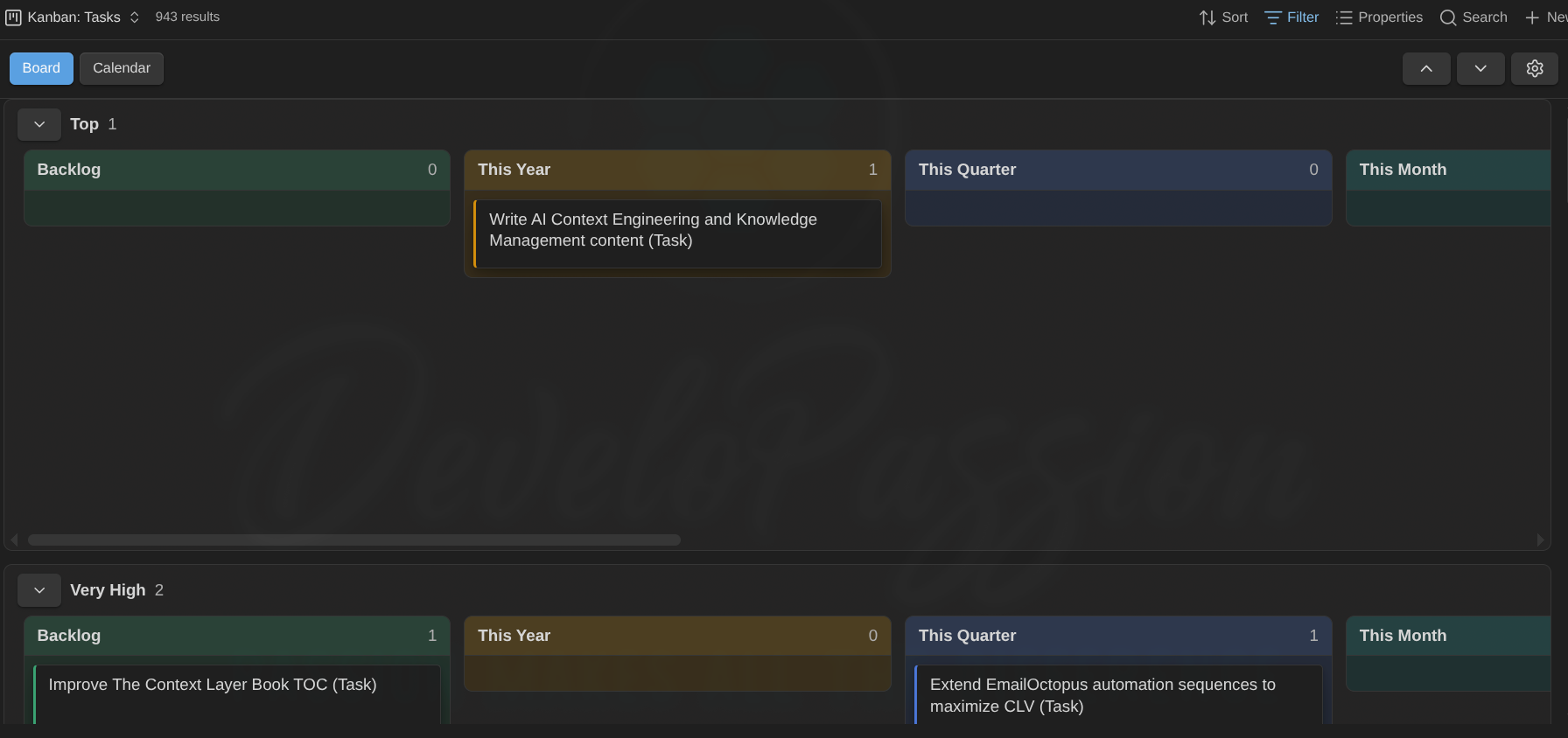
- Swimlanes. Split the board into horizontal lanes by note type or any property, with collapsible lanes and columns. A board mixing note types auto-groups by type, each lane with its own type’s columns — a card’s own type is authoritative for its status.
- Filter as you type. A toolbar search box with a compact, Jira-like query language (
status:active OR due:overdue,parent:"PKM" -tag:archived), saved per view. - Relationships. See, navigate, and edit parent, sibling, child, and blocked-by links from the card menu. A blocked card is flagged and filterable.
- Focus on a card’s children or whole subtree. Zoom into a project (card menu or the ▼ children badge) and the board re-filters to just its children — or all its descendants — or zoom up from a task via its ▲ parents badge to see the whole project’s children at once. A dismissible chip next to the filter box shows the focus; zooming again drills down a level.
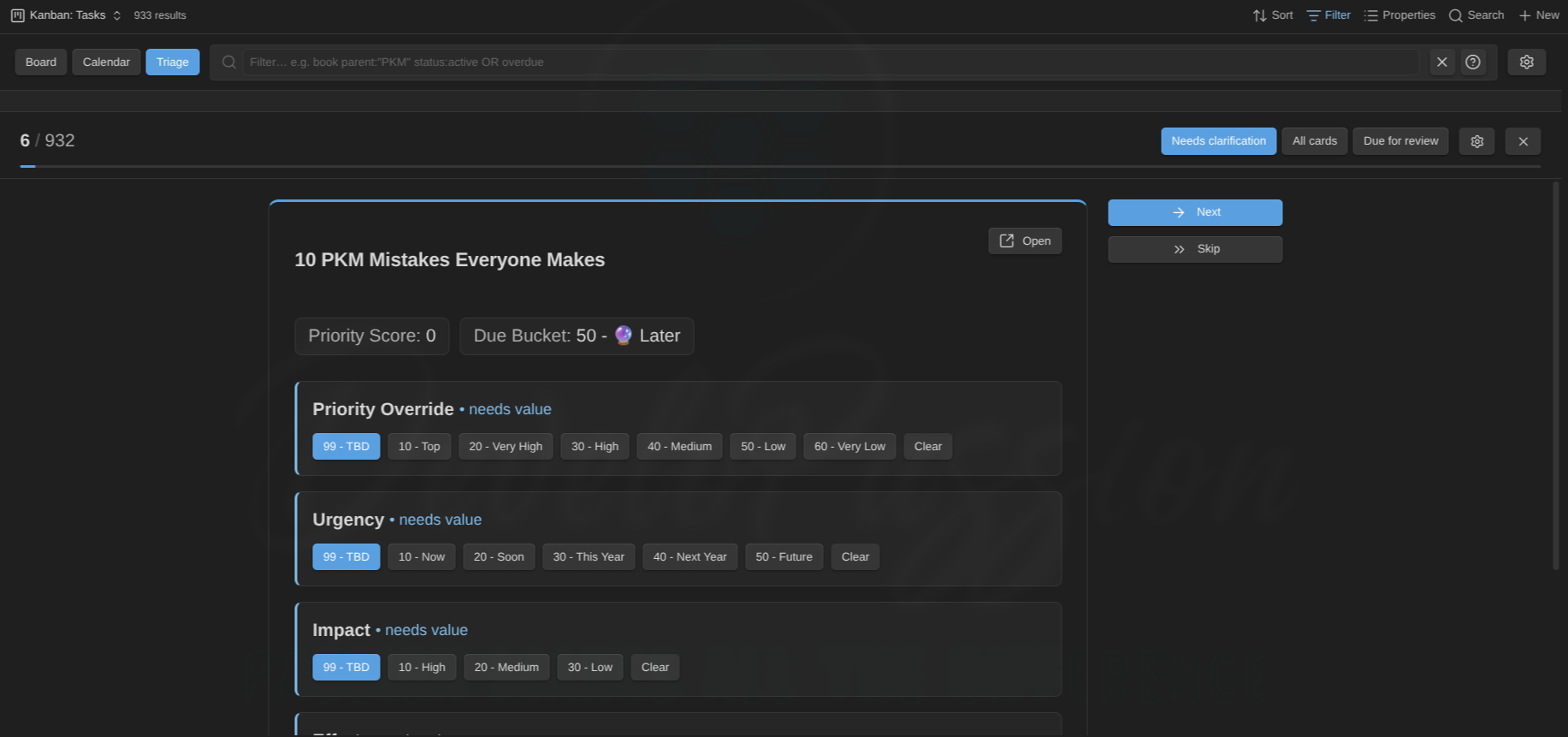
- Triage mode. Work through an overwhelming backlog one card at a time, setting priority, urgency, and effort from one-click controls. It doubles as a spaced-repetition review queue.
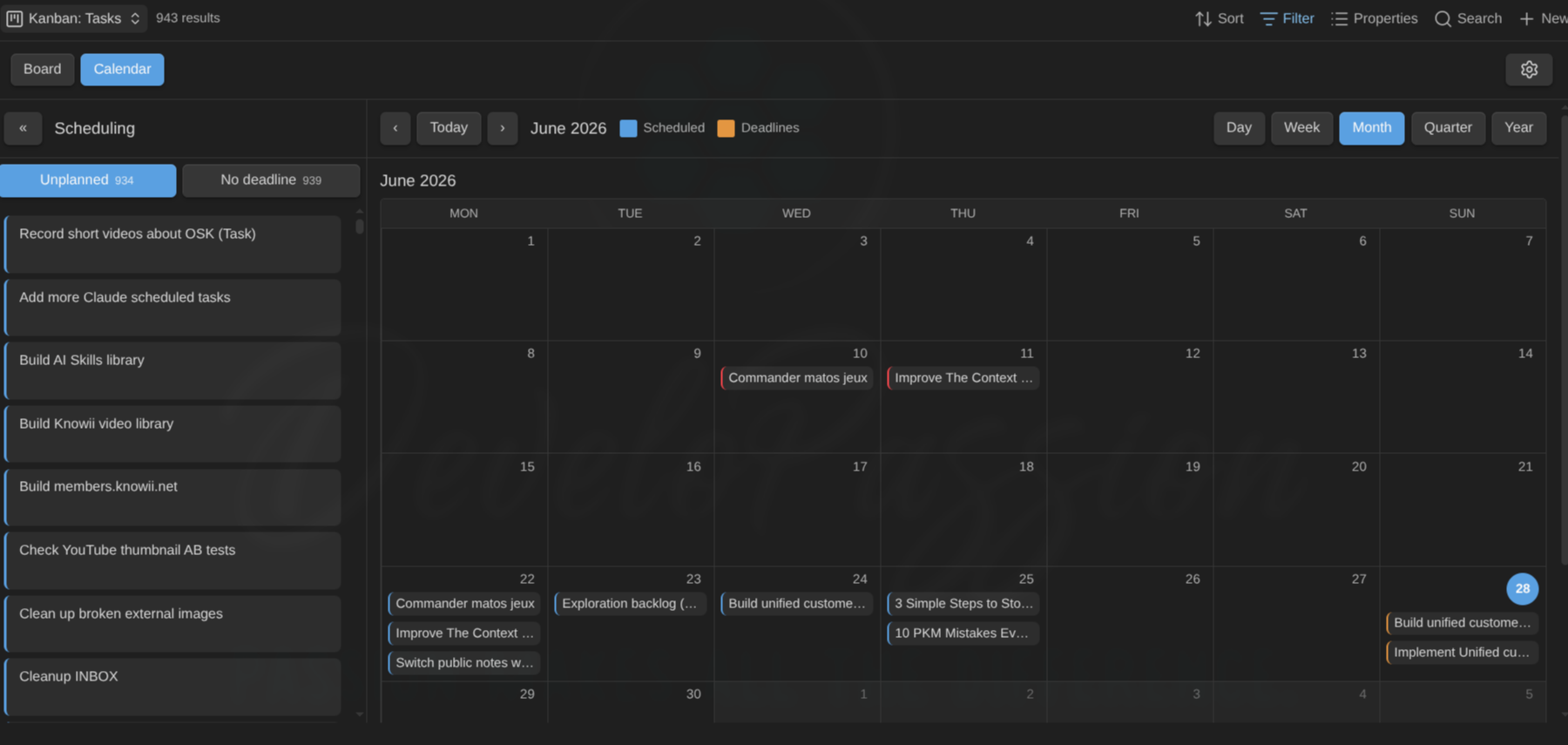
- Calendar mode. Switch a board to a calendar that plots scheduled dates and deadlines together. Drag a card onto a day to schedule it — or right-click any card and type a date in words (
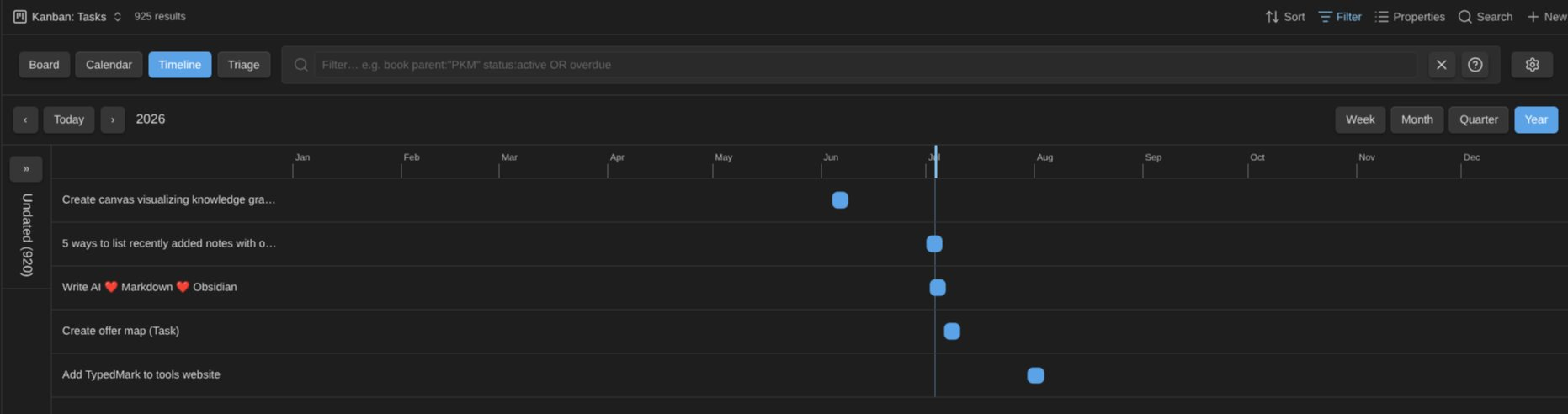
tomorrow,fri,next mon,in 3 days) with a live preview of the day that will be written. - Timeline mode. A Gantt-style view: one row per card placed by its start date and an estimate (days by default; a note type can use its own property and unit — e.g. minutes), milestone diamonds from a configurable list property, and drag-to-reschedule. The Unplanned panel groups cards by note type, then status.
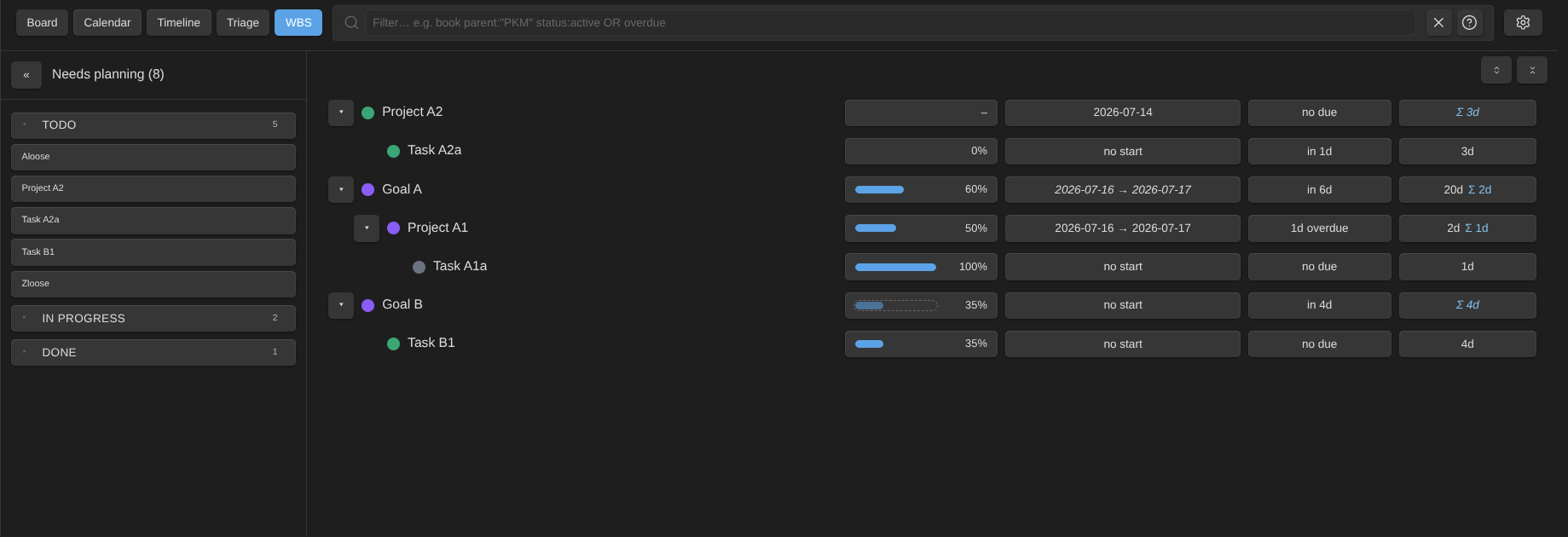
- WBS mode. Break work down as a tree — goals over projects over tasks — with estimates, progress, and dates rolling up the hierarchy, drag re-parenting, and a “Needs planning” backlog. Works on filtered and flat views too: out-of-view ancestors show as context rows, and unlinked notes stay visible as standalone rows.
- Drag between status groups. In every scheduling panel (calendar, timeline, WBS), drop a card onto another status group to change its status in place.
- Archiving. Move a finished note to a placeholder-driven archive folder, manually or automatically when it reaches a chosen status.
- Done state. Per note type, define what “done” means — a property plus the value(s) that count (e.g. the Completed and Done statuses, or a checkbox). Done notes read as 100% complete in WBS progress rollups, even without a progress number.
- Automation rules. Per note type: when a note enters or leaves a status, enters a done state, is archived, or a property crosses a condition (
progress ≥ 100…), set or remove properties (with ``-style placeholders), add or remove tags, or move the note to a placeholder-driven folder. Fires once per transition, from any write path, with no cascades. - WIP limits, multi-select and bulk actions, compact mode, overdue emphasis, hover preview. Soft per-column limits, Shift-click selection with bulk set-status / archive / open, a titles-only compact toggle, red and amber due-date washes, and a native note popover on card hover.
- Colors and per-type card display. Give each status a color (palette or custom, theme-aware), and choose which fields show on cards, per note type.
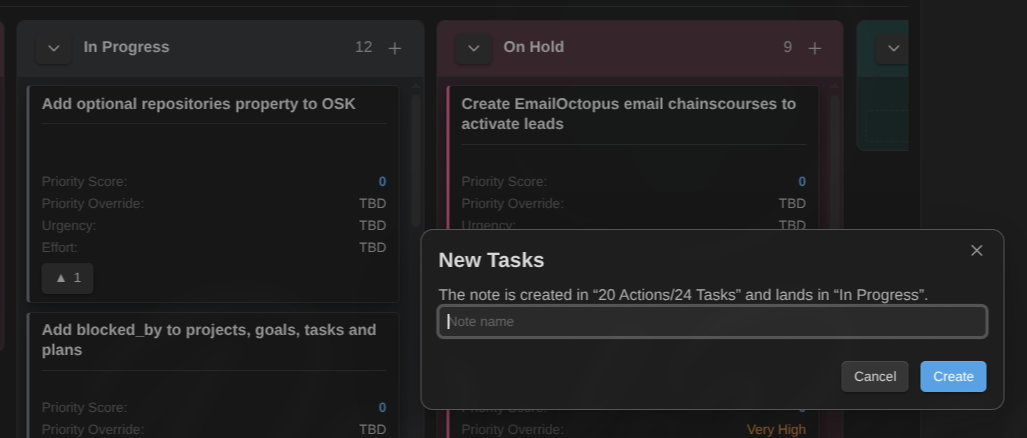
- Quick capture. Every column has a + in its header and an Add card button under its cards. Type a name and the note is created in the right folder, with the right template, and lands in that exact column — including whatever the Base filters on, so the card really does show up. Templates are applied through Templater (before the card’s properties are written, so a template that prompts for a status can’t override the column you clicked).
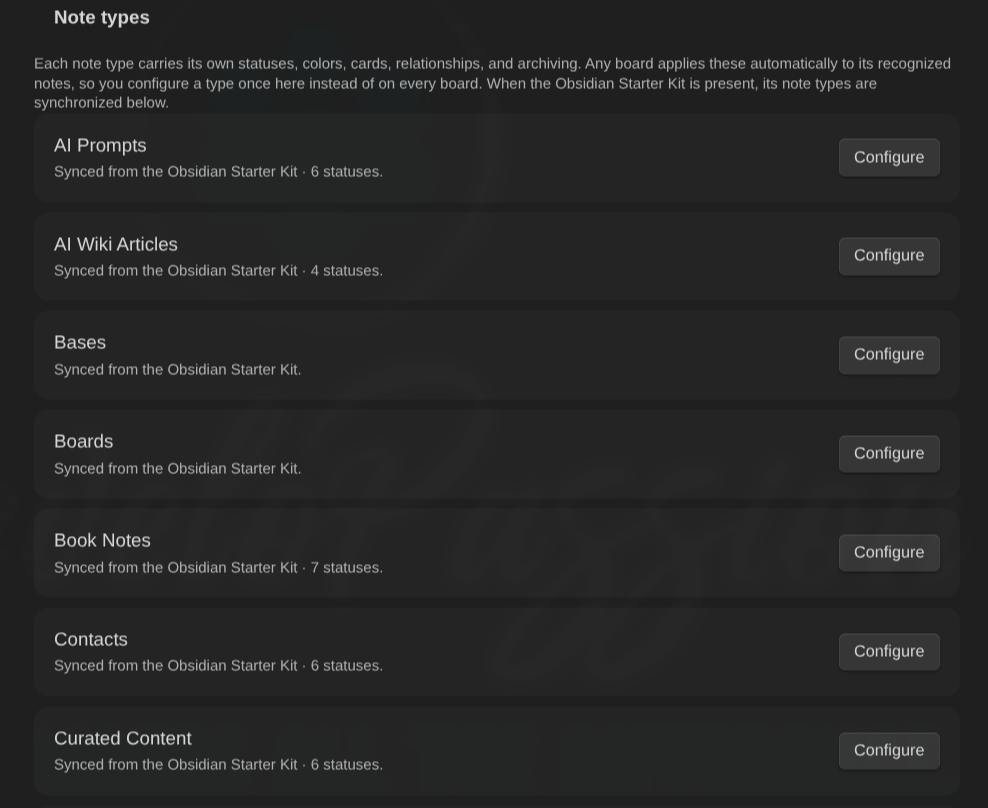
- Obsidian Starter Kit aware. The plugin works fully on its own. The Obsidian Starter Kit is completely optional — but if you use it, the board configures itself: columns, note types, colors per status, lanes on mixed boards, and the folder + template new cards are created with all come from your Starter Kit config, with nothing to set up. Your local choices are stored separately and keep working without it. See how they fit together →
- What’s new after updates. After a plugin update, a one-time tab opens with the release notes you just received, including any versions you skipped. It never appears on fresh installs or regular restarts.
- Everything lives in your notes. Status, order, dates, relationships, and grouping are all written to frontmatter, so your board is just your notes. No lock-in.
Quick Start
- Install and enable the plugin.
- Open or create a Base, then add a view and pick Kanban.
- Give your notes a
statusproperty. Define your columns by listing the status values in Configure view → Statuses (columns) (one per line, e.g.10 Todo,20 Doing,30 Done). You can also set vault-wide Default statuses in the plugin settings, or let the Starter Kit provide them. Until columns are defined, every card sits in Unmapped. - Drag cards between columns to change status, reorder or sort them within a column, and right-click a card for scheduling, archiving, relationships, and more.
About
Created by Sébastien Dubois.
My other Obsidian plugins
| Plugin | What it does |
|---|---|
| Agentic Resource Discovery Server | Local-first Agentic Resource Discovery publisher and registry that serves your AI skills and tools to agents over a local HTTP and MCP server |
| Book Exporter | Export books (one manifest note + linked chapter notes) to EPUB and PDF via Pandoc |
| Bookshelf Base | Display your notes as a visual bookshelf via a custom Bases view |
| Dataview Serializer | Serialize Dataview queries to Markdown, and keep the Markdown representation up to date |
| Expander | Replace variables across your vault using HTML comment markers. Supports static values and dynamic functions |
| Ghost Publish | Publish your vault notes to a Ghost blog with configurable presets for tags, newsletters, and frontmatter conventions |
| Graph Explorer Base View | A custom Bases view that renders notes as an interactive force-directed graph with explored/unexplored tracking |
| Hidden Folders Access | Index hidden root-level folders (e.g. .claude) so they appear in the file tree, metadata cache, and Bases |
| Journal Bases | Custom Base views for journaling and periodic reviews |
| Life Tracker | Capture and visualize the data that matters in your life |
| Note Village | A 2D pixel art village where your notes become villagers you can explore and chat with using AI |
| Obsidian Starter Kit | Adds strong typing support and powerful automation support for notes |
| Remarkable Synchronizer | Connect to the reMarkable cloud, list, download, and sync notebook pages as images |
| Replicate | Use AI models with ease via the Replicate.com integration |
| REST and MCP server | Exposes CLI commands as RESTful API endpoints and an MCP server for AI tool integration |
| Time Machine | Browse, compare, and restore previous versions of your notes using built-in file-recovery snapshots |
| Transcriber | Transcribe images to markdown using Ollama vision models |
| Typefully | Publish social media posts with ease using the Typefully integration |
| Update Time | Automatically update front matter to include creation and last update times |
Everything I build is documented in my newsletter and on my YouTube channel.
News & support
To stay up to date about this plugin, Obsidian in general, Personal Knowledge Management and note-taking:
- Subscribe to my newsletter
- Subscribe to my YouTube channel
- Join the Knowii community and learn to organize your notes and put your knowledge to work, together with fellow knowledge workers
If this plugin is useful to you, here are the best ways to support my work ❤️: